> ## Documentation Index
> Fetch the complete documentation index at: https://docs.m3ter.com/llms.txt
> Use this file to discover all available pages before exploring further.
# Downloading Data Export Files Locally
When a Data Export job has run, you can download the content of a data export file locally. Even if you omit a destination when setting up either an Export schedule or an ad-hoc Export, when the Export job runs and has succeeded a file download button is provided on the Export jobs page.
This topic explains how to download a data export file locally using an example of creating an ad-hoc operational Data Export.
**Notes:**
* **Download Window** The export file is available for 24 hours after the Export job has completed.
* **Using API for Downloading Export File Locally?** You can use the [Get Data Export File Download URL](/api/exportdestination/get-data-export-file-download-url) endpoint to obtain a pre-signed URL that is valid for 15 minutes for downloading a data export file by Export job id.
**To create an ad-hoc Operational Data export for local download:**
1. Select **Data exports**:
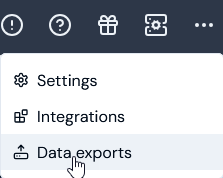 The **Data exports** page opens.
2. On the **Export schedules** panel, select **Run ad-hoc export**. The **Run ad-hoc export** page opens.
3. Follow the steps to configure an ad-hoc data export given in the above [Running Ad-Hoc Operational Data Exports](/guides/data-exports/running-ad-hoc-operational-data-exports) topic, but note that you can omit selection of a **Destination** for the export:
The **Data exports** page opens.
2. On the **Export schedules** panel, select **Run ad-hoc export**. The **Run ad-hoc export** page opens.
3. Follow the steps to configure an ad-hoc data export given in the above [Running Ad-Hoc Operational Data Exports](/guides/data-exports/running-ad-hoc-operational-data-exports) topic, but note that you can omit selection of a **Destination** for the export:
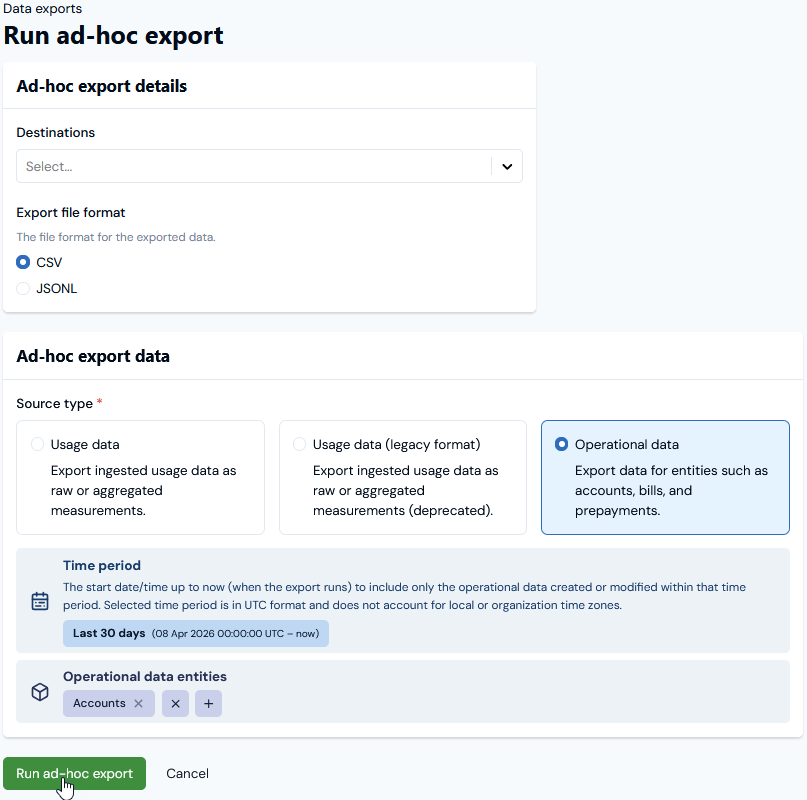 In this example, we've:
* Selected `.CSV` as the export file format.
* Selected to export the operational data for any **Accounts** created or modified in the **Last 30 days**.
4. Select **Run ad-hoc export**. You are returned to the main **Data export** page and a message will appear stating that the Export job has been successfully queued.
5. Open the **Exports job** page:
In this example, we've:
* Selected `.CSV` as the export file format.
* Selected to export the operational data for any **Accounts** created or modified in the **Last 30 days**.
4. Select **Run ad-hoc export**. You are returned to the main **Data export** page and a message will appear stating that the Export job has been successfully queued.
5. Open the **Exports job** page:
 6. When the Export job has run and succeeded, you can use a **Download** button for the export file:
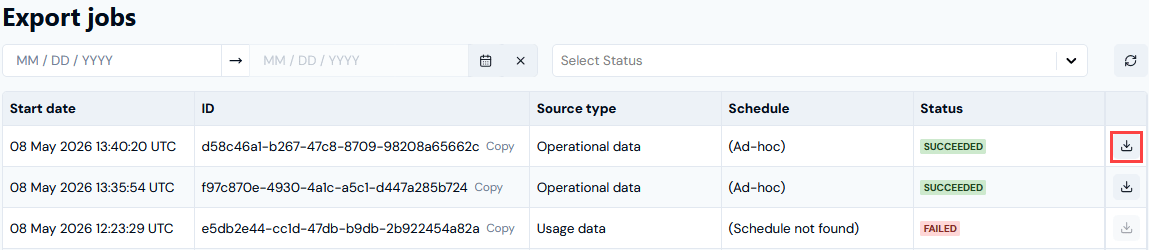 The data export file downloads locally.
**Note: Download Button Inactive for Export Job?** The download button for data export file local download is *only available* on the **Export jobs** page for those Export schedules and ad-hoc Exports which ran *in the past 24 hours*.
The data export file downloads locally.
**Note: Download Button Inactive for Export Job?** The download button for data export file local download is *only available* on the **Export jobs** page for those Export schedules and ad-hoc Exports which ran *in the past 24 hours*.