> ## Documentation Index
> Fetch the complete documentation index at: https://docs.m3ter.com/llms.txt
> Use this file to discover all available pages before exploring further.
# Reviewing Export Jobs
*Export jobs* are created each time a usage or operational data export is due to run under an Export schedule or when you run an ad-hoc data export. You can review and check the status of Export jobs at any time, which are listed on the Export jobs page:
* Read-off job status:
* Pending
* Running
* Succeeded
* Failed
* Filter the list by job status.
* Filter the list by specifying a date range by job start date.
* Download data export files locally.
This topic explains how to review Export jobs for your data exports, check their status, download data export files locally, and follow-up on failed jobs:
* [Reviewing Export Jobs and Checking Status](/guides/data-exports/reviewing-export-jobs#reviewing-export-jobs-and-checking-status)
* [Downloading Data Export Files](/guides/data-exports/reviewing-export-jobs#downloading-data-export-files)
* [Following-Up on Failed Export Jobs](/guides/data-exports/reviewing-export-jobs#following-up-on-failed-export-jobs)
## Reviewing Export Jobs and Checking Status
**To review Export jobs and check their status:**
1. Select **Data exports**:
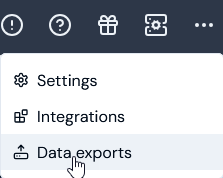 The **Data exports** page opens.
2. In the sidebar, select **Export jobs**:
The **Data exports** page opens.
2. In the sidebar, select **Export jobs**:
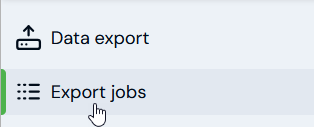 The **Export jobs** page opens and lists all the jobs created for your Export schedules and ad-hoc data exports:
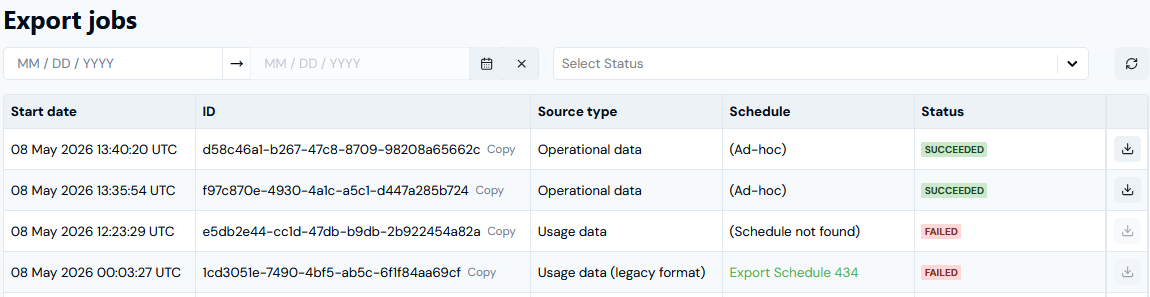 * For each Export job listed, you can read-off:
* The **Start date** and time the export was scheduled to run.
* The Export job **ID**, which you can **Copy** directly to your clipboard.
* The **Source type** for the Export job.
* Under **Schedule**, whether the job was created for an Export schedule or for an ad-hoc export.
* The job **Status**.
* You can open the **Details** page for an Export schedule using the **Schedule** hotlink text.
**Notes:**
**Schedule not showing?** If you delete an Export Schedule after an Export job has been run for the schedule, then **(Schedule not found)** will show under **Schedule**.
* **Follow-up on Failed Export jobs?** You can make an API call to retrieve details of failed Export jobs - see the [section below](/guides/data-exports/reviewing-export-jobs#following-up-on-failed-export-jobs) for how to do this.
3. Export jobs with any **Status** are listed by default when the page opens. If you want to filter the list, use the **Status** drop-down:
* For each Export job listed, you can read-off:
* The **Start date** and time the export was scheduled to run.
* The Export job **ID**, which you can **Copy** directly to your clipboard.
* The **Source type** for the Export job.
* Under **Schedule**, whether the job was created for an Export schedule or for an ad-hoc export.
* The job **Status**.
* You can open the **Details** page for an Export schedule using the **Schedule** hotlink text.
**Notes:**
**Schedule not showing?** If you delete an Export Schedule after an Export job has been run for the schedule, then **(Schedule not found)** will show under **Schedule**.
* **Follow-up on Failed Export jobs?** You can make an API call to retrieve details of failed Export jobs - see the [section below](/guides/data-exports/reviewing-export-jobs#following-up-on-failed-export-jobs) for how to do this.
3. Export jobs with any **Status** are listed by default when the page opens. If you want to filter the list, use the **Status** drop-down:
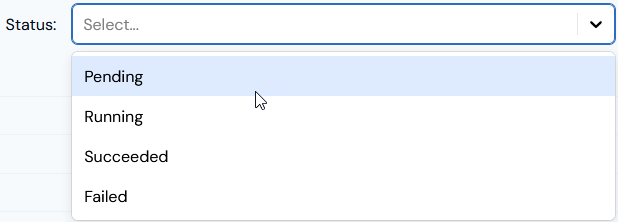 The page adjusts to show only those Export jobs with the selected **Status**.
3. Export jobs for any **Start date** are listed by default when the page opens, and ordered by timestamp with most recent job first. Use the **Start date** popup calendars to define a date range to filter the list to show only those Export jobs with a start date within the date range.
## Downloading Data Export Files
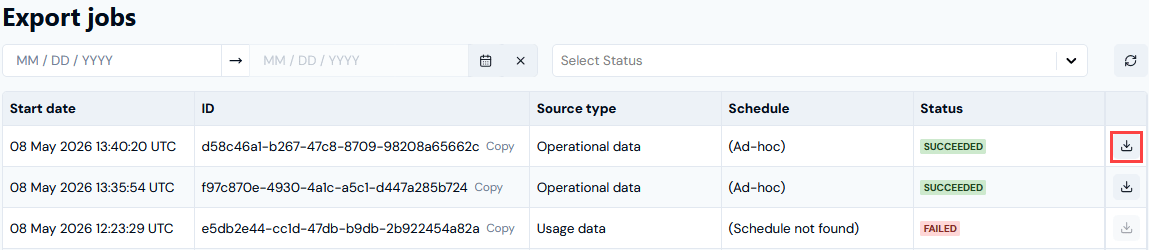
On the **Export jobs** page, an *active download button* will be available for downloading the export file locally for an Export job that has succeeded for an Export schedule or ad-hoc Export *within the past 24 hours*.
To download the data export file locally, simply select the active download button:
The page adjusts to show only those Export jobs with the selected **Status**.
3. Export jobs for any **Start date** are listed by default when the page opens, and ordered by timestamp with most recent job first. Use the **Start date** popup calendars to define a date range to filter the list to show only those Export jobs with a start date within the date range.
## Downloading Data Export Files
On the **Export jobs** page, an *active download button* will be available for downloading the export file locally for an Export job that has succeeded for an Export schedule or ad-hoc Export *within the past 24 hours*.
To download the data export file locally, simply select the active download button:
 **Tip: More Details?** See [Downloading Data Export Files Locally](/guides/data-exports/downloading-data-export-files-locally).
## Following-Up on Failed Export Jobs
You can use the [List EventResponse](/api/events/list-eventresponse) API call to query for any events of type `dataexport.job.failure`.
For example:
`GET https://api.m3ter.com/organizations/{orgId}/events?eventName=dataexport.job.failure`
The response gives details of the Export job failure event:
```json theme={null}
{
"data": [
{
"id": "3bffe288-f04e-4a6f-8d0b-39c616faxyxy",
"eventName": "dataexport.job.failure",
"eventTime": "2024-10-28T10:02:23.892Z",
"m3terEvent": {
"eventData": {
"jobId": "dc83dec1-94af-4611-b532-fd778b83xy99",
"code": "NoSuchBucket",
"sourceType": "USAGE",
"startedAt": "2024-10-28T10:02:23.614Z",
"eventType": "DataExportJobFailure",
"orgId": "eb4d6f1e-0795-484e-a0b8-3640ca22xyxy",
"scheduleId": "ed1f2303-87b3-4b43-bc27-0b6d70axyx0xa"
},
"eventTime": "2024-10-28T10:02:23.892Z",
"eventName": "dataexport.job.failure"
}
},
...
]
```
**Tip: More Details?** See [Downloading Data Export Files Locally](/guides/data-exports/downloading-data-export-files-locally).
## Following-Up on Failed Export Jobs
You can use the [List EventResponse](/api/events/list-eventresponse) API call to query for any events of type `dataexport.job.failure`.
For example:
`GET https://api.m3ter.com/organizations/{orgId}/events?eventName=dataexport.job.failure`
The response gives details of the Export job failure event:
```json theme={null}
{
"data": [
{
"id": "3bffe288-f04e-4a6f-8d0b-39c616faxyxy",
"eventName": "dataexport.job.failure",
"eventTime": "2024-10-28T10:02:23.892Z",
"m3terEvent": {
"eventData": {
"jobId": "dc83dec1-94af-4611-b532-fd778b83xy99",
"code": "NoSuchBucket",
"sourceType": "USAGE",
"startedAt": "2024-10-28T10:02:23.614Z",
"eventType": "DataExportJobFailure",
"orgId": "eb4d6f1e-0795-484e-a0b8-3640ca22xyxy",
"scheduleId": "ed1f2303-87b3-4b43-bc27-0b6d70axyx0xa"
},
"eventTime": "2024-10-28T10:02:23.892Z",
"eventName": "dataexport.job.failure"
}
},
...
]
```