> ## Documentation Index
> Fetch the complete documentation index at: https://docs.m3ter.com/llms.txt
> Use this file to discover all available pages before exploring further.
# Working in Account Overview
When you first open an Account page, the *Overview* tab is selected. From here, you can quickly review key aspects of the current setup and state of the Account:
* The latest Bills for the Account are listed and you can view charts that track revenue, billed usage data, and billed recurring charges data for the service period covered by the latest Bills.
* Linked entities on the Account are listed and you can review and manage these directly from the tab:
* Prepayments
* Attached Plans
* Contracts
* Charges
* Account usage by selected Aggregation.
* Metadata for any Custom Fields, External Mappings, or Integrations runs linked to the Account are shown.
This topic explains how to work in the Account Overview tab to review latest Bills on an Account and review and manage linked entities on an Account:
* [Reviewing Latest Bills on Accounts](/guides/end-customer-accounts/working-in-account-overview#reviewing-latest-bills-on-account)
* [Reviewing Linked Account Entities](/guides/end-customer-accounts/working-in-account-overview#reviewing-linked-account-entities)
* [Checking Account Usage](#checking-account-usage)
* [Reviewing Account Metadata](/guides/end-customer-accounts/working-in-account-overview#reviewing-account-metadata)
## Reviewing Latest Bills on Account
When you open an Account's **Overview** tab, on the **Latest bills** card the latest ten Bills for the Account are listed ordered by Bill date with the most recent Bill at the top:
* A chart tracking revenue for the **Latest bills** is also loaded:
 * Hover over a Bill date to check the **Total billed** amount.
* If you want to review all Bills for the Account, select **View all**. The Account **Bills** tab opens.
You can also bring up billed quantities charts for **Latest bills**. These show the quantities used for billed amounts - either for usage charges by an Aggregation used to price Account Plans or for recurring charges by a Counter used to price Account Plans.
* For the **Billed usage** chart, select an **Aggregation**:
* Hover over a Bill date to check the **Total billed** amount.
* If you want to review all Bills for the Account, select **View all**. The Account **Bills** tab opens.
You can also bring up billed quantities charts for **Latest bills**. These show the quantities used for billed amounts - either for usage charges by an Aggregation used to price Account Plans or for recurring charges by a Counter used to price Account Plans.
* For the **Billed usage** chart, select an **Aggregation**:
 * The usage data measures used for billed usage are loaded into the chart, and you can hover over a data point to read-off a specific measure:
 * For the **Billed recurring charges** chart, select a **Counter**:
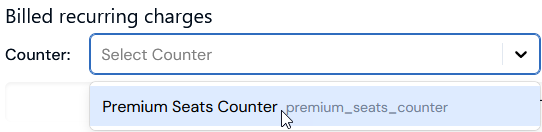 * The Counter values used for billed recurring charges are loaded into the chart, and you can hover over a data point to read-off a specific value:
 * Note that the same zoom controls and download functions available on the revenue tracker chart are available on these billed quantities charts also.
**Tip: Charts not Showing?** There are cases where charts will not show on the Account Overview tab:
* The revenue tracking chart for an Account's **Latest bills** will not show if the Bills listed are in mixed currencies.
* The **Billed usage** and **Billed recurring charges** charts will not show if all of the Account's **Latest bills** are made up of standing charge, minimum spend, Prepayment fees, or Balance draw-down charge line items, since non of these charges are based on aggregated usage measures or Counter values.
## Reviewing Linked Account Entities
When you scroll down the **Overview** tab, you can review and manage entities linked to the Account:
* [Reviewing Prepayments](#reviewing-prepayments)
* [Reviewing Attached Plans](#reviewing-attached-plans)
* [Reviewing Contracts](#reviewing-contracts)
* [Reviewing Charges](#reviewing-charges)
### Reviewing Prepayments
The **Active and pending prepayments** card lists any Prepayments created for the Account:
* You can manage any of the Prepayments listed directly from here:
* Select the hotlink text of a Prepayment to open the **Prepayment details** page. See [Viewing Prepayment Details](/guides/end-customer-accounts/creating-prepayments-for-accounts#viewing-prepayment-details).
* Duplicate a Prepayment for the Account. See [Duplicating Prepayments](/guides/end-customer-accounts/creating-prepayments-for-accounts#duplicating-prepayments).
* **Edit** or **Delete** a Prepayment.
* If you want to add a new Prepayment to the Account, select **Create prepayment**. The **Prepayments>Create** page opens for the Account. See [Creating Prepayments for Accounts](/guides/end-customer-accounts/creating-prepayments-for-accounts).
* If you want to go to the **Account>Prepayments tab**, select **View all**.
### Reviewing Attached Plans
The **Active and pending attached plans** card lists any Plans attached to the Account:
* You can manage any of the attached Account Plans listed directly from here:
* Select the hotlink text of an attached Plan to open the **Plan attachment** page and review the Account Plan details.
* **Edit** or **Delete** an attached Account Plan.
* If you want attach another Plan to the Account, select **Create plan attachment**. The **Attached plans>Create** page opens. See [Attaching Plans to an Account](/guides/end-customer-accounts/attaching-plans-to-an-account).
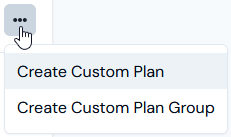
* If you want to create a custom Account Plan or custom Account Plan Group for the Account, use the three-dot menu at top-right. The **Attached plans>Create** page opens. See [Creating Custom Plans for Accounts](/guides/end-customer-accounts/creating-custom-account-plans) or [Creating Custom Plan Groups for Accounts](/guides/end-customer-accounts/creating-custom-plan-groups-for-accounts):
* Note that the same zoom controls and download functions available on the revenue tracker chart are available on these billed quantities charts also.
**Tip: Charts not Showing?** There are cases where charts will not show on the Account Overview tab:
* The revenue tracking chart for an Account's **Latest bills** will not show if the Bills listed are in mixed currencies.
* The **Billed usage** and **Billed recurring charges** charts will not show if all of the Account's **Latest bills** are made up of standing charge, minimum spend, Prepayment fees, or Balance draw-down charge line items, since non of these charges are based on aggregated usage measures or Counter values.
## Reviewing Linked Account Entities
When you scroll down the **Overview** tab, you can review and manage entities linked to the Account:
* [Reviewing Prepayments](#reviewing-prepayments)
* [Reviewing Attached Plans](#reviewing-attached-plans)
* [Reviewing Contracts](#reviewing-contracts)
* [Reviewing Charges](#reviewing-charges)
### Reviewing Prepayments
The **Active and pending prepayments** card lists any Prepayments created for the Account:
* You can manage any of the Prepayments listed directly from here:
* Select the hotlink text of a Prepayment to open the **Prepayment details** page. See [Viewing Prepayment Details](/guides/end-customer-accounts/creating-prepayments-for-accounts#viewing-prepayment-details).
* Duplicate a Prepayment for the Account. See [Duplicating Prepayments](/guides/end-customer-accounts/creating-prepayments-for-accounts#duplicating-prepayments).
* **Edit** or **Delete** a Prepayment.
* If you want to add a new Prepayment to the Account, select **Create prepayment**. The **Prepayments>Create** page opens for the Account. See [Creating Prepayments for Accounts](/guides/end-customer-accounts/creating-prepayments-for-accounts).
* If you want to go to the **Account>Prepayments tab**, select **View all**.
### Reviewing Attached Plans
The **Active and pending attached plans** card lists any Plans attached to the Account:
* You can manage any of the attached Account Plans listed directly from here:
* Select the hotlink text of an attached Plan to open the **Plan attachment** page and review the Account Plan details.
* **Edit** or **Delete** an attached Account Plan.
* If you want attach another Plan to the Account, select **Create plan attachment**. The **Attached plans>Create** page opens. See [Attaching Plans to an Account](/guides/end-customer-accounts/attaching-plans-to-an-account).
* If you want to create a custom Account Plan or custom Account Plan Group for the Account, use the three-dot menu at top-right. The **Attached plans>Create** page opens. See [Creating Custom Plans for Accounts](/guides/end-customer-accounts/creating-custom-account-plans) or [Creating Custom Plan Groups for Accounts](/guides/end-customer-accounts/creating-custom-plan-groups-for-accounts):
 * If you want to go to the **Account>Attached plans tab**, select **View all**.
### Reviewing Contracts
The **Active and pending contracts** card lists any Contracts added to the Account:
* You can manage any of the Contracts listed:
* Select the hotlink text of a Contract to open the **Contract Details** page.
* **Edit** a Contract or **Delete** a Contract from the Account.
* If you want to add a new Contract to the Account, select **Create contract**. The **Contracts>Create** page opens for the Account. See [Creating Contracts for Accounts](/guides/end-customer-accounts/creating-contracts-for-accounts).
* If you want to go to the **Account>Contracts** tab, select **View all**.
### Reviewing Charges
The **Charges** card lists any Charges created for the Account:
* You can manage any of the Charges listed:
* Select the hotlink text of a Charge to open the **Charge details** page.
* **Edit** a Charge or **Delete** a Charge from the Account.
* If you want to add a Charge to the Account, select **Create charge**. The **Charges>Create** page opens. See [Creating Charges for Accounts](/guides/end-customer-accounts/creating-charges-for-accounts).
* If you want to go to the **Account>Charges** tab, select **View all**.
## Checking Account Usage
On the **Usage** panel, you can select a simple, non-segmented Aggregation to open a chart tracking Account usage:
* If you want to go to the **Account>Attached plans tab**, select **View all**.
### Reviewing Contracts
The **Active and pending contracts** card lists any Contracts added to the Account:
* You can manage any of the Contracts listed:
* Select the hotlink text of a Contract to open the **Contract Details** page.
* **Edit** a Contract or **Delete** a Contract from the Account.
* If you want to add a new Contract to the Account, select **Create contract**. The **Contracts>Create** page opens for the Account. See [Creating Contracts for Accounts](/guides/end-customer-accounts/creating-contracts-for-accounts).
* If you want to go to the **Account>Contracts** tab, select **View all**.
### Reviewing Charges
The **Charges** card lists any Charges created for the Account:
* You can manage any of the Charges listed:
* Select the hotlink text of a Charge to open the **Charge details** page.
* **Edit** a Charge or **Delete** a Charge from the Account.
* If you want to add a Charge to the Account, select **Create charge**. The **Charges>Create** page opens. See [Creating Charges for Accounts](/guides/end-customer-accounts/creating-charges-for-accounts).
* If you want to go to the **Account>Charges** tab, select **View all**.
## Checking Account Usage
On the **Usage** panel, you can select a simple, non-segmented Aggregation to open a chart tracking Account usage:
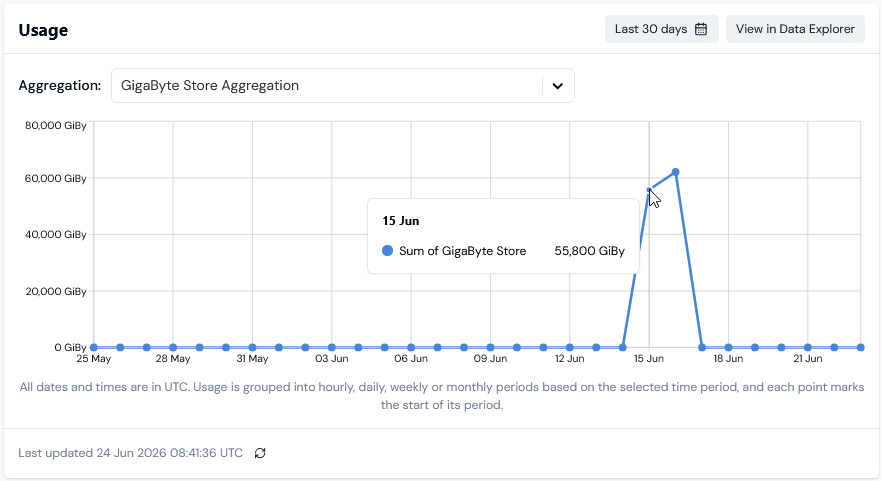 * You can hover a data point to read-off the value.
* If additional usage is ingested into the system during the selected time period for the Meter the selected Aggregation targets and while you are viewing the chart, the chart will automatically update.
* You can manually refresh the chart at any time using the button against the **Last updated** date/time stamp:
* You can hover a data point to read-off the value.
* If additional usage is ingested into the system during the selected time period for the Meter the selected Aggregation targets and while you are viewing the chart, the chart will automatically update.
* You can manually refresh the chart at any time using the button against the **Last updated** date/time stamp:
 The default time period for usage to be shown is **Last 30 days** but you can select a different time period either before you select an Aggregation or after the chart has loaded:
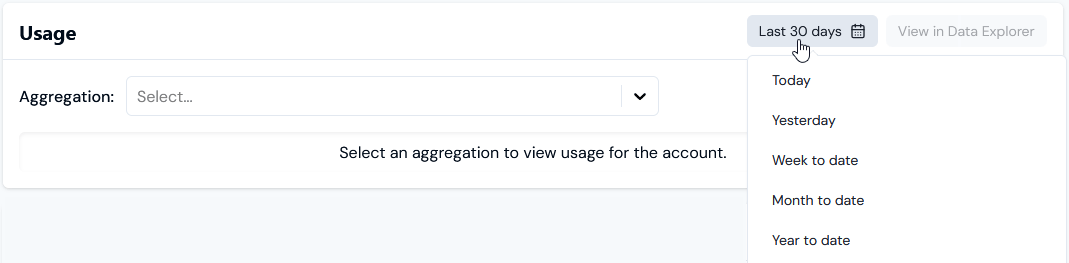 Options are:
* **Today** or **Yesterday**
* **Week**, **Month**, or **Year to date**
* **Previous week**, **month**, **quarter**, or **year**
* **Last 12 hours**
* **Last 7**, **30**, **35**, **90**, or **120 days**
* **Last year**
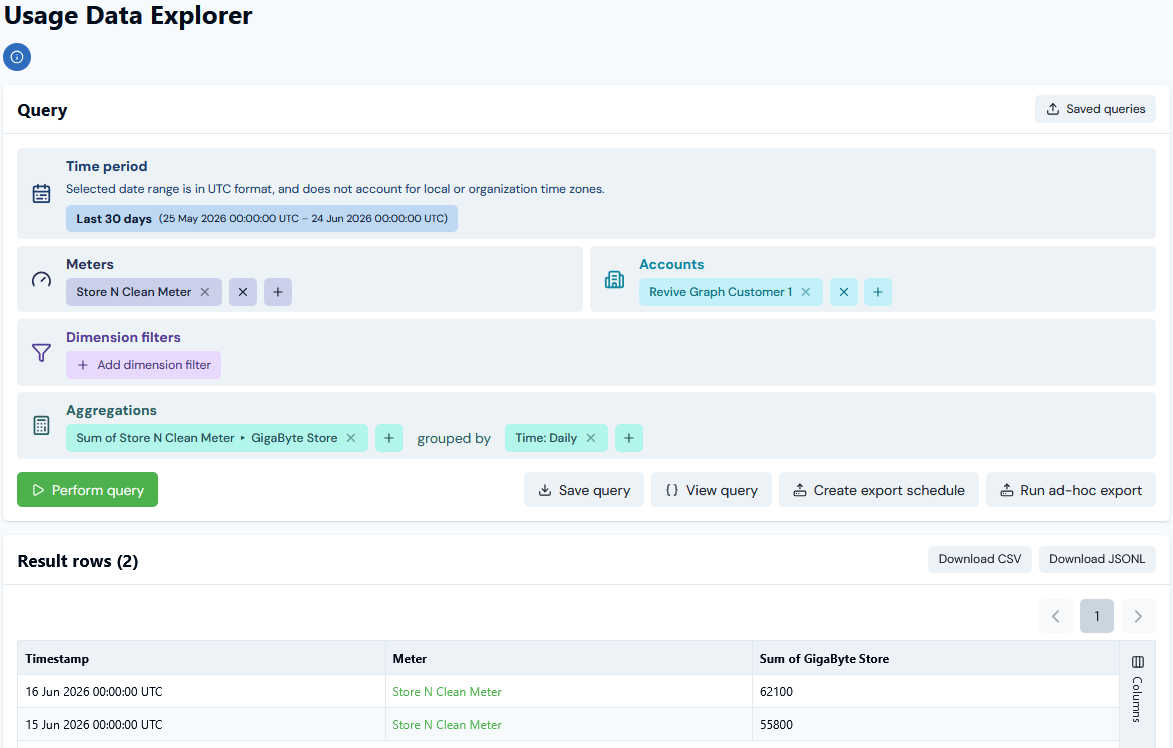
If you want to review the ingested usage data directly, you can select **View in Data Explorer**. The **Usage Data Explorer** opens and runs a query for the Account against the Meter the selected Aggregation targets and for the selected time period - for the current example:
Options are:
* **Today** or **Yesterday**
* **Week**, **Month**, or **Year to date**
* **Previous week**, **month**, **quarter**, or **year**
* **Last 12 hours**
* **Last 7**, **30**, **35**, **90**, or **120 days**
* **Last year**
If you want to review the ingested usage data directly, you can select **View in Data Explorer**. The **Usage Data Explorer** opens and runs a query for the Account against the Meter the selected Aggregation targets and for the selected time period - for the current example:
 ## Reviewing Account Metadata
When you scroll down the **Overview** tab, you can review **Account metadata**:
**Custom fields**. Any Custom Fields created for the Account are listed:
## Reviewing Account Metadata
When you scroll down the **Overview** tab, you can review **Account metadata**:
**Custom fields**. Any Custom Fields created for the Account are listed:
 * You can **Copy** the *String* or *Number* value of a Custom Field to your clipboard. See [Working with Custom Fields](/guides/creating-and-managing-products/working-with-custom-fields) for more details.
**External mappings**. Any existing mappings created for the Account are listed:
* You can **Copy** the *String* or *Number* value of a Custom Field to your clipboard. See [Working with Custom Fields](/guides/creating-and-managing-products/working-with-custom-fields) for more details.
**External mappings**. Any existing mappings created for the Account are listed:
 * For each mapping, the **External system** and **External table** mapped to are shown. The **External entity ID** mapped to is also shown.
* If a listed External mapping is linked to an Integration, under **Linked integration** a hotlink text will be shown which you can use to open the Integration.
* Under **Actions**, you can edit or delete the External mapping.
* If the Account has multiple External mappings created for it, you can use *Search external mappings* to search by **External table** and **External entity ID** and filter the list.
* You can commence a workflow to **Create external mapping** for the Account directly - see [Creating and Managing External Mappings for Accounts](/guides/end-customer-accounts/creating-and-managing-external-mappings-for-accounts) for an example.
**Integration runs**. If you've set up an integration that synchronizes the Account with an external system, the date/time and status of the **Latest** integration run are shown. You can use a text hotlink to open details of this latest run or **View all runs**. See [Reviewing Integration Run Details](/guides/integrations/setting-up-integrations/reviewing-integration-run-details).
* For each mapping, the **External system** and **External table** mapped to are shown. The **External entity ID** mapped to is also shown.
* If a listed External mapping is linked to an Integration, under **Linked integration** a hotlink text will be shown which you can use to open the Integration.
* Under **Actions**, you can edit or delete the External mapping.
* If the Account has multiple External mappings created for it, you can use *Search external mappings* to search by **External table** and **External entity ID** and filter the list.
* You can commence a workflow to **Create external mapping** for the Account directly - see [Creating and Managing External Mappings for Accounts](/guides/end-customer-accounts/creating-and-managing-external-mappings-for-accounts) for an example.
**Integration runs**. If you've set up an integration that synchronizes the Account with an external system, the date/time and status of the **Latest** integration run are shown. You can use a text hotlink to open details of this latest run or **View all runs**. See [Reviewing Integration Run Details](/guides/integrations/setting-up-integrations/reviewing-integration-run-details).