> ## Documentation Index
> Fetch the complete documentation index at: https://docs.m3ter.com/llms.txt
> Use this file to discover all available pages before exploring further.
# m3ter Console
The m3ter Console is designed to facilitate setting up and configuring your Organization to implement usage-based and unit-based pricing for the products and services you offer to your customers. The following video offers a quick walk through orientation of the m3ter Console:
Review this topic for guidance and pointers on the layout and features you'll find in the Console and to help familiarize yourself with the m3ter Console before you move on to setting up and managing your m3ter Organization:
* [Working in the Dashboard](/guides/getting-started/working-in-the-m3ter-console#working-in-the-dashboard)
* [Usability Features](/guides/getting-started/working-in-the-m3ter-console#usability-features)
* [Navigating the Console](/guides/getting-started/working-in-the-m3ter-console#navigating-the-console)
* [Help Links](#help-links)
* [Tooltips](/guides/getting-started/working-in-the-m3ter-console#tooltips)
* [Reviewing Entity Metadata](/guides/getting-started/working-in-the-m3ter-console#reviewing-entity-metadata)
* [Tracking User Activity in your Organization](/guides/getting-started/working-in-the-m3ter-console#tracking-user-activity-in-your-organization)
* [Switching Organization](/guides/getting-started/working-in-the-m3ter-console#switching-organization)
* [Checking Service Status](/guides/getting-started/working-in-the-m3ter-console#checking-service-status)
* [Editing User Profile and Logging Out](/guides/getting-started/working-in-the-m3ter-console#editing-user-profile-and-logging-out)
## Working in the Dashboard
When you first log in to the m3ter Console, the *Dashboard* opens:
 From the **Dashboard**, you can:
* Use the **Recent Accounts** panel to track Accounts you've worked with in your recent sessions in the Console - as you start to create and configure Accounts for your Organization, these will be added. The most recently visited Account appears at the top of the list, and you can select the **NAME** hotlink text to re-open the details page of an Account.
* Review **Your Alerts** for your Organization. Select **View All** to open the main **Alerts** page. For more details, see [Viewing and Managing Alerts](/guides/alerts-events-and-notifications/viewing-and-managing-alerts).
## Usability Features
Several usability features are available as you navigate the main pages of the Console:
* Select your **User** icon at top-right:
From the **Dashboard**, you can:
* Use the **Recent Accounts** panel to track Accounts you've worked with in your recent sessions in the Console - as you start to create and configure Accounts for your Organization, these will be added. The most recently visited Account appears at the top of the list, and you can select the **NAME** hotlink text to re-open the details page of an Account.
* Review **Your Alerts** for your Organization. Select **View All** to open the main **Alerts** page. For more details, see [Viewing and Managing Alerts](/guides/alerts-events-and-notifications/viewing-and-managing-alerts).
## Usability Features
Several usability features are available as you navigate the main pages of the Console:
* Select your **User** icon at top-right:
 * This opens a **User Profile** menu, where you can switch to use either **Light/Dark** mode:
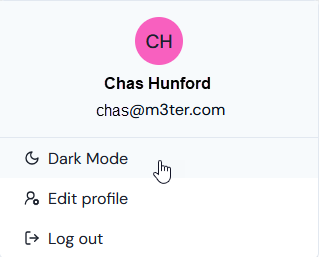 * Open a **Running Tasks** panel, which allows you to track the progress of any tasks, such a billing runs:
 * Check out **What's New** in the Product:
 ## Navigating the Console
The m3ter Console is broken down into sections designed to support and optimize your configuration and operational workflows when setting up and managing your Organization for metered pricing and billing. You can open sections from the top navigation - for example the **Metering** section:
## Navigating the Console
The m3ter Console is broken down into sections designed to support and optimize your configuration and operational workflows when setting up and managing your Organization for metered pricing and billing. You can open sections from the top navigation - for example the **Metering** section:
 Use the **Expand** icon at bottom-left:
 This opens a section's **Nav** panel for the pages available in the section:
 Use the **Collapse** icon if required to hide the section **Nav** panel:
 ### Using Sections
Here's a summary of the main tasks and operations available in each of the main sections.
#### Settings
### Using Sections
Here's a summary of the main tasks and operations available in each of the main sections.
#### Settings
 * Manage your m3ter Organization, its Users and their access:
* Configure and manage your m3ter **Organization**.
* Create and manage **Users** and **User Groups** for the people and teams you want to grant access to your Organization.
* Create and manage **Service Users** for the automated processes that you want grant access to your Organization.
* Create and manage **Permission Policies** to closely control what Users can do when they are given access to your Organization.
* Invite Users and grant them time-bound access with appropriate permissions when they accept the invitation.
* Grant m3ter Support access if you require Help troubleshooting and resolving any issues that have arose.
#### Products
* Manage your m3ter Organization, its Users and their access:
* Configure and manage your m3ter **Organization**.
* Create and manage **Users** and **User Groups** for the people and teams you want to grant access to your Organization.
* Create and manage **Service Users** for the automated processes that you want grant access to your Organization.
* Create and manage **Permission Policies** to closely control what Users can do when they are given access to your Organization.
* Invite Users and grant them time-bound access with appropriate permissions when they accept the invitation.
* Grant m3ter Support access if you require Help troubleshooting and resolving any issues that have arose.
#### Products
 * Create and configure Products to represent the products and services you offer to your customers.
#### Metering
* Create and configure Products to represent the products and services you offer to your customers.
#### Metering
 * Create **Meters**, **Aggregations**, and **Compound Aggregations** to collect usage data and aggregate that usage data into specific usage measurements to use as pricing metrics to apply usage-based pricing to your **Product Plans**.
* Create **Counters** to use as pricing metrics to apply unit-based pricing to your **Product Plans**. Use Counters to define unit quantities on end-customer **Accounts**.
* Review **Ingest Events** to check for validation errors logged for usage data measurement submissions.
* Open a **Usage Data Explorer** to query for ingested usage data and review and check query results.
#### Pricing
* Create **Meters**, **Aggregations**, and **Compound Aggregations** to collect usage data and aggregate that usage data into specific usage measurements to use as pricing metrics to apply usage-based pricing to your **Product Plans**.
* Create **Counters** to use as pricing metrics to apply unit-based pricing to your **Product Plans**. Use Counters to define unit quantities on end-customer **Accounts**.
* Review **Ingest Events** to check for validation errors logged for usage data measurement submissions.
* Open a **Usage Data Explorer** to query for ingested usage data and review and check query results.
#### Pricing
 * Set up **Plan Templates** and **Plans** to control billing operations and to use for pricing your **Products**.
* In the **Pricing Editor**
* Add **Aggregations** to apply precise usage-based pricing to your **Plans**.
* Add **Counters** to apply unit-based pricing to your **Plans**.
#### Accounts
* Set up **Plan Templates** and **Plans** to control billing operations and to use for pricing your **Products**.
* In the **Pricing Editor**
* Add **Aggregations** to apply precise usage-based pricing to your **Plans**.
* Add **Counters** to apply unit-based pricing to your **Plans**.
#### Accounts
 * Create and manage **Accounts** for end-customers who purchase your Products.
* Attach one or more priced **Plans** to an **Account** for each of the **Products** an end customer consumes.
* Open a **Prepayments Data Explorer** to query against and review Prepayments/Commitments data for your Organization.
#### Integrations
* Create and manage **Accounts** for end-customers who purchase your Products.
* Attach one or more priced **Plans** to an **Account** for each of the **Products** an end customer consumes.
* Open a **Prepayments Data Explorer** to query against and review Prepayments/Commitments data for your Organization.
#### Integrations
 * Create and manage integrations for your m3ter Organization with 3rd-party systems.
#### Billing
* Create and manage integrations for your m3ter Organization with 3rd-party systems.
#### Billing
 * Run, view, and manage the **Bills** generated for your customer **Accounts**.
* Open a **Billing Data Explorer** to query against and review billing data for your Organization.
#### Alerts and Notifications
* Run, view, and manage the **Bills** generated for your customer **Accounts**.
* Open a **Billing Data Explorer** to query against and review billing data for your Organization.
#### Alerts and Notifications
 * Review and manage System Alerts, which are automatically generated for your m3ter Organization, informing you about key events and notifying you of any issues or errors.
* Define and deploy Notifications triggered by Events in your m3ter production environment and sent out to webhooks for pushing through to your external 3rd-party systems.
#### Data Exports
* Review and manage System Alerts, which are automatically generated for your m3ter Organization, informing you about key events and notifying you of any issues or errors.
* Define and deploy Notifications triggered by Events in your m3ter production environment and sent out to webhooks for pushing through to your external 3rd-party systems.
#### Data Exports
 * The m3ter *Data Export* service allows you to export usage data and operational data from your m3ter Organization directly into your AWS S3 or Google Cloud Storage buckets.
* Please note that the Data Export feature is currently available only in Preview release version. If not yet enabled for your Organization, this menu option will be grayed out. If you're interested in previewing the Data Export feature, please get in touch with m3ter Support or your m3ter contact.
## Help Links
Open a **Help** panel for links to help resources:
* The m3ter *Data Export* service allows you to export usage data and operational data from your m3ter Organization directly into your AWS S3 or Google Cloud Storage buckets.
* Please note that the Data Export feature is currently available only in Preview release version. If not yet enabled for your Organization, this menu option will be grayed out. If you're interested in previewing the Data Export feature, please get in touch with m3ter Support or your m3ter contact.
## Help Links
Open a **Help** panel for links to help resources:
 #### **Documentation - Search and AI Assistant**
* Select **Documentation** to search our comprehensive User and API Reference documentation. Enter a **Search** term and then select to open a specific page from the returned search results:
#### **Documentation - Search and AI Assistant**
* Select **Documentation** to search our comprehensive User and API Reference documentation. Enter a **Search** term and then select to open a specific page from the returned search results:
 * **Documentation AI**. Select **Ask AI**. An **AI Assistant** panel opens at the right-hand side and you can enter a question, for example:
 * When possible, the **AI Assistant** provides an answer together with links to any relevant available documentation topics for further details.
#### **Support**
Open the login page for our web ticketing Support portal.
#### **Service status**
Open a page to check the operational status of the m3ter platform's Config and Ingest API services. See below: [Checking Service Status](/guides/getting-started/working-in-the-m3ter-console#checking-service-status) for more details.
#### **Product roadmap**
Open a Product Portal page where you can review our roadmap of new features and capabilities planned for the m3ter Platform. You can also submit any ideas or suggestions for new features directly to us from here.
## Tooltips
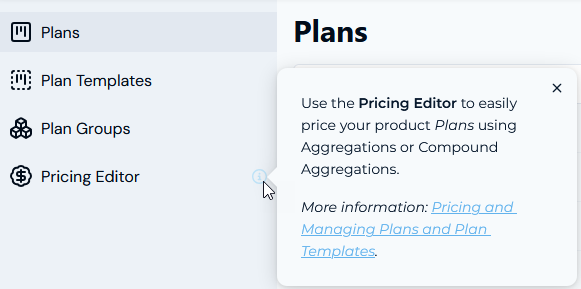
Also available as you work in the Console are **Tooltips** which open panels giving immediate guidance on particular features and configuration fields:
* When possible, the **AI Assistant** provides an answer together with links to any relevant available documentation topics for further details.
#### **Support**
Open the login page for our web ticketing Support portal.
#### **Service status**
Open a page to check the operational status of the m3ter platform's Config and Ingest API services. See below: [Checking Service Status](/guides/getting-started/working-in-the-m3ter-console#checking-service-status) for more details.
#### **Product roadmap**
Open a Product Portal page where you can review our roadmap of new features and capabilities planned for the m3ter Platform. You can also submit any ideas or suggestions for new features directly to us from here.
## Tooltips
Also available as you work in the Console are **Tooltips** which open panels giving immediate guidance on particular features and configuration fields:
 ## Reviewing Entity Metadata
On the Details pages for the main entities in your m3ter Organization - such as the Account Details pages - you can quickly review an entity's metadata.
**Custom Fields**. Any Custom Fields created for the entity are listed, and you can **Copy** the *String* or *Number* value of a Custom Field to your clipboard.
* If the fields have been created only at Organizational-level, then these values will be shown:
## Reviewing Entity Metadata
On the Details pages for the main entities in your m3ter Organization - such as the Account Details pages - you can quickly review an entity's metadata.
**Custom Fields**. Any Custom Fields created for the entity are listed, and you can **Copy** the *String* or *Number* value of a Custom Field to your clipboard.
* If the fields have been created only at Organizational-level, then these values will be shown:
 * If the fields have also been created for an individual entity, then the values configured for those created at Organizational-level are struck out indicating clearly that the Account level values will be used:
 * See [Working with Custom Fields](/guides/creating-and-managing-products/working-with-custom-fields) for more details.
**External Mappings**. Any External Mappings for the entity are listed:
* See [Working with Custom Fields](/guides/creating-and-managing-products/working-with-custom-fields) for more details.
**External Mappings**. Any External Mappings for the entity are listed:
 * The **External system**, **External table**, and **External entity ID** mapped to are shown.
* If a listed External mapping is linked to an Integration, under **Linked integration** a hotlink text will be shown which you can use to open the Integration.
* Under **Actions**, you can edit or delete the External mapping.
* If the entity has multiple External mappings created for it, you can use *Search external mappings* to search by **External table** and **External entity ID** and filter the list.
* You can commence a workflow to **Create external mapping** for the entity directly - see [Creating and Managing External Mappings for Accounts](/guides/end-customer-accounts/creating-and-managing-external-mappings-for-accounts) for an example.
**Integration runs.** If you've set up an integration that synchronizes the entity with an external system, the date/time and status of the **Latest** integration run are shown. You can use a text hotlink to open details of this latest run or **View all runs**. See [Reviewing Integration Run Details](/guides/integrations/setting-up-integrations/reviewing-integration-run-details).
## Tracking User Activity in your Organization
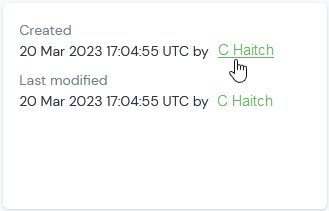
As you and your colleagues start to work with your m3ter Organization, you'll find that many of the Details pages for the main configuration entities created for your Organization - such as the Meter Details pages - carry audit information on which User:
* Initially created the entity.
* Most recently modified the entity.
This audit data also allows you to click a hotlink text to open the details page for the logged User:
* The **External system**, **External table**, and **External entity ID** mapped to are shown.
* If a listed External mapping is linked to an Integration, under **Linked integration** a hotlink text will be shown which you can use to open the Integration.
* Under **Actions**, you can edit or delete the External mapping.
* If the entity has multiple External mappings created for it, you can use *Search external mappings* to search by **External table** and **External entity ID** and filter the list.
* You can commence a workflow to **Create external mapping** for the entity directly - see [Creating and Managing External Mappings for Accounts](/guides/end-customer-accounts/creating-and-managing-external-mappings-for-accounts) for an example.
**Integration runs.** If you've set up an integration that synchronizes the entity with an external system, the date/time and status of the **Latest** integration run are shown. You can use a text hotlink to open details of this latest run or **View all runs**. See [Reviewing Integration Run Details](/guides/integrations/setting-up-integrations/reviewing-integration-run-details).
## Tracking User Activity in your Organization
As you and your colleagues start to work with your m3ter Organization, you'll find that many of the Details pages for the main configuration entities created for your Organization - such as the Meter Details pages - carry audit information on which User:
* Initially created the entity.
* Most recently modified the entity.
This audit data also allows you to click a hotlink text to open the details page for the logged User:
 **Tip: User Activity is also shown on Account Specific Details Pages!** Which User created and which User last modified is also tracked in the Console on the details pages for some Account specific entities - Account Plans, Prepayments, Balances, and Contracts on an Account.
## Switching Organization
Many m3ter Users have access to more than one Organization. You can quickly switch to another Organization to which you have access using the **Organization** box at top-right. This shows the current Organization you are working in - select the arrow to show a list of all Organizations you have access to and then select the one you want to switch to:
**Tip: User Activity is also shown on Account Specific Details Pages!** Which User created and which User last modified is also tracked in the Console on the details pages for some Account specific entities - Account Plans, Prepayments, Balances, and Contracts on an Account.
## Switching Organization
Many m3ter Users have access to more than one Organization. You can quickly switch to another Organization to which you have access using the **Organization** box at top-right. This shows the current Organization you are working in - select the arrow to show a list of all Organizations you have access to and then select the one you want to switch to:
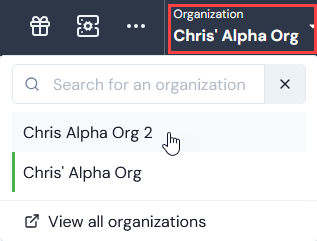 * If you have access to multiple **Organizations**, you can use the **Search** field to filter the list.
* If you select **View all organizations**, you are taken back to the **Select Organization** page that opens when you first log into the Console. The **LAST ACCESSED** Organization is shown and you can search for and select to open any of the other Organizations you have access to.
## Checking Service Status
To check the operational status of the m3ter platform's Config, Ingest, and Search API services, select the **Help>** **Service Status** link:
* If you have access to multiple **Organizations**, you can use the **Search** field to filter the list.
* If you select **View all organizations**, you are taken back to the **Select Organization** page that opens when you first log into the Console. The **LAST ACCESSED** Organization is shown and you can search for and select to open any of the other Organizations you have access to.
## Checking Service Status
To check the operational status of the m3ter platform's Config, Ingest, and Search API services, select the **Help>** **Service Status** link:
 A **m3ter Service Status** page opens in a separate tab:
 On this page you can read-off the current operational status of the platform's **Config API**, **Ingest API**, and **Search API** services, together with a percentage measure of uptime over the last 90 days.
If you scroll down the page, you can check for any incidents reported over the past 15 days:
On this page you can read-off the current operational status of the platform's **Config API**, **Ingest API**, and **Search API** services, together with a percentage measure of uptime over the last 90 days.
If you scroll down the page, you can check for any incidents reported over the past 15 days:
 If you scroll to the bottom of the page, you can check **Incident History**:
 This opens an **Incidents** tab for the previous 3 months:
 You can page backwards and forwards to show specific 3-month periods:
 Select the **Uptime** tab to review the historical daily uptime for each API service for the selected 3-month period:
 If you want to receive notifications when an incident with the service is created, updated, or resolved, select **SUBSCRIBE TO UPDATES**. You can then select and set up your preferred method of receiving updates:
* **Email**. Enter your **Email address** and select **SUBSCRIBE VIA EMAIL**:
If you want to receive notifications when an incident with the service is created, updated, or resolved, select **SUBSCRIBE TO UPDATES**. You can then select and set up your preferred method of receiving updates:
* **Email**. Enter your **Email address** and select **SUBSCRIBE VIA EMAIL**:
 * **Text message**. Select your **Country code** and enter your **Phone number** and select **SUBSCRIBE VIA TEXT MESSAGE**:
 * **Slack**. Select **SUBSCRIBE VIA SLACK**:
 * **Microsoft Teams channel**. Enter **Channel's Webhook URL** and select **SUBSCRIBE VIA TEAMS**:
 * **Atom Feed or RSS Feed**. Etc:
 If you're still experiencing problems after a recovery has been posted on the status page, then please contact [m3ter Support](/guides/getting-started/contacting-m3ter-support).
## Editing User Profile and Logging Out
You can access your User profile at any time at the top-right of the Console:
If you're still experiencing problems after a recovery has been posted on the status page, then please contact [m3ter Support](/guides/getting-started/contacting-m3ter-support).
## Editing User Profile and Logging Out
You can access your User profile at any time at the top-right of the Console:
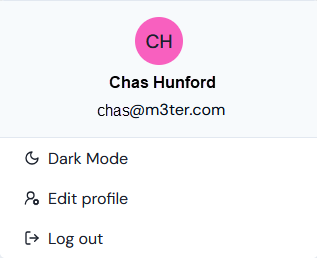 You can then:
* Switch between Console Light and Dark mode.
* Select **Edit profile** to change your User name. See [Editing User Profile](/guides/organization-and-access-management/managing-users/managing-users-and-assigning-permission-policies#editing-user-profile) for details.
* Select **Log out** to end your Console session.
You can then:
* Switch between Console Light and Dark mode.
* Select **Edit profile** to change your User name. See [Editing User Profile](/guides/organization-and-access-management/managing-users/managing-users-and-assigning-permission-policies#editing-user-profile) for details.
* Select **Log out** to end your Console session.