> ## Documentation Index
> Fetch the complete documentation index at: https://docs.m3ter.com/llms.txt
> Use this file to discover all available pages before exploring further.
# Configuring QuickBooks Integrations
You can define integrations for sending your end customer Account Bills generated in m3ter outbound into your QuickBooks system:
* First, [create the integration](/guides/integrations/setting-up-integrations/configuring-quickbooks-integrations#creating-the-integration).
* Second, [set up authentication](/guides/integrations/setting-up-integrations/configuring-quickbooks-integrations#setting-up-authentication-for-the-integration) for the integration to connect with QuickBooks.
This topic also includes a section designed to help you set up your QuickBooks system and configure the required External Mappings in preparation for sending Bills from m3ter through to your QuickBooks instance:
* [Setting up QuickBooks and Required External Mappings in m3ter](/guides/integrations/setting-up-integrations/configuring-quickbooks-integrations#setting-up-quickbooks-and-required-external-mappings)
## Creating the Integration
You can quickly set up a QuickBooks integration in the Console.
**Notes:**
* **QuickBooks or QuickBooks (Sandbox Mode)?** The difference between these two integrations is selecting **QuickBooks** means an integration destination into your QuickBooks *production environment*, selecting **QuickBooks (Sandbox Mode)** means an integration destination into your **QuickBooks** *Sandbox environment*. The configuration settings are the same for both destinations.
* **Accounting Products?** Many line item types can be mapped to specific Accounting Products to serve your revenue recognition and accounting purposes. Where this is the case, the integration will use the assigned Accounting Products.
* **Reviewing Integration Runs!** When you've set up an integration with QuickBooks for your Organization in your production environment, you can review details of the integration runs performed for the integration. See [Reviewing Integration Run Details](/guides/integrations/setting-up-integrations/reviewing-integration-run-details).
**To create a m3ter - QuickBooks integration:**
1. Select **Integrations**:
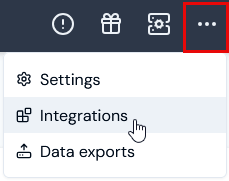 The **Integrations** page opens with **All** selected by default.
2. Select **QuickBooks**:
The **Integrations** page opens with **All** selected by default.
2. Select **QuickBooks**:
 The **Integrations>QuickBooks** page opens.
3. On the **Configurations** panel, select **Configure new integration>Configure bill integration**:
The **Integrations>QuickBooks** page opens.
3. On the **Configurations** panel, select **Configure new integration>Configure bill integration**:
 The **Create** page opens and the **Entity type** - **Bill** and **External system** - **QuickBooks** are shown at the top of the page.
4. Use the **Global configuration** panel to:
* Enter a **Name** for the Integration. This is required and is useful if you intend to create multiple Integrations for the same External system/Entity Type and need to clearly differentiate them.
* Select the Accounts you want the integration to apply to:
* **Account ids.** Select the Accounts you want to include - all selected Accounts are treated as *allowed* for the integration.
* **Restricted account ids.** Select the Accounts you want to exclude - all selected Accounts are treated as *disallowed* for the integration.
**Notes:**
* If you want to include *all Accounts* in the integration, leave both **Accounts ids** and **Restricted account ids** empty.
* Any filtering by **Account ids** you define using these settings to control which Accounts the integration runs for will be *in addition* to any filtering you define using the **Account filter** option - see the following step for **Entity Configuration** options.
* Select Users for Email notifications if disabled:
* **Integration disabled notification users**. Select Organization Users you want to receive an Email notification if the integration is automatically disabled.
**Notes:**
* An integration is automatically disabled if there have been 20 successive previous error Event responses to earlier attempts to run the integration. See [Reviewing and Resolving Integration Events](/guides/integrations/setting-up-integrations/reviewing-and-resolving-integration-events) for more details.
* If you select Organization Users to receive an Email notification when the integration is automatically disabled, their User id will be listed under **Configuration Data** on the **Integration Details** page.
5. Use the **Entity configuration** panel to configure the m3ter entity you'll be synchronizing with for the integration. In the case of a Bill integration, this entity will be the Bill generated for a customer Account in m3ter:
* **Only send bill on approval.** Enable this if you only want Bills to be sent when they have been approved. If disabled, the Bill will be sent every time it is regenerated. Default is disabled. Note that:
* The frequency of Bills sent will depend on the billing frequency defined for the Account Plan attached to the Account - such as daily/weekly/monthly/annually.
* If an Account has a Prepayment on it and the billing for Prepayment fees is configured to run on a customized schedule, Bills will be sent when scheduled Bills are generated.
* If a Bill is manually recalculated the updated Bill will be sent.
* If you enable this, then the integration will not run for *all Bill Jobs*.
* **Use external mapping account code.** Enable this if you want the integration to look in the External Mappings for the Account identifier code, which means you can use an external Id. If this is disabled, the m3ter Account Id is used. Default is disabled.
* **Excluded line item types.** Optionally filter the Bill line item types you send to the destination system. For example, only send charges or credits and exclude all other line item types.
* For details of line item types, see [Bill Line Item Types](/guides/billing-and-usage-data/running-viewing-and-managing-bills/bill-line-item-types).
* **Account filter**. Optionally, enter an expression that is run on the Account to determine whether or not the integration includes the Account. You can use this setting if you have multiple destinations for sending Bills outbound to your QuickBooks system. For example:
* `"customFields != null AND customFields.country == "UK""`
* In this example, the integration will include an Account *only if* you have created a Custom Field for the Account called *country* and given the field a value of *UK*.
**Notes:**
* **Other Account fields for Account filter expression?** You can reference other fields on the Account object in the **Account filter** expression. For details and another example, see [Managing Multiple Third Party Destinations for Integrations](/guides/integrations/setting-up-integrations/managing-multiple-destinations-for-integrations).
* **Additional filtering?** Any global filtering you define using the settings to include/exclude Accounts for integration runs by **Account ids** will be *in addition* to any filtering you define using the **Account filter** option - see the previous step for **Global Configuration**.
* **Enforce external mappings for config**. Optionally enable this if you want the integration to use only those external mappings specified as being for this configuration.
* Use this setting if you want to set up multiple integrations for the same external system. You can then create separate external mappings for each integration from the details page of each integration, and these external mappings become **Linked external mappings** for the specific integration. See [Creating Linked External Mappings](/guides/integrations/setting-up-integrations/creating-and-managing-external-mappings#creating-linked-external-mappings).
* **Excluded products**. Optionally filter the Bill line items you send to the external system. Any line items associated with the selected Products will be be excluded when the integration runs.
* Note that if line items are mapped to a specific \_Accounting Product\_s, these will be used for filtering to exclude line items.
* **Excluded aggregations**. Optionally filter the Bill line items you send to the external system. Any line items associated with the selected Aggregations will be be excluded when the integration runs.
6. Use the **External system configuration** panel to enter the settings specific to the external system. These settings include field mappings as well as other system-specific configurations:
* **Split usage line items.** This setting determines how m3ter will create usage invoice items in QuickBooks. QuickBooks items can be mapped to a product, an aggregation/compound aggregation, or to an individual pricing band:
* **Item per usage band**
* **Item per product**
* **Item per aggregation**
* **Quick books item mapping**. This setting allows you to specify the QuickBooks item ID for mapping these line item types. If left blank, then the item will be sent to QuickBooks without being mapped to a product or service:
* **CREDIT\_MEMO**
* **DEBIT\_MEMO**
* **Send zero quantity line items**. Enable this switch if you want zero quantity line items to be sent through to QuickBooks. Default is disabled.
* **Allow bank transfer payment**. Enable this switch if you want to allow invoices to be paid with online bank transfers - corresponds to *bank transfer online payment* checkbox in QuickBooks. Default is disabled.
* **Allow credit card payment**. Enable this switch if you want to allow invoices to be paid with credit cards - corresponds to *Cards* checkbox in QuickBooks. Default is disabled.
* **Bcc invoice email address**. Enter the email address to be set as the *BCC email address* in QuickBooks invoices. (*Optional*)
* **Account manager email custom field**. Enter the Account custom field name that contains the email address of the Account Manager. Used to populate the email CC field when an invoice is sent to QuickBooks. (*Optional*). See [Working with Custom Fields.](/guides/creating-and-managing-products/working-with-custom-fields)
**Warning! Do not enter an email address directly into this field:** You'll receive an error message when you try to save or update the integration configuration.
* **Sort line items by**. Optionally, select a property to sort line items by before they are sent out to the external system. Three options:
* **None**
* **Subtotal**
* **Aggregation ID**
* **Strict line item mapping**. Optionally, enable this switch if you want the integration to map **Description**, **Quantity**, and **Unit price** line item values directly to QuickBooks invoice items.
**Possible rounding errors!** If you enable **Strict line item mapping**, this might result in rounding errors for the originating **Quantity** or **Unit price** values being mapped directly.
7. Select **Create integration**. You are returned to the **Integrations>QuickBooks** page, where the integration is listed on the **Configurations** panel:
The **Create** page opens and the **Entity type** - **Bill** and **External system** - **QuickBooks** are shown at the top of the page.
4. Use the **Global configuration** panel to:
* Enter a **Name** for the Integration. This is required and is useful if you intend to create multiple Integrations for the same External system/Entity Type and need to clearly differentiate them.
* Select the Accounts you want the integration to apply to:
* **Account ids.** Select the Accounts you want to include - all selected Accounts are treated as *allowed* for the integration.
* **Restricted account ids.** Select the Accounts you want to exclude - all selected Accounts are treated as *disallowed* for the integration.
**Notes:**
* If you want to include *all Accounts* in the integration, leave both **Accounts ids** and **Restricted account ids** empty.
* Any filtering by **Account ids** you define using these settings to control which Accounts the integration runs for will be *in addition* to any filtering you define using the **Account filter** option - see the following step for **Entity Configuration** options.
* Select Users for Email notifications if disabled:
* **Integration disabled notification users**. Select Organization Users you want to receive an Email notification if the integration is automatically disabled.
**Notes:**
* An integration is automatically disabled if there have been 20 successive previous error Event responses to earlier attempts to run the integration. See [Reviewing and Resolving Integration Events](/guides/integrations/setting-up-integrations/reviewing-and-resolving-integration-events) for more details.
* If you select Organization Users to receive an Email notification when the integration is automatically disabled, their User id will be listed under **Configuration Data** on the **Integration Details** page.
5. Use the **Entity configuration** panel to configure the m3ter entity you'll be synchronizing with for the integration. In the case of a Bill integration, this entity will be the Bill generated for a customer Account in m3ter:
* **Only send bill on approval.** Enable this if you only want Bills to be sent when they have been approved. If disabled, the Bill will be sent every time it is regenerated. Default is disabled. Note that:
* The frequency of Bills sent will depend on the billing frequency defined for the Account Plan attached to the Account - such as daily/weekly/monthly/annually.
* If an Account has a Prepayment on it and the billing for Prepayment fees is configured to run on a customized schedule, Bills will be sent when scheduled Bills are generated.
* If a Bill is manually recalculated the updated Bill will be sent.
* If you enable this, then the integration will not run for *all Bill Jobs*.
* **Use external mapping account code.** Enable this if you want the integration to look in the External Mappings for the Account identifier code, which means you can use an external Id. If this is disabled, the m3ter Account Id is used. Default is disabled.
* **Excluded line item types.** Optionally filter the Bill line item types you send to the destination system. For example, only send charges or credits and exclude all other line item types.
* For details of line item types, see [Bill Line Item Types](/guides/billing-and-usage-data/running-viewing-and-managing-bills/bill-line-item-types).
* **Account filter**. Optionally, enter an expression that is run on the Account to determine whether or not the integration includes the Account. You can use this setting if you have multiple destinations for sending Bills outbound to your QuickBooks system. For example:
* `"customFields != null AND customFields.country == "UK""`
* In this example, the integration will include an Account *only if* you have created a Custom Field for the Account called *country* and given the field a value of *UK*.
**Notes:**
* **Other Account fields for Account filter expression?** You can reference other fields on the Account object in the **Account filter** expression. For details and another example, see [Managing Multiple Third Party Destinations for Integrations](/guides/integrations/setting-up-integrations/managing-multiple-destinations-for-integrations).
* **Additional filtering?** Any global filtering you define using the settings to include/exclude Accounts for integration runs by **Account ids** will be *in addition* to any filtering you define using the **Account filter** option - see the previous step for **Global Configuration**.
* **Enforce external mappings for config**. Optionally enable this if you want the integration to use only those external mappings specified as being for this configuration.
* Use this setting if you want to set up multiple integrations for the same external system. You can then create separate external mappings for each integration from the details page of each integration, and these external mappings become **Linked external mappings** for the specific integration. See [Creating Linked External Mappings](/guides/integrations/setting-up-integrations/creating-and-managing-external-mappings#creating-linked-external-mappings).
* **Excluded products**. Optionally filter the Bill line items you send to the external system. Any line items associated with the selected Products will be be excluded when the integration runs.
* Note that if line items are mapped to a specific \_Accounting Product\_s, these will be used for filtering to exclude line items.
* **Excluded aggregations**. Optionally filter the Bill line items you send to the external system. Any line items associated with the selected Aggregations will be be excluded when the integration runs.
6. Use the **External system configuration** panel to enter the settings specific to the external system. These settings include field mappings as well as other system-specific configurations:
* **Split usage line items.** This setting determines how m3ter will create usage invoice items in QuickBooks. QuickBooks items can be mapped to a product, an aggregation/compound aggregation, or to an individual pricing band:
* **Item per usage band**
* **Item per product**
* **Item per aggregation**
* **Quick books item mapping**. This setting allows you to specify the QuickBooks item ID for mapping these line item types. If left blank, then the item will be sent to QuickBooks without being mapped to a product or service:
* **CREDIT\_MEMO**
* **DEBIT\_MEMO**
* **Send zero quantity line items**. Enable this switch if you want zero quantity line items to be sent through to QuickBooks. Default is disabled.
* **Allow bank transfer payment**. Enable this switch if you want to allow invoices to be paid with online bank transfers - corresponds to *bank transfer online payment* checkbox in QuickBooks. Default is disabled.
* **Allow credit card payment**. Enable this switch if you want to allow invoices to be paid with credit cards - corresponds to *Cards* checkbox in QuickBooks. Default is disabled.
* **Bcc invoice email address**. Enter the email address to be set as the *BCC email address* in QuickBooks invoices. (*Optional*)
* **Account manager email custom field**. Enter the Account custom field name that contains the email address of the Account Manager. Used to populate the email CC field when an invoice is sent to QuickBooks. (*Optional*). See [Working with Custom Fields.](/guides/creating-and-managing-products/working-with-custom-fields)
**Warning! Do not enter an email address directly into this field:** You'll receive an error message when you try to save or update the integration configuration.
* **Sort line items by**. Optionally, select a property to sort line items by before they are sent out to the external system. Three options:
* **None**
* **Subtotal**
* **Aggregation ID**
* **Strict line item mapping**. Optionally, enable this switch if you want the integration to map **Description**, **Quantity**, and **Unit price** line item values directly to QuickBooks invoice items.
**Possible rounding errors!** If you enable **Strict line item mapping**, this might result in rounding errors for the originating **Quantity** or **Unit price** values being mapped directly.
7. Select **Create integration**. You are returned to the **Integrations>QuickBooks** page, where the integration is listed on the **Configurations** panel:
 ## Setting Up Authentication for the Integration
When you've created a QuickBooks integration, you can select an Integration Credential you've created for authentication allowing the integration to connect with your QuickBooks system.
**To set up authentication for your m3ter - QuickBooks integration:**
1. Select **Integrations**. The **Integrations** page opens.
2. Select **QuickBooks**. The **Integrations>QuickBooks** page opens.
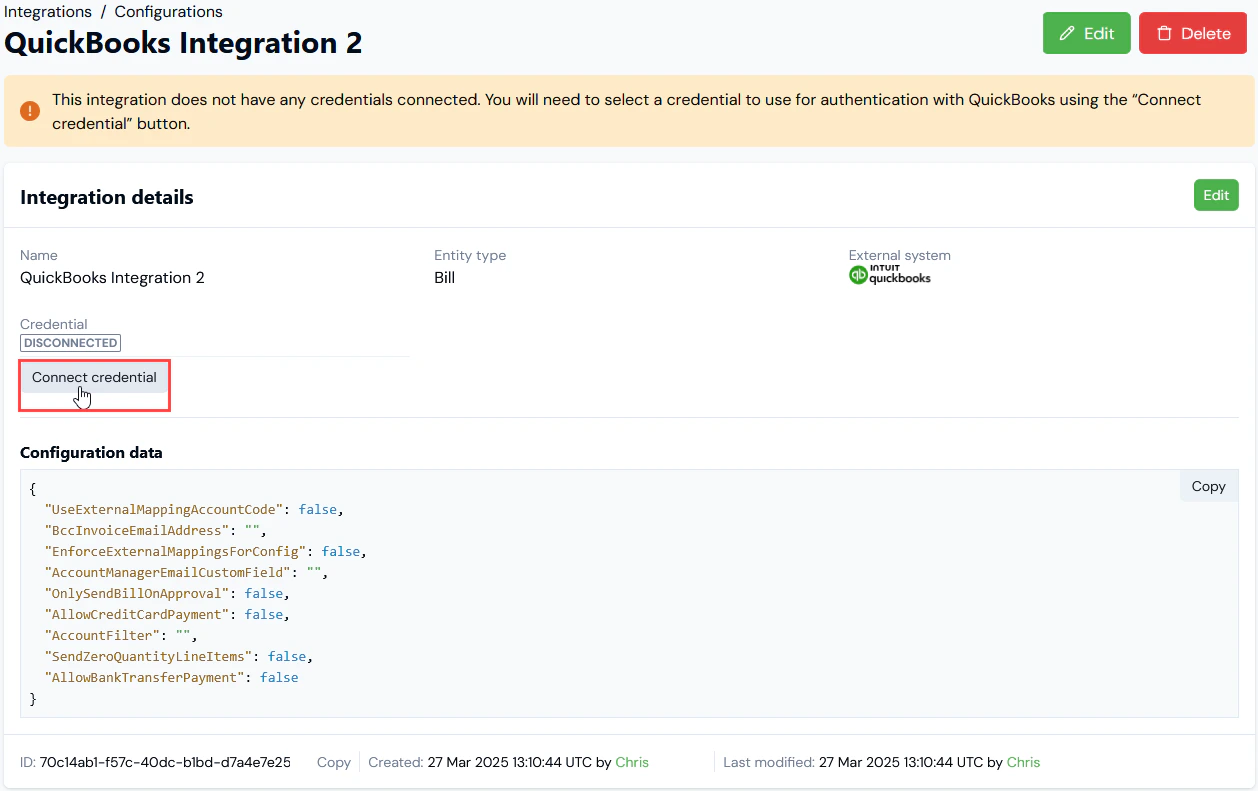
3. On the **Configurations** panel, select the **Name** hotlink text of the QuickBooks integration you want to set up authentication for. The **Integration details** page opens:
## Setting Up Authentication for the Integration
When you've created a QuickBooks integration, you can select an Integration Credential you've created for authentication allowing the integration to connect with your QuickBooks system.
**To set up authentication for your m3ter - QuickBooks integration:**
1. Select **Integrations**. The **Integrations** page opens.
2. Select **QuickBooks**. The **Integrations>QuickBooks** page opens.
3. On the **Configurations** panel, select the **Name** hotlink text of the QuickBooks integration you want to set up authentication for. The **Integration details** page opens:
 * Notes:
* A warning is shown that the integration is not yet connected to your QuickBooks system.
* The **ID** of the integration configuration is shown at the bottom of the **Details** card, and you can copy the **ID** directly to your clipboard.
3. Select **Connect credential**. A **Select credential** modal appears.
4. Select a Credential you created earlier and want to use to authenticate the integration with QuickBooks. See [Creating QuickBooks Integration Credentials](/guides/integrations/setting-up-integrations/managing-integration-credentials/creating-quickbooks-integration-credentials).
5. Select **Confirm**. The modal closes and on **Integrations details** the integration now shows as **CONNECTED**:
* The Credential used to connect the integration is shown.
* If at any time you want to disconnect the integration, select **Disconnect credential**.
* If you want to use a different Credential for connecting the integration, select **Change credential**. The **Select credential** modal appears and you can select a different Credential.
**Tip: Testing your Integration Setup?** Your QuickBooks integration is now available for use. However, it remains in Beta release and we strongly recommend you test the implementation in your m3ter Sandbox or QA environment before releasing it to your Production environment. See section 7. of our [Terms of Service](https://www.m3ter.com/docs/legal/terms-of-service) for Beta Usage.
**Tip: Integrations API Calls?** When you have set up your Quickbooks integration, you can review and manage the integration using a full set of API Calls. See the [Integrations section](/api/integrations/introduction) of our API Reference Docs.
## Setting up QuickBooks and Required External Mappings in m3ter
This section provides guidance on setting up QuickBooks and any required External Mappings in preparation for sending out Bills to QuickBooks.
**Warning: Important - Please consult your QuickBooks Documentation!** The instructions given in this section for setting-up your QuickBooks system to prepare for an outbound Bill integration with m3ter are intended for *guidance only*. We do not hold ourselves responsible for any changes made by QuickBooks, and *strongly recommend* that you consult the QuickBooks end user documentation as you perform this configuration and that you treat the QuickBooks documentation as authoritative.
**To set up QuickBooks and configure External Mappings:**
Firstly, in you QuickBooks Sandbox:
1. In your QuickBooks Sandbox, create the Customer
* Select **Sales>Customers>New Customer**.
* Enter new **Customer Name**.
2. Go to **Settings>Account** and **settings>Advanced**:
* Set **Home Currency** to match the default currency configured for your m3ter Organization.
* Turn on **Multicurrency** if you intend to invoice in currencies other than your default currency, and then add these additional currencies.
Secondly, in your m3ter Organization
1. Select **Integrations>External mappings**. The **External mappings** page opens.
2. Select **Create External mapping**. The **Create** pages opens at **Stage 1: Select mapping type**.
3. Enter **External mapping settings**:
* **m3ter entity type**. Select **Account**.
* **External system**. Select **QuickBooksSandbox**.
* Note that the **External table** drop-down will only be activated when you've selected an **External system**.
* **External Table**. Select **Customer**.
* Notes:
* A warning is shown that the integration is not yet connected to your QuickBooks system.
* The **ID** of the integration configuration is shown at the bottom of the **Details** card, and you can copy the **ID** directly to your clipboard.
3. Select **Connect credential**. A **Select credential** modal appears.
4. Select a Credential you created earlier and want to use to authenticate the integration with QuickBooks. See [Creating QuickBooks Integration Credentials](/guides/integrations/setting-up-integrations/managing-integration-credentials/creating-quickbooks-integration-credentials).
5. Select **Confirm**. The modal closes and on **Integrations details** the integration now shows as **CONNECTED**:
* The Credential used to connect the integration is shown.
* If at any time you want to disconnect the integration, select **Disconnect credential**.
* If you want to use a different Credential for connecting the integration, select **Change credential**. The **Select credential** modal appears and you can select a different Credential.
**Tip: Testing your Integration Setup?** Your QuickBooks integration is now available for use. However, it remains in Beta release and we strongly recommend you test the implementation in your m3ter Sandbox or QA environment before releasing it to your Production environment. See section 7. of our [Terms of Service](https://www.m3ter.com/docs/legal/terms-of-service) for Beta Usage.
**Tip: Integrations API Calls?** When you have set up your Quickbooks integration, you can review and manage the integration using a full set of API Calls. See the [Integrations section](/api/integrations/introduction) of our API Reference Docs.
## Setting up QuickBooks and Required External Mappings in m3ter
This section provides guidance on setting up QuickBooks and any required External Mappings in preparation for sending out Bills to QuickBooks.
**Warning: Important - Please consult your QuickBooks Documentation!** The instructions given in this section for setting-up your QuickBooks system to prepare for an outbound Bill integration with m3ter are intended for *guidance only*. We do not hold ourselves responsible for any changes made by QuickBooks, and *strongly recommend* that you consult the QuickBooks end user documentation as you perform this configuration and that you treat the QuickBooks documentation as authoritative.
**To set up QuickBooks and configure External Mappings:**
Firstly, in you QuickBooks Sandbox:
1. In your QuickBooks Sandbox, create the Customer
* Select **Sales>Customers>New Customer**.
* Enter new **Customer Name**.
2. Go to **Settings>Account** and **settings>Advanced**:
* Set **Home Currency** to match the default currency configured for your m3ter Organization.
* Turn on **Multicurrency** if you intend to invoice in currencies other than your default currency, and then add these additional currencies.
Secondly, in your m3ter Organization
1. Select **Integrations>External mappings**. The **External mappings** page opens.
2. Select **Create External mapping**. The **Create** pages opens at **Stage 1: Select mapping type**.
3. Enter **External mapping settings**:
* **m3ter entity type**. Select **Account**.
* **External system**. Select **QuickBooksSandbox**.
* Note that the **External table** drop-down will only be activated when you've selected an **External system**.
* **External Table**. Select **Customer**.
 4. Select **Next**. The **Create** page adjusts to show **Stage 1: Select mapping type** as completed and allowing you to perform **Stage 2: Add mapping IDs**.
5. Enter **External mapping details**:
* **m3ter entity**. Select the m3ter Account you want to map to the QuickBooks Customer.
* **External entity ID**. Enter the ID of the **Customer** object you've created in your QuickBooks Sandbox.
**Tip: Possibles values might show!** Note that if the possible values for the **External entity ID** field can be fetched for the **External QuickBooks system**, then you can use a drop-down list to select the value for this field from the list of possible values returned.
6. To check that your QuickBooks setup and External Mappings configuration is correct, you can now:
* In your m3ter Organization, generate a Bill for the **Account** and then Approve the Bill. This will activate your QuickBooks integration and the Bill will be sent outbound to your QuickBooks system.
* In your QuickBooks system, go to **Sales>Invoices** and confirm that an invoice has been created for the respective **Customer** and that line item amounts are correct.
4. Select **Next**. The **Create** page adjusts to show **Stage 1: Select mapping type** as completed and allowing you to perform **Stage 2: Add mapping IDs**.
5. Enter **External mapping details**:
* **m3ter entity**. Select the m3ter Account you want to map to the QuickBooks Customer.
* **External entity ID**. Enter the ID of the **Customer** object you've created in your QuickBooks Sandbox.
**Tip: Possibles values might show!** Note that if the possible values for the **External entity ID** field can be fetched for the **External QuickBooks system**, then you can use a drop-down list to select the value for this field from the list of possible values returned.
6. To check that your QuickBooks setup and External Mappings configuration is correct, you can now:
* In your m3ter Organization, generate a Bill for the **Account** and then Approve the Bill. This will activate your QuickBooks integration and the Bill will be sent outbound to your QuickBooks system.
* In your QuickBooks system, go to **Sales>Invoices** and confirm that an invoice has been created for the respective **Customer** and that line item amounts are correct.