This topic explains how to create Integration Credentials, which you can then use to connect your NetSuite Integrations with your NetSuite system. See Configuring NetSuite Integrations.
To create NetSuite integration Credentials:
- Select Integrations:
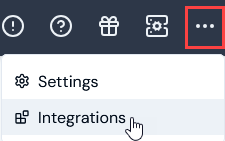 The Integrations page opens.
-
Select NetSuite. The NetSuite Integrations page opens.
-
On the Credentials panel, select Configure new credentials:
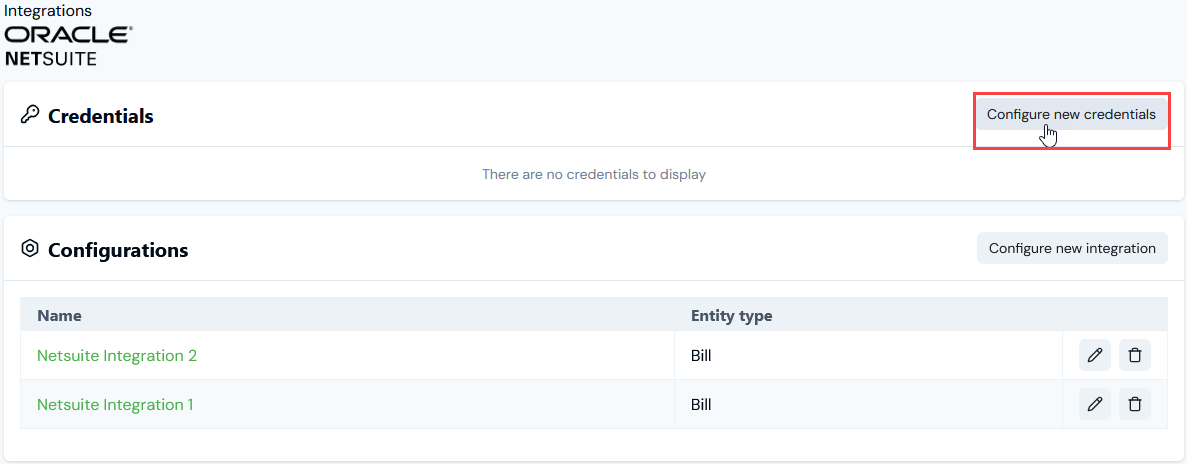 The Create pages opens.
- Under Credential details enter:
- Name. Descriptive name for the Credential.
- Destination. This will be pre-selected for NetSuite.
- Account id. Enter the NetSuite Account Id. You can find this on the Setup>Company>Company Information page in the NetSuite console.
Warning! Sandbox Account id - use hyphen: If you are creating a Credential to authenticate with your NetSuite Sandbox, the Account id field will need to use a hyphen character not an underscore. For example, 12345-SB instead of 12345_SB.
- Client id. Enter the m3ter Integration Client ID, which was available when the integration was set up in the NetSuite console.
- Certificate id. The Certificate ID. You can obtain this from the Setup>Integrations>OAuth 2.0 Client Credentials Setup page in the NetSuite console.
- Upload Netsuite Credentials. Allows you to upload a private key. This should be generated via OpenSSL or other tool providing a comparable encryption level.
- Select Create credential. You are returned to the NetSuite Integrations page where the new Credential is listed on the Credentials panel:

