> ## Documentation Index
> Fetch the complete documentation index at: https://docs.m3ter.com/llms.txt
> Use this file to discover all available pages before exploring further.
# Creating NetSuite Integration Credentials
This topic explains how to create Integration Credentials, which you can then use to connect your NetSuite Integrations with your NetSuite system. See [Configuring NetSuite Integrations](/guides/integrations/setting-up-integrations/configuring-netsuite-integrations).
**To create NetSuite integration Credentials:**
1. Select **Integrations**:
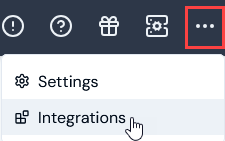 The **Integrations** page opens.
2. Select **NetSuite**. The **NetSuite Integrations** page opens.
3. On the **Credentials** panel, select **Configure new credentials**:
The **Integrations** page opens.
2. Select **NetSuite**. The **NetSuite Integrations** page opens.
3. On the **Credentials** panel, select **Configure new credentials**:
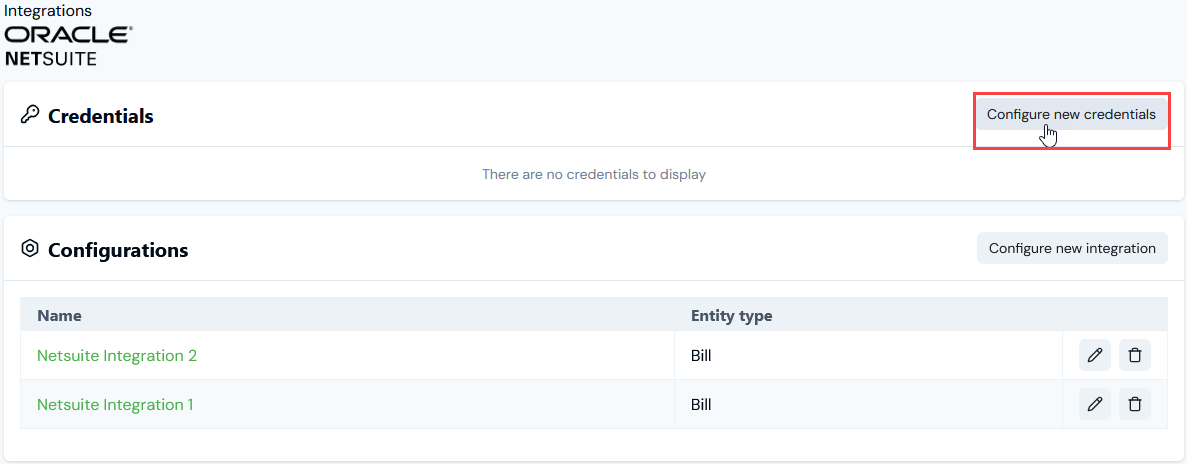 The **Create** pages opens.
4. Under **Credential details** enter:
* **Name**. Descriptive name for the Credential.
* **Destination**. This will be pre-selected for **NetSuite**.
* **Account id.** Enter the NetSuite Account Id. You can find this on the **Setup>Company>Company Information** page in the NetSuite console.
**Warning! Sandbox Account id - use hyphen:** If you are creating a Credential to authenticate with your NetSuite Sandbox, the **Account id** field will need to use a *hyphen* character not an underscore. For example, `12345-SB` instead of `12345_SB`.
* **Client id.** Enter the m3ter Integration Client ID, which was available when the integration was set up in the NetSuite console.
* **Certificate id.** The Certificate ID. You can obtain this from the **Setup>Integrations>OAuth 2.0 Client Credentials Setup** page in the NetSuite console.
* **Upload Netsuite Credentials**. Allows you to upload a private key. This should be generated via OpenSSL or other tool providing a comparable encryption level.
**Note:** **NetSuite OAuth user's client credentials?** See the [Configuring NetSuite](/guides/integrations/setting-up-integrations/configuring-netsuite-integrations/configuring-netsuite-integration-prerequisites#configuring-netsuite) section in the [Completing NetSuite Integration Prerequisites](/guides/integrations/setting-up-integrations/configuring-netsuite-integrations/configuring-netsuite-integration-prerequisites) topic for more details on how to generate these credentials.
5. Select **Create credential**. You are returned to the **NetSuite Integrations** page where the new Credential is listed on the **Credentials** panel:
* The Credential is now available for connecting your Integrations with NetSuite. See [Configuring Netsuite Integrations>Setting Up Authentication for the Integration](/guides/integrations/setting-up-integrations/configuring-netsuite-integrations#setting-up-authentication-for-the-integration).
The **Create** pages opens.
4. Under **Credential details** enter:
* **Name**. Descriptive name for the Credential.
* **Destination**. This will be pre-selected for **NetSuite**.
* **Account id.** Enter the NetSuite Account Id. You can find this on the **Setup>Company>Company Information** page in the NetSuite console.
**Warning! Sandbox Account id - use hyphen:** If you are creating a Credential to authenticate with your NetSuite Sandbox, the **Account id** field will need to use a *hyphen* character not an underscore. For example, `12345-SB` instead of `12345_SB`.
* **Client id.** Enter the m3ter Integration Client ID, which was available when the integration was set up in the NetSuite console.
* **Certificate id.** The Certificate ID. You can obtain this from the **Setup>Integrations>OAuth 2.0 Client Credentials Setup** page in the NetSuite console.
* **Upload Netsuite Credentials**. Allows you to upload a private key. This should be generated via OpenSSL or other tool providing a comparable encryption level.
**Note:** **NetSuite OAuth user's client credentials?** See the [Configuring NetSuite](/guides/integrations/setting-up-integrations/configuring-netsuite-integrations/configuring-netsuite-integration-prerequisites#configuring-netsuite) section in the [Completing NetSuite Integration Prerequisites](/guides/integrations/setting-up-integrations/configuring-netsuite-integrations/configuring-netsuite-integration-prerequisites) topic for more details on how to generate these credentials.
5. Select **Create credential**. You are returned to the **NetSuite Integrations** page where the new Credential is listed on the **Credentials** panel:
* The Credential is now available for connecting your Integrations with NetSuite. See [Configuring Netsuite Integrations>Setting Up Authentication for the Integration](/guides/integrations/setting-up-integrations/configuring-netsuite-integrations#setting-up-authentication-for-the-integration).