This topic explains how to create Integration Credentials which you can then use to connect your QuickBooks Integrations with your QuickBooks system. See Configuring QuickBooks Integrations.
Tip: QuickBooks or QuickBooks (Sandbox Mode)? The steps to create a Credential for authenticating an integration with your QuickBooks Sandbox environment are the same, except you’ll need to select QuickBooks (Sandbox Mode) as the destination.
- Select Integrations:
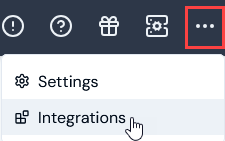 The Integrations page opens.
-
Select QuickBooks. The QuickBooks Integrations page opens.
-
On the Credentials panel, select Configure new credentials:
 The Create pages opens.
- Under Credential details enter:
- Name. Descriptive name for the Credential.
- Destination. This will be pre-selected for QuickBooks.
When you enter a name, the form adjusts to show an information panel under Destination, which advises you that you’ll need to provide authentication details on the QuickBooks website.
Tip: QuickBooks Sandbox Environment? Alternatively, select QuickBooks (Sandbox Mode) for Destination if you want to use the Credential to authenticate with your QuickBooks Sandbox environment.
-
Select Go to QuickBooks. You are taken to a Sign in page where you can use your Intuit account credentials to sign in to QuickBooks and approve access for m3ter.
-
Use your browser back button to return to the Create page.
-
Select Create credential. You are returned to the QuickBooks Integrations page where the new Credential is listed on the Credentials panel.
Warning: Authentication with QuickBooks not completed! If you fail to complete authentication with your QuickBooks instance promptly, a time-to-live (TTL) of ten minutes is imposed after which the Credential is removed and you’ll have to start again. If you return to the Quickbooks Integrations page within that TTL, any Credentials waiting for authentication completion will have a suffix of “Incomplete” attached, such as: Quickbooks Credential 1 (Incomplete).

