> ## Documentation Index
> Fetch the complete documentation index at: https://docs.m3ter.com/llms.txt
> Use this file to discover all available pages before exploring further.
# Creating QuickBooks Integration Credentials
This topic explains how to create Integration Credentials which you can then use to connect your QuickBooks Integrations with your QuickBooks system. See [Configuring QuickBooks Integrations](/guides/integrations/setting-up-integrations/configuring-quickbooks-integrations).
**Tip: QuickBooks or QuickBooks (Sandbox Mode)?** The steps to create a Credential for authenticating an integration with your QuickBooks *Sandbox environment* are the same, except you'll need to select **QuickBooks (Sandbox Mode)** as the destination.
**To create QuickBooks integration Credentials:**
1. Select **Integrations**:
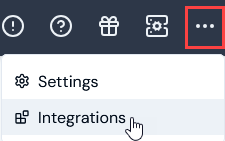 The **Integrations** page opens.
2. Select **QuickBooks**. The **QuickBooks Integrations** page opens.
3. On the **Credentials** panel, select **Configure new credentials**:
The **Integrations** page opens.
2. Select **QuickBooks**. The **QuickBooks Integrations** page opens.
3. On the **Credentials** panel, select **Configure new credentials**:
 The **Create** pages opens.
4. Under **Credential details** enter:
* **Name**. Descriptive name for the Credential.
* **Destination**. This will be pre-selected for **QuickBooks**.
When you enter a name, the form adjusts to show an information panel under **Destination**, which advises you that you'll need to provide authentication details on the QuickBooks website.
**Tip: QuickBooks Sandbox Environment?** Alternatively, select **QuickBooks (Sandbox Mode)** for **Destination** if you want to use the Credential to authenticate with your QuickBooks *Sandbox environment*.
5. Select **Go to QuickBooks**. You are taken to a **Sign in** page where you can use your Intuit account credentials to sign in to QuickBooks and approve access for m3ter.
6. Use your browser back button to return to the **Create** page.
7. Select **Create credential**. You are returned to the **QuickBooks Integrations** page where the new Credential is listed on the **Credentials** panel.
* The Credential is now available for connecting your Integrations with your QuickBooks system. See [Configuring Chargebee Integrations>Setting Up Authentication for the Integration](/guides/integrations/setting-up-integrations/configuring-quickbooks-integrations#setting-up-authentication-for-the-integration).
**Warning: Authentication with QuickBooks not completed!** If you fail to complete authentication with your QuickBooks instance promptly, a time-to-live (TTL) of ten minutes is imposed after which the Credential is removed and you'll have to start again. If you return to the **Quickbooks Integrations** page within that TTL, any **Credentials** waiting for authentication completion will have a suffix of "Incomplete" attached, such as: **Quickbooks Credential 1 (Incomplete)**.
The **Create** pages opens.
4. Under **Credential details** enter:
* **Name**. Descriptive name for the Credential.
* **Destination**. This will be pre-selected for **QuickBooks**.
When you enter a name, the form adjusts to show an information panel under **Destination**, which advises you that you'll need to provide authentication details on the QuickBooks website.
**Tip: QuickBooks Sandbox Environment?** Alternatively, select **QuickBooks (Sandbox Mode)** for **Destination** if you want to use the Credential to authenticate with your QuickBooks *Sandbox environment*.
5. Select **Go to QuickBooks**. You are taken to a **Sign in** page where you can use your Intuit account credentials to sign in to QuickBooks and approve access for m3ter.
6. Use your browser back button to return to the **Create** page.
7. Select **Create credential**. You are returned to the **QuickBooks Integrations** page where the new Credential is listed on the **Credentials** panel.
* The Credential is now available for connecting your Integrations with your QuickBooks system. See [Configuring Chargebee Integrations>Setting Up Authentication for the Integration](/guides/integrations/setting-up-integrations/configuring-quickbooks-integrations#setting-up-authentication-for-the-integration).
**Warning: Authentication with QuickBooks not completed!** If you fail to complete authentication with your QuickBooks instance promptly, a time-to-live (TTL) of ten minutes is imposed after which the Credential is removed and you'll have to start again. If you return to the **Quickbooks Integrations** page within that TTL, any **Credentials** waiting for authentication completion will have a suffix of "Incomplete" attached, such as: **Quickbooks Credential 1 (Incomplete)**.