> ## Documentation Index
> Fetch the complete documentation index at: https://docs.m3ter.com/llms.txt
> Use this file to discover all available pages before exploring further.
# Creating Azure Marketplace Integration Credentials
This topic explains how to create Azure Marketplace Integration Credentials, which you can then use to connect your Azure Marketplace native integrations with your Azure Marketplace instance. See [Configuring Azure Marketplace Integrations](/guides/integrations/setting-up-integrations/configuring-azure-marketplace-integrations).
**To create Azure Marketplace integration Credentials:**
1. Select **Integrations**. The **Integrations** page opens.
2. Select **Marketplace**. The **Integrations** page adjusts.
3. Select **AZURE**. The **Integrations>AZURE** page opens.
4. On the **Credentials** panel, select **Configure new credentials**. The **Create** pages opens at **Stage 1: Select a system and name**.
5. Under **Credential details** enter:
* **External system**. This will be prepopulated for **Azure**.
* **Name**. Descriptive name for the Credential.
6. Select **Next**. The page adjusts to show **Stage 1** as checked-off and completed and shifts focus to **Stage 2: Configure and create**:
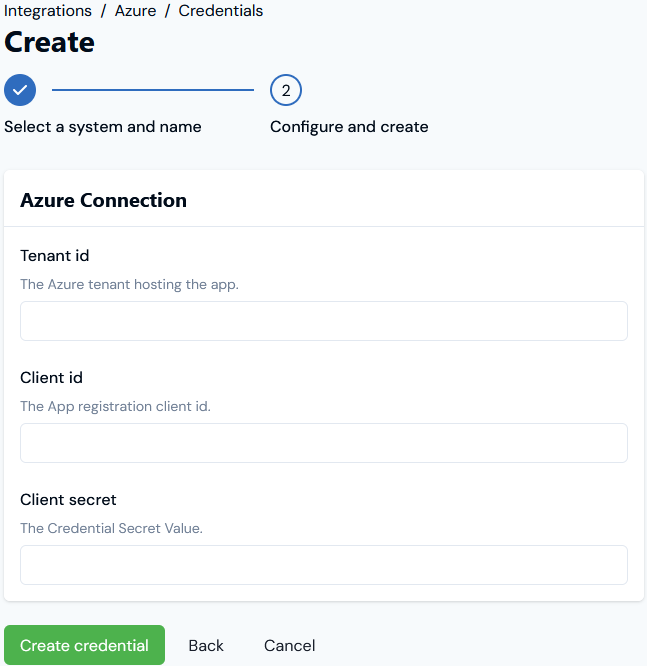 7. On the **Azure Connection** panel, enter:
* **Tenant id**. The Azure tenant hosting the app. For how to find this, see [Tenant ID](/guides/integrations/setting-up-integrations/configuring-azure-marketplace-integrations#tenant-id).
* **Client id**. The App registration client id.
* **Client secret**. The Credential Secret Value.
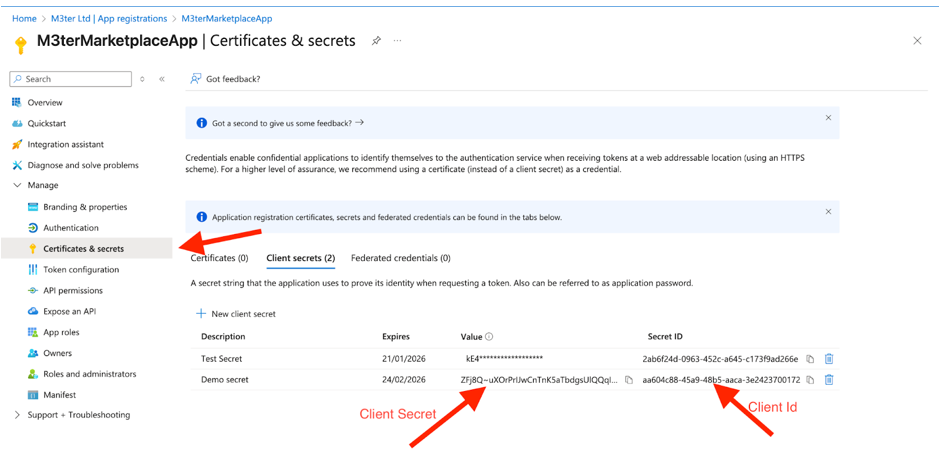
You can find the **Client id** and **Client secret** in the **M3terMarketplaceApp** under **Certificates & secrets**:
7. On the **Azure Connection** panel, enter:
* **Tenant id**. The Azure tenant hosting the app. For how to find this, see [Tenant ID](/guides/integrations/setting-up-integrations/configuring-azure-marketplace-integrations#tenant-id).
* **Client id**. The App registration client id.
* **Client secret**. The Credential Secret Value.
You can find the **Client id** and **Client secret** in the **M3terMarketplaceApp** under **Certificates & secrets**:
 8. Select **Create credential**. You are returned to the **Integrations>AZURE** page where the new Credential is listed on the **Credentials** panel:
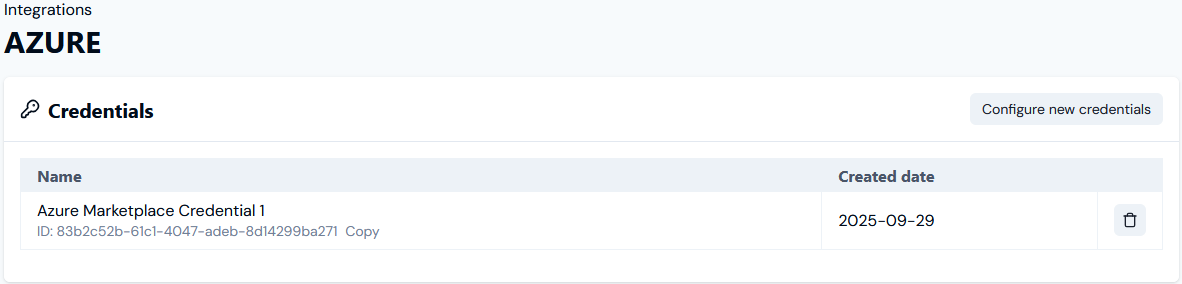 * The Credential is now available for connecting your Azure Marketplace integration to your Azure Marketplace instance. See Configuring Azure Marketplace Integrations>[Setting Up Authentication for the Integration](/guides/integrations/setting-up-integrations/configuring-azure-marketplace-integrations#setting-up-authentication-for-the-integration).