This topic explains how to create Integration Credentials which you can then use to connect Integrations with your Xero system. See Configuring Xero Integrations.To create Xero integration Credentials:
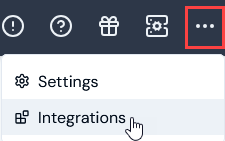
Select Integrations:
The Integrations page opens.
Select Xero. The Xero Integrations page opens.
On the Credentials panel, select Configure new credentials:
The Create pages opens at Stage 1: Select a system and name.
Under Credential details enter:
External system. This will be pre-populated for Xero.
Name. Descriptive name for the Credential.
Select Next. The page adjusts to show Stage 1 as checked-off and completed and shifts focus to Stage 2: Configure and create.
Under Xero Connection, an information panel shows advising that you’ll need to provide authentication details on the Xero website.
Select Go to Xero. You are redirected to the Log in to Xero page:
Log into your Xero Account.
Important! Ensure that the Xero org you are logged into to is the one you need to create the Credential for and which you’ll use to connect your integration to Xero.
Grant access to your Xero organisation for the m3ter integration Credential:
If you have multiple Xero organisations set up, select the one you want the m3ter integration Credential to access and then select Continue:
If you have a single Xero organisation set up, select Allow access for the m3ter integration Credential:
You are redirected back to m3ter.
Select Create credential. You are returned to the Xero Integrations page where the new Credential is listed on the Credentials panel:
Warning: Authentication with Xero not completed! If you fail to complete authentication with your Xero instance promptly, a time-to-live (TTL) of ten minutes is imposed after which the Credential is removed and you’ll have to start again. If you return to the Xero Integrations page within that TTL, any Credentials waiting for authentication completion will have a suffix of “Incomplete” attached, such as: Xero Credential 1 (Incomplete).
Assistant
Responses are generated using AI and may contain mistakes.