> ## Documentation Index
> Fetch the complete documentation index at: https://docs.m3ter.com/llms.txt
> Use this file to discover all available pages before exploring further.
# Exploring m3sh Workflows
If your m3ter Organization has m3sh Workflows implemented, this topic explains how to open and review them using an example Workflow designed to fulfill a common billing entity management use case.
* [m3sh Workflow Triggers](/guides/m3sh-automation/exploring-m3sh-workflows#m3sh-workflow-triggers)
* [Workflow Example for m3ter Billing Entity Management](/guides/m3sh-automation/exploring-m3sh-workflows#workflow-example-for-m3ter-billing-entity-management)
* [Opening and Reviewing a m3sh Workflow](/guides/m3sh-automation/exploring-m3sh-workflows#opening-and-reviewing-a-m3sh-workflow)
**Important: Read-only Access!** The default access for m3sh is read-only, meaning you will not be able to create and configure m3sh Workflows.
* If you're interested in full access, please get in touch with m3ter Support or your m3ter Sales contact.
## m3sh Workflow Triggers
Two types of trigger can be used for m3sh Workflows:
* **Event Notification Triggers**. Notification rules based on system Events can be added to Workflows as triggers. When the configured Notification rule fires, a Workflow run is started.
* **Incoming Webhook Triggers**. Incoming Webhooks can be configured as Workflow triggers. These Webhooks can then be called from an external source, such as other service providers or your own infrastructure. When an HTTP request is made to the Webhook, a Workflow run is started.
## Workflow Example for m3ter Billing Entity Management
In this example, a m3sh Workflow is used to automate a common Account management use case where new end-customer Accounts at sign-up are initially put on an introductory Product Plan at a discounted Product usage cost rate. They stay on the introductory Plan until billed charges deplete their sign-up Balance credit. At the point when the initial Balance amount is depleted, their Account is automatically switched to a standard and non-discounted rate Product Plan.
The Workflow designed to fulfill this example use case is triggered by a Notification Rule based on the `billing.balanceamount.updated` Event. This Notification rule has a calculation built in that checks for two conditions when an Event of this type occurs: (i) that the Balance is an introductory Balance; (ii) that the Balance has been depleted to zero. If these two conditions are evaluated as true, then the Notification fires and triggers a run of the Workflow.
## Opening and Reviewing a m3sh Workflow
With this use case and the m3sh Workflow design in mind, we can now open the example Workflow in the m3ter Console and learn how to review it.
**To open and review m3sh Workflows:**
1. Select **Integrations**. The **Integrations** page opens.
2. Select **Workflows**:
 The **Workflows** page opens.
3. Select the **Name** hotlink text of the Workflow you want to review:
The **Workflows** page opens.
3. Select the **Name** hotlink text of the Workflow you want to review:
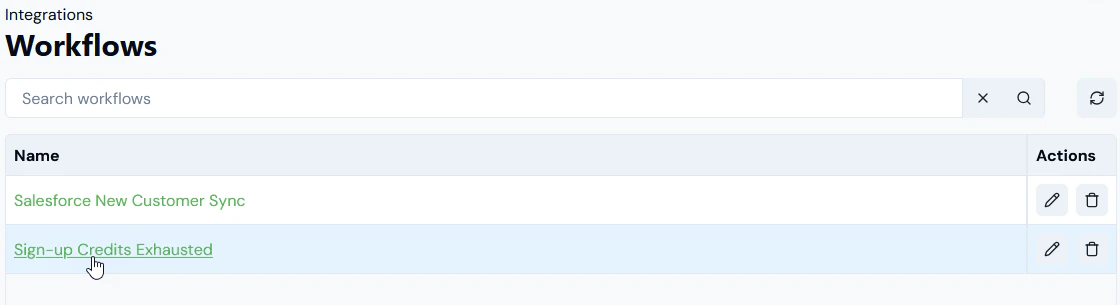 The **Workflow details** page opens:
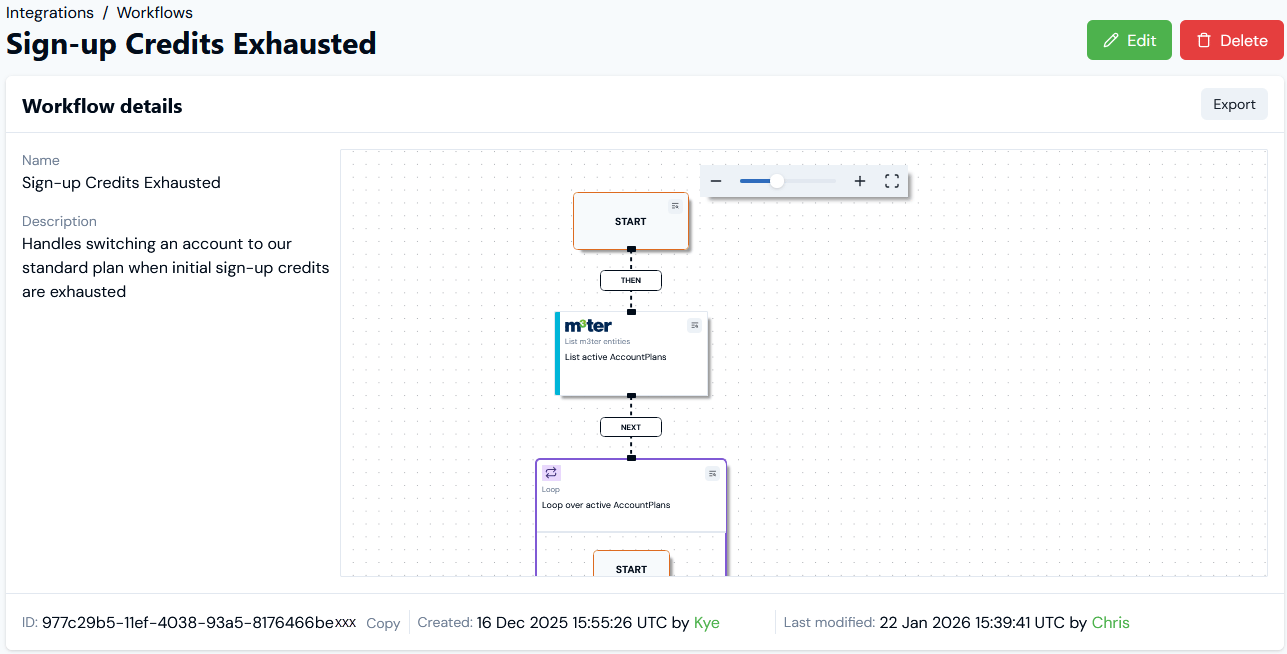 On this page you can quickly check:
* Workflow **Name** and **Description**.
* Workflow **ID**, which you can **Copy** to your clipboard.
* The user who **Created** and who **Last modified** the Workflow.
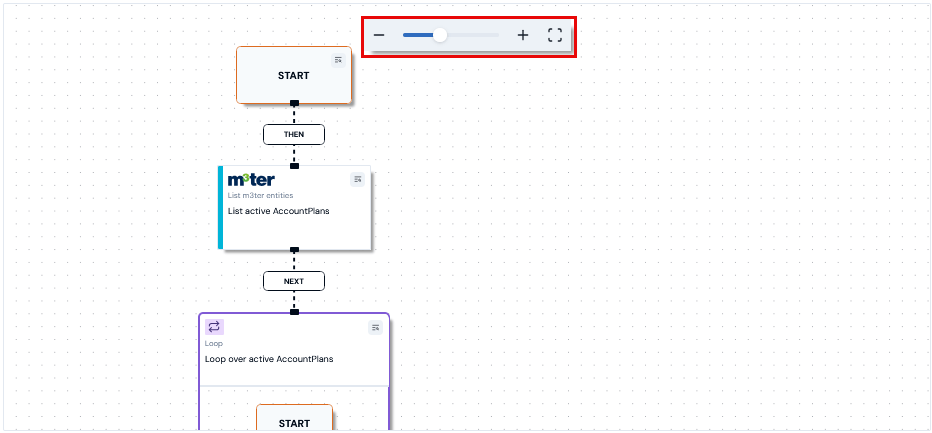
4. The Workflow is set out in the main canvas area and you can use **Zoom In/Out** **and Fit View** controls at top-right or mouse/pad button pan and scroll zoom to negotiate the canvas and inspect the full Workflow:
On this page you can quickly check:
* Workflow **Name** and **Description**.
* Workflow **ID**, which you can **Copy** to your clipboard.
* The user who **Created** and who **Last modified** the Workflow.
4. The Workflow is set out in the main canvas area and you can use **Zoom In/Out** **and Fit View** controls at top-right or mouse/pad button pan and scroll zoom to negotiate the canvas and inspect the full Workflow:
 5. You can zoom in to individual steps in the Workflow and quickly inspect details for a step:
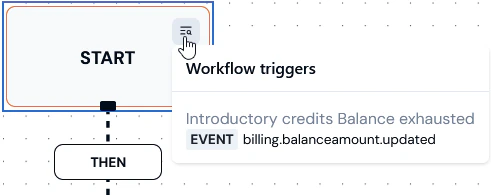 * Here we've opened details of the **START** and can read-off that the Workflow has a single trigger configured - it's triggered by the **Introductory credits Balance exhausted** Notification rule which is based on the `billing.balanceamount.updated` **EVENT**.
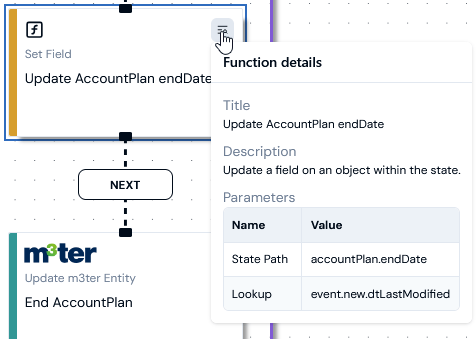
* Similarly, with a functional step in the Workflow, you can bring up **Function details**:
* Here we've opened details of the **START** and can read-off that the Workflow has a single trigger configured - it's triggered by the **Introductory credits Balance exhausted** Notification rule which is based on the `billing.balanceamount.updated` **EVENT**.
* Similarly, with a functional step in the Workflow, you can bring up **Function details**:
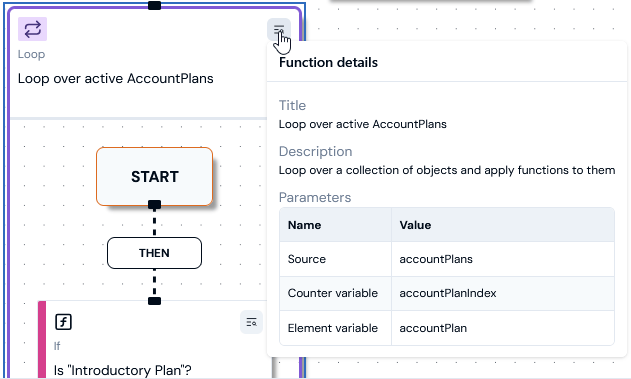
 6. If a Workflow contains a **Loop** stage, you can call up and inspect **Function details**:
 7. Scroll down the **Workflow details** page to check the **Workflow triggers** set up for the Workflow:
 * The **NOTIFICATION RULE** configured as a Workflow **Trigger** and the Event the rule is based on are shown.
* The status of the rule is shown: **ACTIVE** or **INACTIVE**.
* You can select the Notification rule hotlink text to open the **Notification rule** details page.
8. If you scroll further down the **Workflow details** page, you can check the **Latest workflow runs**:
* The **NOTIFICATION RULE** configured as a Workflow **Trigger** and the Event the rule is based on are shown.
* The status of the rule is shown: **ACTIVE** or **INACTIVE**.
* You can select the Notification rule hotlink text to open the **Notification rule** details page.
8. If you scroll further down the **Workflow details** page, you can check the **Latest workflow runs**:
 * The **Start time**, **Trigger**, and **Status** of listed Workflow runs are given.
* Use the **Status** drop-down list to filter the runs list.
* You can select the **Start time** hotlink text to open and review a Workflow run. See [Reviewing m3sh Workflow Runs](/guides/m3sh-automation/reviewing-m3sh-workflow-runs).
* The ten most recent Workflow runs are listed and you can select **View all** to open the **Runs** page for the Workflow.
* The **Start time**, **Trigger**, and **Status** of listed Workflow runs are given.
* Use the **Status** drop-down list to filter the runs list.
* You can select the **Start time** hotlink text to open and review a Workflow run. See [Reviewing m3sh Workflow Runs](/guides/m3sh-automation/reviewing-m3sh-workflow-runs).
* The ten most recent Workflow runs are listed and you can select **View all** to open the **Runs** page for the Workflow.