> ## Documentation Index
> Fetch the complete documentation index at: https://docs.m3ter.com/llms.txt
> Use this file to discover all available pages before exploring further.
# Checking Sync Logs and Troubleshooting
The m3ter Connector builds Sync Logs as you perform sync actions from your Salesforce org. You can open and view the details of your SyncLogs, which includes the details of the API calls made to the m3ter platform as part of the sync action process. If any issues have occurred with a sync action, having access to this information can be very helpful for troubleshooting purposes.
**To check Sync Logs:**
1. In the **Apps** menu, search for and select **Syn Logs**:
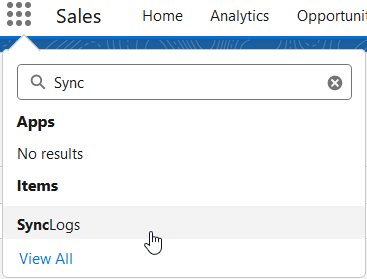 * The **SyncLogs** page opens for **Recently Viewed**.
2. Use the drop-down to switch to **All**:
* The **SyncLogs** page opens for **Recently Viewed**.
2. Use the drop-down to switch to **All**:
 3. Select the **SyncLog** link. The Synclog opens with the **Details** tab showing.
4. Select the **Related** tab:
3. Select the **SyncLog** link. The Synclog opens with the **Details** tab showing.
4. Select the **Related** tab:
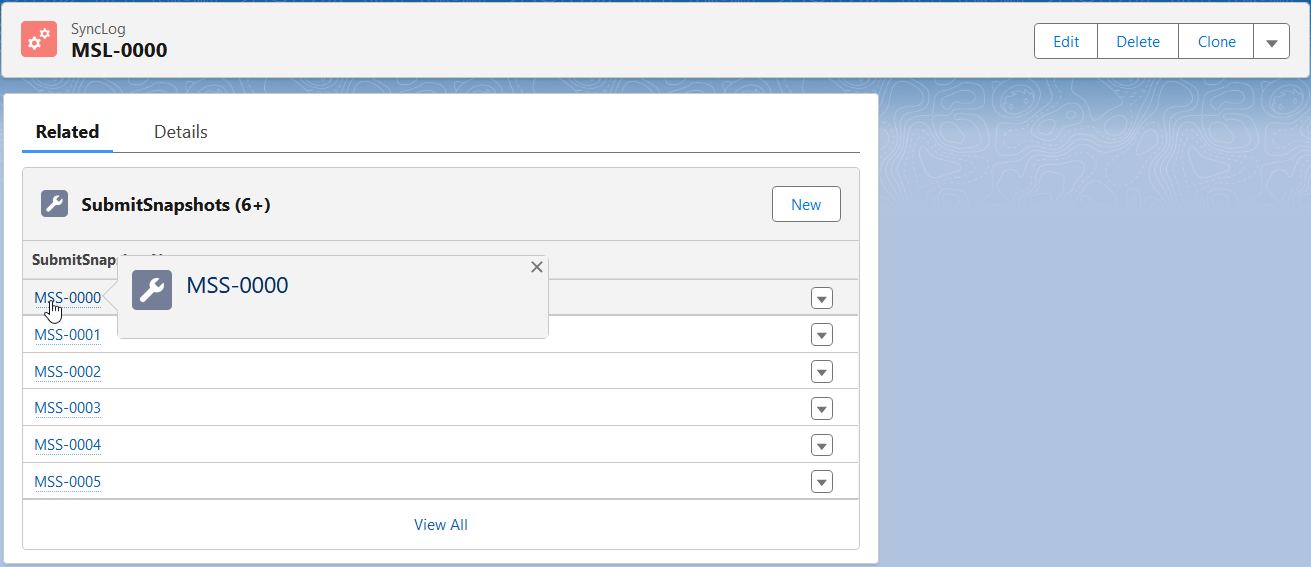 * **SubmitSnapshots** for sync actions are listed.
5. Select a **SubmitSnapshot** to view details:
* **SubmitSnapshots** for sync actions are listed.
5. Select a **SubmitSnapshot** to view details:
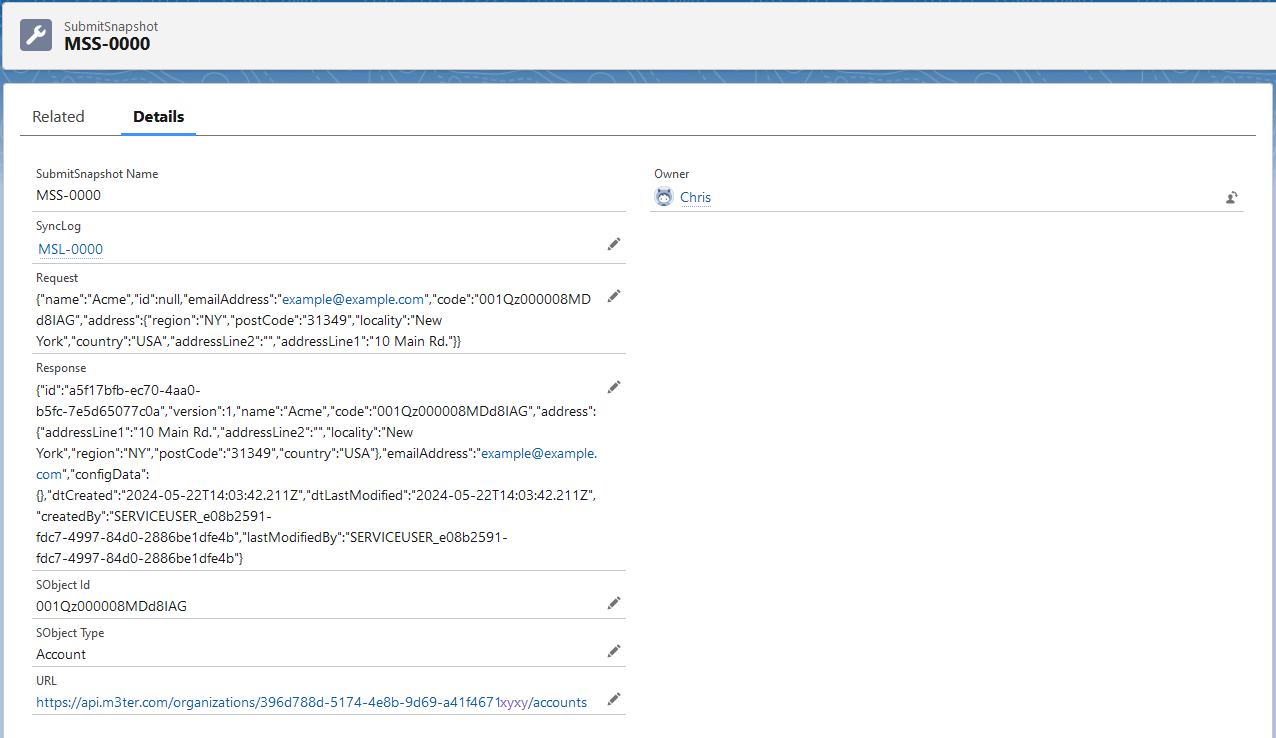 * You can read-off details of the **SubmitSnapshot**, including the JSON for the API call.