> ## Documentation Index
> Fetch the complete documentation index at: https://docs.m3ter.com/llms.txt
> Use this file to discover all available pages before exploring further.
# Recurring Charges Billing: Hybrid Pricing
Suppose you run a SaaS company that provides a build-and-host application service to developers. You want to charge customers in the first instance on a user license basis and allow for the number of developer licenses to increase and decrease throughout a customer's contract service period. Bills created for each billing period should correctly reflect any such changes in the number of developer licenses subscribed to. You also want to charge for any data storage developers make use of on a per gigabyte stored basis, which is an add-on service you offer. This amounts to a hybrid pricing model:
* The user license charges are a form of recurring subscription charges best served by a unit-based pricing model.
* The data storage charges are best served by a usage-based pricing model based on metered data storage volumes.
In m3ter, you can easily implement this kind of hybrid pricing model for your end-customer Accounts and set up pricing for an Account Plan that combines the rates you want to apply for both types of charge. At billing, all charge amounts due on the Account are combined in a single Bill.
This topic offers a worked example for this hybrid pricing use case, taking you through:
* [Creating Product and Account](/guides/recurring-charges-counters/recurring-charges-example-2-hybrid-pricing#creating-product-and-account)
* [Setting Up Pricing on Account](/guides/recurring-charges-counters/recurring-charges-example-2-hybrid-pricing#setting-up-pricing-for-account)
* [Submitting Sample Product Consumption to Account](/guides/recurring-charges-counters/recurring-charges-example-2-hybrid-pricing#submitting-sample-product-consumption-to-account)
* [Creating and Reviewing Bills on Account](/guides/recurring-charges-counters/recurring-charges-example-2-hybrid-pricing#creating-and-reviewing-bills-on-account)
## Creating Product and Account
We'll first set up a Product and Account for the hybrid pricing example.
**To set up a Product and an Account:**
First, create a Product:
1. In the Console, select **Product** and then select **Create product**.
2. Under **Product details** enter a **Name** and **Code** for the new Product and then select **Create product**:
* For the example, we've called the Product: **Dev License and Store**.
3. Select **Accounts** and then select **Create account**.
4. Under **Account details** enter **Name**, **Code**, and **Email address**, and then select **Create account**:
* For the example, we've called the Account: **Dev License n Store Account 1**.
## Setting Up Pricing for Account
For our hybrid pricing example to set up pricing for the Account, we'll need to
* Create two pricing metrics:
* First, an *Aggregation* that sums metered values for storage volumes on the Account.
* Second, a *Counter* to track the number of developer licenses the Account subscribes to.
* Third, create a Plan Template and Plan for the Product.
* Fourth, use our pricing metrics to price a Product Plan.
* Lastly, attach the priced Plan to the Account.
**To set up pricing for the Account:**
First, create an Aggregation targeting a Meter field:
1. Select **Metering**. The **Meters** page opens.
2. For **Product** select **Dev License and Store**.
3. Select **Create meter**. Here's the Meter configuration:
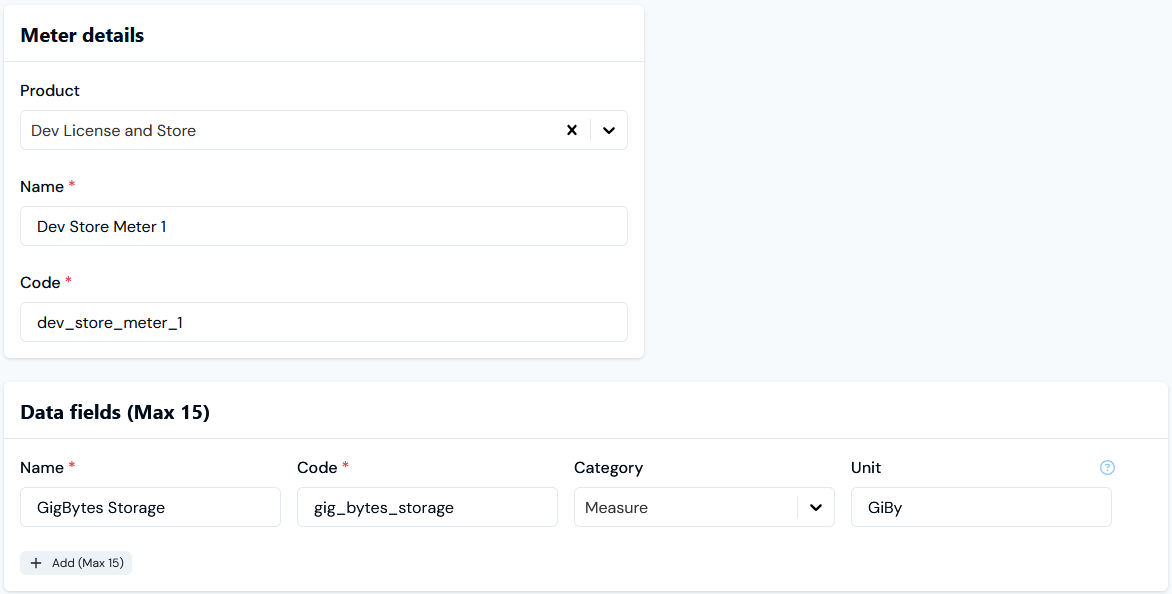 * For the example, we've created a Meter with a single **Measure** Data Field - **GigBytes Storage** -to collect usage data amounts for gigabytes of storage used: **Dev Store Meter 1**.
4. Select **Create meter**.
5. Select **Metering>Aggregations**. The **Aggregations** page opens.
6. For **Product** select **Dev License and Store**, and select **Create aggregation**. Here's the Aggregation configuration:
**Aggregation details**:
* For the example, we've created a Meter with a single **Measure** Data Field - **GigBytes Storage** -to collect usage data amounts for gigabytes of storage used: **Dev Store Meter 1**.
4. Select **Create meter**.
5. Select **Metering>Aggregations**. The **Aggregations** page opens.
6. For **Product** select **Dev License and Store**, and select **Create aggregation**. Here's the Aggregation configuration:
**Aggregation details**:
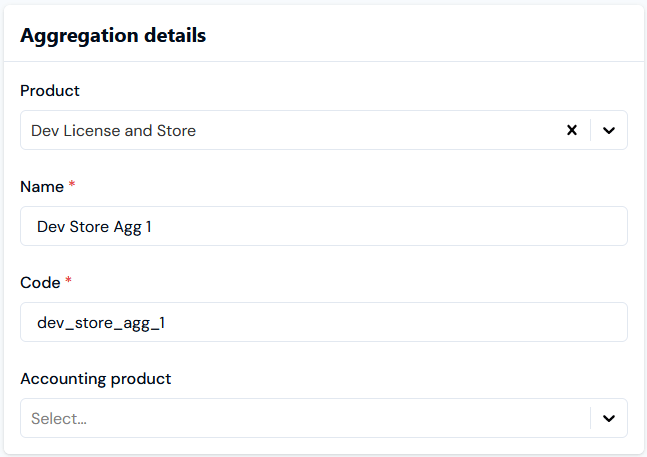 * We've called the Aggregation: **Dev Store Agg 1**.
**Meter settings**:
* We've called the Aggregation: **Dev Store Agg 1**.
**Meter settings**:
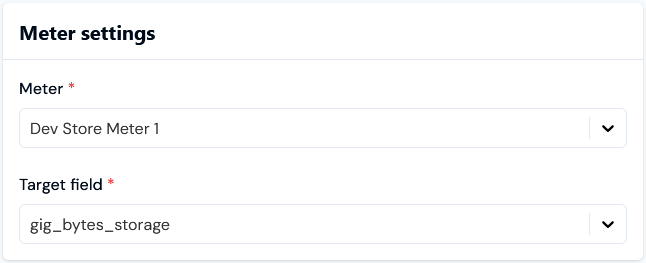 * The Aggregation targets the **GigBytes Storage** field on **Dev Store Meter 1**.
**Aggregation settings**:
* The Aggregation targets the **GigBytes Storage** field on **Dev Store Meter 1**.
**Aggregation settings**:
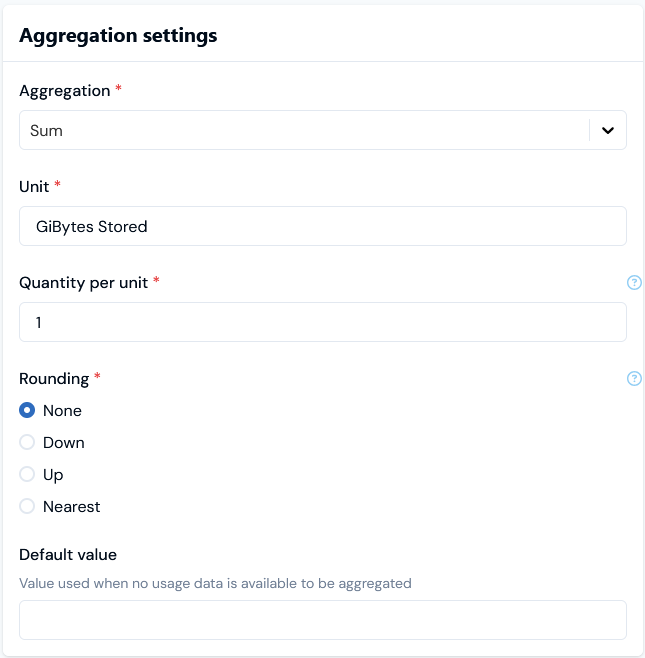 * The Aggregation applies a **Sum** function to give a usage-based pricing metric of the total of values submitted for the **GigBytes Storage** target field for a billing period.
7. Select **Create aggregation**.
Second, create a Counter:
1. Select **Metering>Counters**. The **Counters** page opens.
2. For **Product** select **Dev License and Store**, and select **Create counter**. Here's the **Counter details** configuration:
* The Aggregation applies a **Sum** function to give a usage-based pricing metric of the total of values submitted for the **GigBytes Storage** target field for a billing period.
7. Select **Create aggregation**.
Second, create a Counter:
1. Select **Metering>Counters**. The **Counters** page opens.
2. For **Product** select **Dev License and Store**, and select **Create counter**. Here's the **Counter details** configuration:
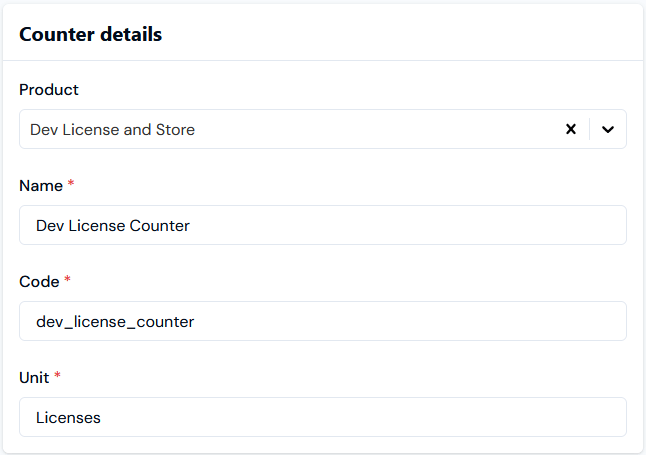 * For the example, we've created the **Dev License Counter** to use **Licenses** as the **Unit**.
3. Select **Create counter**.
Third, create a **Plan Template** and **Plan** for the Product:
1. Open the **Pricing>Plan templates** page.
2. For **Product** select **Dev License and Store** and select **Create plan template**. Here's the **Plan template details** configuration:
* For the example, we've created the **Dev License Counter** to use **Licenses** as the **Unit**.
3. Select **Create counter**.
Third, create a **Plan Template** and **Plan** for the Product:
1. Open the **Pricing>Plan templates** page.
2. For **Product** select **Dev License and Store** and select **Create plan template**. Here's the **Plan template details** configuration:
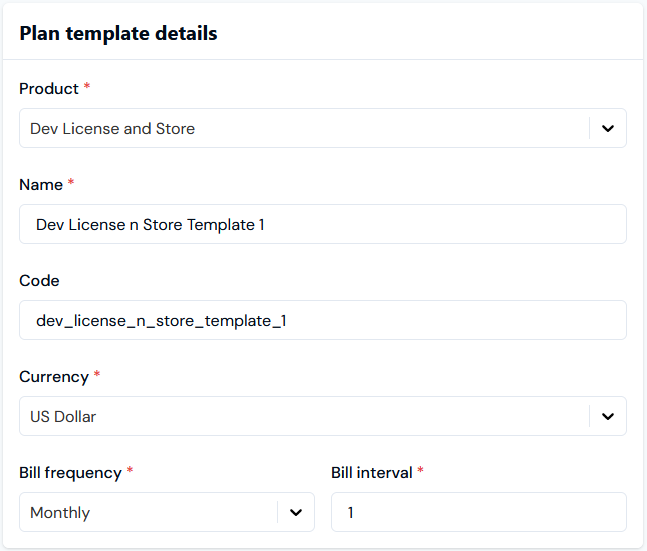 * We've created the **Dev License n Store Template 1** and set it up for **Monthly Bill frequency** using **US Dollar** as the billing **Currency**.
* For the current example, we can omit setting up any **Standing Charge** or **Minimum Spend** amounts for the Plan Template.
3. Open the **Pricing>Plans** page.
4. For **Product** select **Dev License and Store** and select **Create plan**. Here's the **Plan details** configuration:
* We've created the **Dev License n Store Template 1** and set it up for **Monthly Bill frequency** using **US Dollar** as the billing **Currency**.
* For the current example, we can omit setting up any **Standing Charge** or **Minimum Spend** amounts for the Plan Template.
3. Open the **Pricing>Plans** page.
4. For **Product** select **Dev License and Store** and select **Create plan**. Here's the **Plan details** configuration:
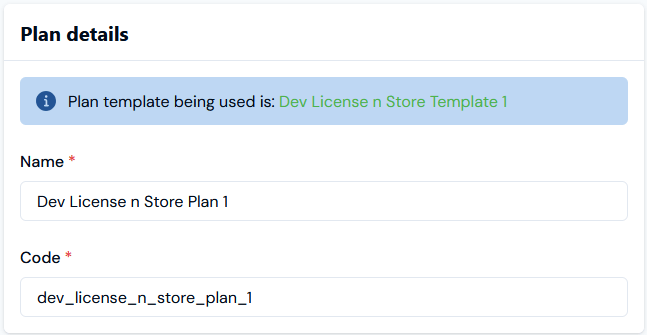 * The **Dev License n Store Plan 1** is based on **Dev License n Store Template 1**. The Plan will inherit the Monthly Billing frequency and US Dollar billing Currency we set up for the template.
* For the current example, we can omit setting up any **Standing charge** or **Minimum spend** amounts for the Plan.
5. Select **Create plan**.
Fourth, price the Plan:
1. Open **Pricing details** for **Dev License n Store Plan 1**.
2. Scroll down the page and on **Pricing** panel select **Add usage-based pricing**. A **Select aggregations** modal appears.
3. Select **Dev Store Agg 1** and then select confirm. The modal closes and the selected Aggregation is now shown under **Pricing**:
* The **Dev License n Store Plan 1** is based on **Dev License n Store Template 1**. The Plan will inherit the Monthly Billing frequency and US Dollar billing Currency we set up for the template.
* For the current example, we can omit setting up any **Standing charge** or **Minimum spend** amounts for the Plan.
5. Select **Create plan**.
Fourth, price the Plan:
1. Open **Pricing details** for **Dev License n Store Plan 1**.
2. Scroll down the page and on **Pricing** panel select **Add usage-based pricing**. A **Select aggregations** modal appears.
3. Select **Dev Store Agg 1** and then select confirm. The modal closes and the selected Aggregation is now shown under **Pricing**:
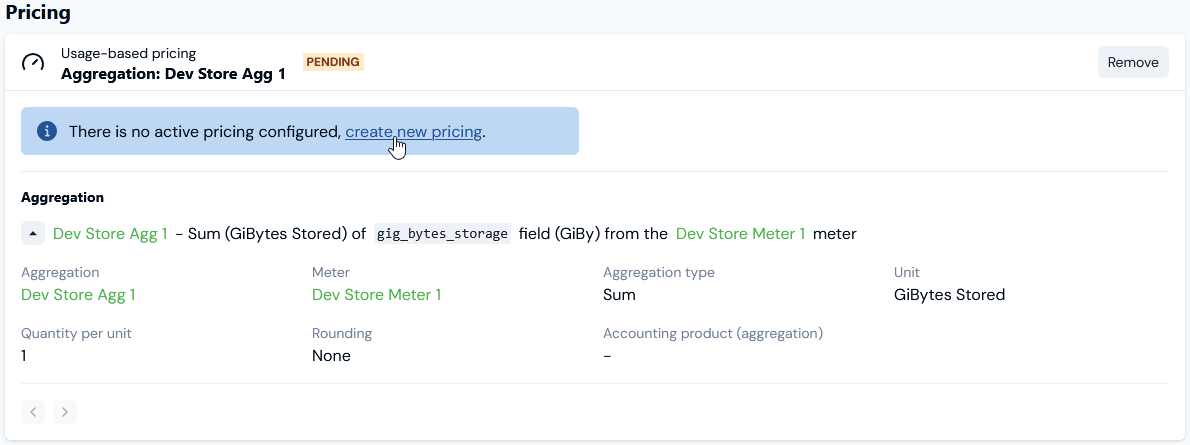 4. Select the **create new pricing** text link. You are taken to the **Pricing editor** with the **Pricing>Create** page open.
5. Under **Pricing details**, create a pricing for the Plan using **Dev Store Agg 1**:
* Leave as default to **Bill in arrears**.
* Set the period the pricing will apply to the Plan as July 1st 2025 through to June 30th 2026.
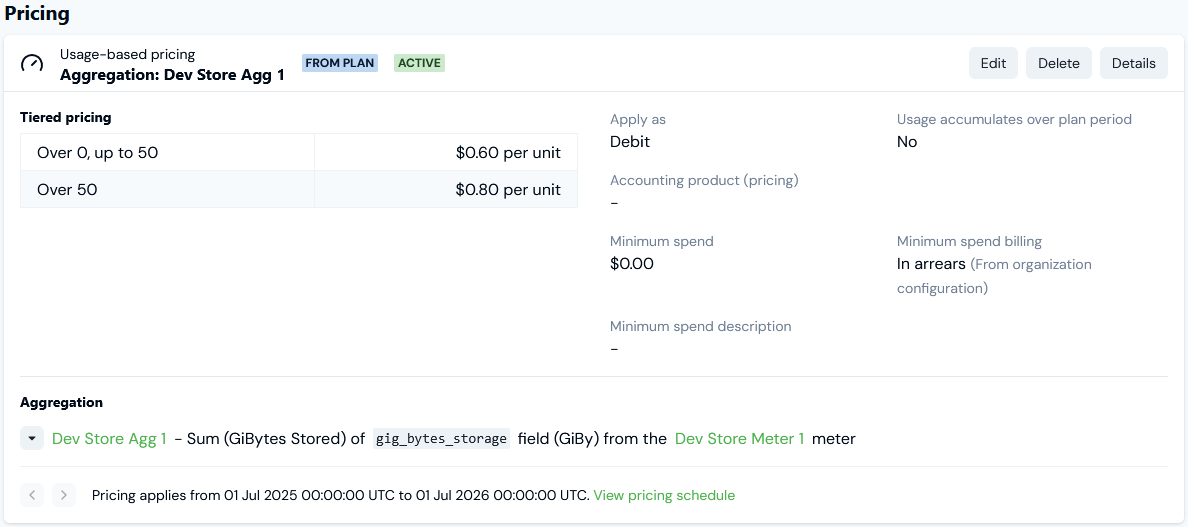
* Define a two-tiered pricing:
* From 0 to 50 = \$0.60 per unit.
* Over 50 = \$0.80 per unit
6. Select **Create pricing**. You are taken back to the **Plan details** page where the new usage-based **Pricing** is shown:
4. Select the **create new pricing** text link. You are taken to the **Pricing editor** with the **Pricing>Create** page open.
5. Under **Pricing details**, create a pricing for the Plan using **Dev Store Agg 1**:
* Leave as default to **Bill in arrears**.
* Set the period the pricing will apply to the Plan as July 1st 2025 through to June 30th 2026.
* Define a two-tiered pricing:
* From 0 to 50 = \$0.60 per unit.
* Over 50 = \$0.80 per unit
6. Select **Create pricing**. You are taken back to the **Plan details** page where the new usage-based **Pricing** is shown:
 7. Under **Pricing**, select **Add counter-based pricing**. A **Select counters** modal appears.
8. Select **Dev License Counter** and then select **Confirm**. The modal closes and the selected Counter is now shown under Pricing:
7. Under **Pricing**, select **Add counter-based pricing**. A **Select counters** modal appears.
8. Select **Dev License Counter** and then select **Confirm**. The modal closes and the selected Counter is now shown under Pricing:
 9. Select the **create new pricing** text link. You are taken to the **Pricing editor** with the **Counter pricing>Create** page open.
10. Under **Pricing details**, create a pricing for the Plan using **Dev License Counter**:
* Set the period the pricing will apply to the Plan as July 1st 2025 through to June 30th 2026.
* Leave as default to **Bill in arrears**.
* Switch all of the pro-rating switches for Counter charges to disabled.
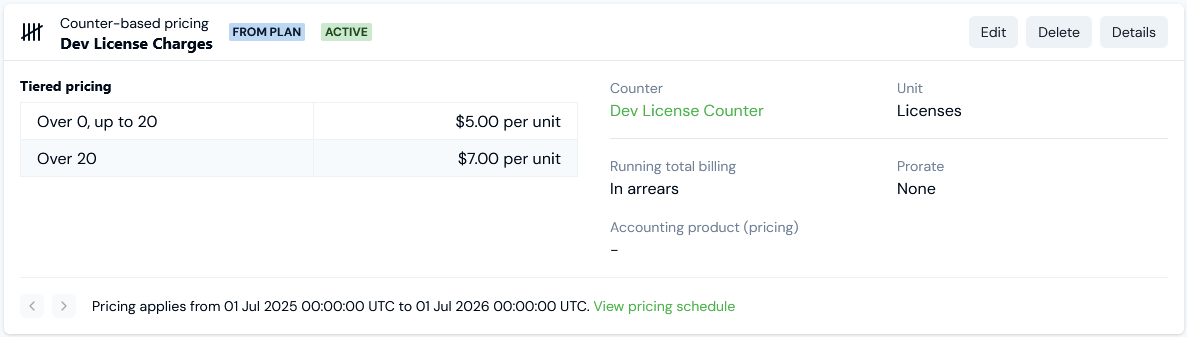
* Define a two-tiered pricing:
* From 0 to 20 = \$5 per unit.
* Over 20 = \$7 per unit
11. Select **Create counter pricing**. You are taken back to the **Plan details** page where the new counter-based **Pricing** is shown:
9. Select the **create new pricing** text link. You are taken to the **Pricing editor** with the **Counter pricing>Create** page open.
10. Under **Pricing details**, create a pricing for the Plan using **Dev License Counter**:
* Set the period the pricing will apply to the Plan as July 1st 2025 through to June 30th 2026.
* Leave as default to **Bill in arrears**.
* Switch all of the pro-rating switches for Counter charges to disabled.
* Define a two-tiered pricing:
* From 0 to 20 = \$5 per unit.
* Over 20 = \$7 per unit
11. Select **Create counter pricing**. You are taken back to the **Plan details** page where the new counter-based **Pricing** is shown:
 Lastly, attach the priced Plan to the Account
1. Open **Dev License n Store Account 1**, select the **Attached plans** tab, and select **Create plan attachment**. Here's the **Plan attachment details**:
Lastly, attach the priced Plan to the Account
1. Open **Dev License n Store Account 1**, select the **Attached plans** tab, and select **Create plan attachment**. Here's the **Plan attachment details**:
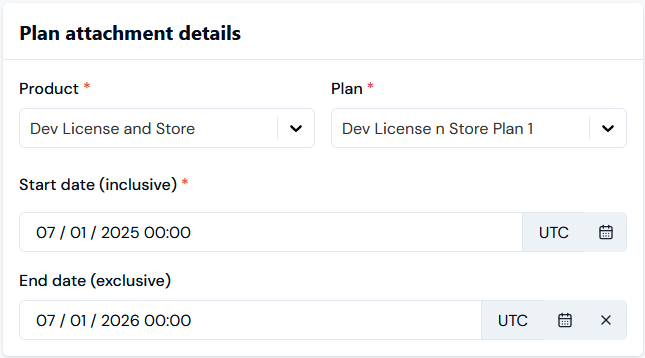 * Note that for convenience, we've set up the period the Plan will be *active for the Account* to correspond with the period the *pricing applies to the Plan*.
* For the current example, we do not need to change any of the **Plan attachment settings**.
2. Select **Create plan attachment**.
We now have a Product Plan set up for hybrid pricing and attached to our example Account.
## Submitting Sample Product Consumption to Account
To be able to run billing against the Account, we'll need to submit some sample Product consumption for the Account for a specific billing period:
* Metered measures for stored data volumes used by the Account.
* Counter Adjustments for developer license numbers subscribed to on the Account.
**To submit sample Product consumption for the Account:**
First, submit some sample measures for stored data volumes:
1. Select **Metering**. The **Meters** page opens
2. For **Product** select **Dev License and Store**.
3. Select **Dev Store Meter 1** hotlink text to open the Meter's **Details** page.
4. Scroll down to the **Submit measurements** panel and select **Submit usage data**.
5. For **Account**, select **Dev License n Store Account 1** and submit two usage data measures using the Meter's **GigBytes Storage** field:
* A measure **Value** of **50**.
* A measure **Value** of **20**.
* Make the **Timestamp** for each usage measurement as a Date/Time in July 2024.
Second, post a sample Counter Adjustment to the Account:
1. Select **Accounts** and open the **Dev License n Store Account 1** page.
2. Select the **Counter adjustments** tab.
3. For **Counter**, select the **Dev License Counter** and then **Create counter adjustment**.
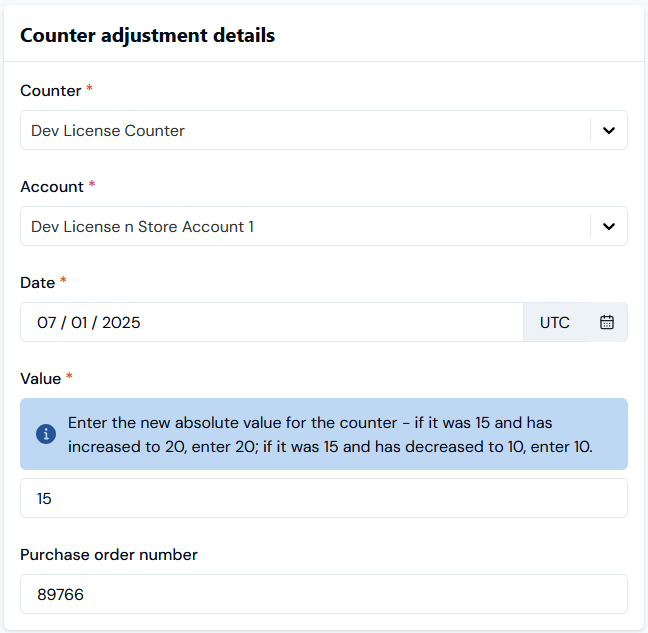
4. Create a single Counter Adjustment for July 1st 2024. Here's the **Counter adjustment details**:
* Note that for convenience, we've set up the period the Plan will be *active for the Account* to correspond with the period the *pricing applies to the Plan*.
* For the current example, we do not need to change any of the **Plan attachment settings**.
2. Select **Create plan attachment**.
We now have a Product Plan set up for hybrid pricing and attached to our example Account.
## Submitting Sample Product Consumption to Account
To be able to run billing against the Account, we'll need to submit some sample Product consumption for the Account for a specific billing period:
* Metered measures for stored data volumes used by the Account.
* Counter Adjustments for developer license numbers subscribed to on the Account.
**To submit sample Product consumption for the Account:**
First, submit some sample measures for stored data volumes:
1. Select **Metering**. The **Meters** page opens
2. For **Product** select **Dev License and Store**.
3. Select **Dev Store Meter 1** hotlink text to open the Meter's **Details** page.
4. Scroll down to the **Submit measurements** panel and select **Submit usage data**.
5. For **Account**, select **Dev License n Store Account 1** and submit two usage data measures using the Meter's **GigBytes Storage** field:
* A measure **Value** of **50**.
* A measure **Value** of **20**.
* Make the **Timestamp** for each usage measurement as a Date/Time in July 2024.
Second, post a sample Counter Adjustment to the Account:
1. Select **Accounts** and open the **Dev License n Store Account 1** page.
2. Select the **Counter adjustments** tab.
3. For **Counter**, select the **Dev License Counter** and then **Create counter adjustment**.
4. Create a single Counter Adjustment for July 1st 2024. Here's the **Counter adjustment details**:
 5. Select **Create counter adjustment**.
We now have some sample product consumption entered for the Account for July 2025 - both data volume stored and number of Dev Licenses subscribed to for the month's billing period.
## Creating and Reviewing Bills on Account
We'll run billing for the **Dev License n Store Account 1** for the July 2025 billing period and review and check the Bill.
**To run billing for the Account:**
1. Open the **Dev License n Store Account 1** page and select the **Bills** tab.
2. Select **Run billing** and on the modal that appears enter:
* **Invoice date**. Use the calendar pop-out to select **August 1st 2025**.
* **Bill frequency**. Select **Monthly**.
* **Target currency**. Select **US Dollar**.
3. Select **Run billing**. The modal closes and the Bill job executes. When the Bill job completes the newly generated Bill is listed on the **Bills** tab.
4. Select the **Reference** hotlink text for the Bill. The Bill opens in **Bill management**:
5. Select **Create counter adjustment**.
We now have some sample product consumption entered for the Account for July 2025 - both data volume stored and number of Dev Licenses subscribed to for the month's billing period.
## Creating and Reviewing Bills on Account
We'll run billing for the **Dev License n Store Account 1** for the July 2025 billing period and review and check the Bill.
**To run billing for the Account:**
1. Open the **Dev License n Store Account 1** page and select the **Bills** tab.
2. Select **Run billing** and on the modal that appears enter:
* **Invoice date**. Use the calendar pop-out to select **August 1st 2025**.
* **Bill frequency**. Select **Monthly**.
* **Target currency**. Select **US Dollar**.
3. Select **Run billing**. The modal closes and the Bill job executes. When the Bill job completes the newly generated Bill is listed on the **Bills** tab.
4. Select the **Reference** hotlink text for the Bill. The Bill opens in **Bill management**:
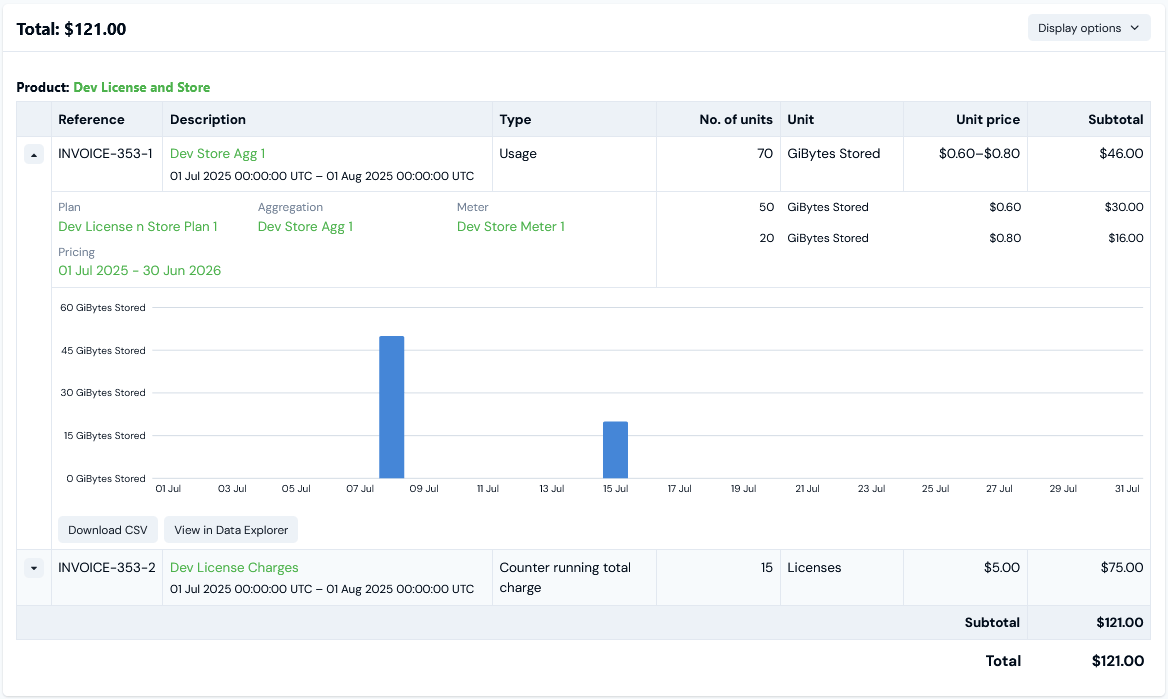 On review, we see that line item charges for the hybrid pricing for the **Dev License ad Store** Product are combined in the single Bill:
* The 70 **GigBytes Stored** are shown as **Usage** and are calculated correctly according to the two-tiered pricing we set up using the **Dev Store Agg 1**.
* The 15 **Licenses** are shown as a **Counter running total charge** and are calculated correctly according to the two-tiered pricing we set up using **Dev License Counter**.
On review, we see that line item charges for the hybrid pricing for the **Dev License ad Store** Product are combined in the single Bill:
* The 70 **GigBytes Stored** are shown as **Usage** and are calculated correctly according to the two-tiered pricing we set up using the **Dev Store Agg 1**.
* The 15 **Licenses** are shown as a **Counter running total charge** and are calculated correctly according to the two-tiered pricing we set up using **Dev License Counter**.