> ## Documentation Index
> Fetch the complete documentation index at: https://docs.m3ter.com/llms.txt
> Use this file to discover all available pages before exploring further.
# Segmented Aggregations
>
*Segmented Aggregations* allow you to segment the usage data collected by a single Meter. This capability is very useful for implementing some pricing and billing use cases.
This topic introduces an example usage-based pricing use case and explains how to create and work with Segmented Aggregations:
* [Example Use Case](#example-use-case)
* [Configuration for Example Use Case](#configuration-for-example-use-case)
* [Creating Segmented Aggregations](#creating-segmented-aggregations)
* [Pricing Plans with Segmented Aggregations](#pricing-plans-with-segmented-aggregations)
* [Reviewing Bills for Segmented Aggregation Pricing](#reviewing-bills-for-segmented-aggregation-pricing)
* [Custom Descriptions for Segmented Aggregations](#custom-descriptions-for-segmented-aggregations)
* [Using Copy or Cut and Paste to Create and Manage Segment Values](#using-copy-or-cut-and-paste-to-create-and-manage-segment-values)
* [Using Wildcards or Defaults in Segmented Aggregations](#using-wildcards-or-defaults-in-segmented-aggregations)
## Example Use Case
Suppose you offer a service to companies to perform background checks on employee candidates to support their hiring process. Pricing for this service will vary by candidate location and the level of check done. The service is offered for candidate locations across three countries and you can perform three levels of background check for each location: Standard, Extended, or Complete. If you want to price differently for each possible combination of check for Country/Level, this would mean having to set up multiple Meters/Aggregations to support usage-pricing for all possible combinations. This then places the burden of deciding which Meter to use for pricing on you when sending customer usage data into the m3ter platform. For such cases, you can use Segmented Aggregations on the same Meter usage data, which means you can always send us data for the same Meter and allows a different pricing to be created for each segment.
## Configuration for Example Use Case
Here's the configuration for the example.
### Meter
Create and configure a single Meter with three Data Fields:
| Data | Field | Category | Example Values |
| -------------------------- | -------- | -------- | -------------------------------- |
| Candidate location | location | Where | China \| USA \| UK |
| Background check level | type | What | Standard \| Extended \| Complete |
| Number of checks performed | quantity | Measure | 1 |
### Aggregations
First, you can define which Meter Data Fields are part of the segmented Aggregation - for the current example, these are **location** and **type**.
**Tip: Only String Data Fields can be Segmented!** That is: **Who**, **What**, and **Where** Data Fields. Numeric Data Fields, such as **Measure**, **Cost**, and **Income** cannot be segmented.
Second, you can then define different segmented values for the Aggregation, where for each value you want to assign a specific pricing. For the current example, let's suppose we want to set up six segment values:
| Segments | location | type |
| --------------- | -------- | -------- |
| Segment value 1 | China | Standard |
| Segment value 2 | China | Extended |
| Segment value 3 | USA | Extended |
| Segment value 4 | USA | Complete |
| Segment value 5 | UK | Standard |
| Segment value 6 | UK | Complete |
## Creating Segmented Aggregations
This section explains how to create a Segmented Aggregation for the example use case described in the [earlier section](/guides/usage-data-aggregations/segmented-aggregations#example-use-case) of this topic. It's assumed that a Meter with the required three Data Fields has been set up.
**Note: Limit on Segmentation Fields?** The maximum number of fields that can be used for segmentation is **5**.
**To create a Segmented Aggregation:**
1. Select **Metering>Aggregations**. The **Aggregations** page opens.
2. In the **Product** drop-down, select the Product for which you want to create the new Segmented Aggregation.
3. Select **Create aggregation**. The **Create** page opens.
4. Under **Aggregation details**, enter a **Name** and **Code** for the new Aggregation:
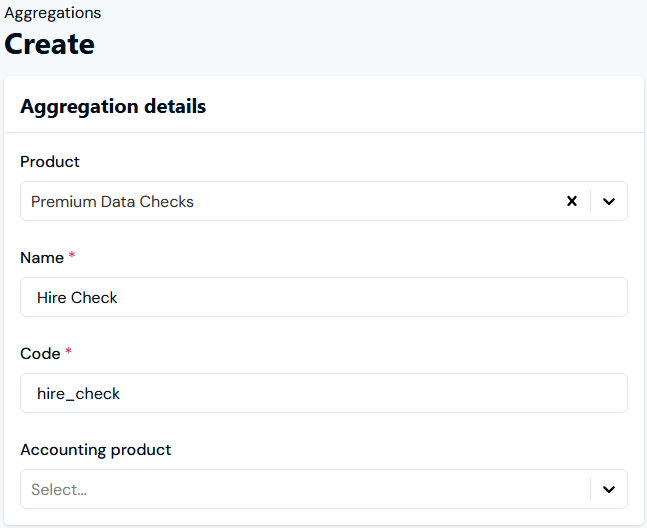 * **Accounting product**. Use the drop-down to select a Product. For accounting purposes, you can use this to link to a specific Product any usage line items on Bills that result from pricing a Plan using this Aggregation. (*Optional*)
* If you've also defined an Accounting product for a Pricing that uses this Aggregation, then the *Pricing Accounting product* takes precedence and is used.
* If no Accounting product is defined for a Pricing and you omit an Accounting product for the Aggregation, then the *Product the Plan belongs* to is used.
5. Under **Meter settings**, select the **Meter** previously created for the example and with the required Data Fields: **Location**, **Type**, and **Quantity**:
* **Accounting product**. Use the drop-down to select a Product. For accounting purposes, you can use this to link to a specific Product any usage line items on Bills that result from pricing a Plan using this Aggregation. (*Optional*)
* If you've also defined an Accounting product for a Pricing that uses this Aggregation, then the *Pricing Accounting product* takes precedence and is used.
* If no Accounting product is defined for a Pricing and you omit an Accounting product for the Aggregation, then the *Product the Plan belongs* to is used.
5. Under **Meter settings**, select the **Meter** previously created for the example and with the required Data Fields: **Location**, **Type**, and **Quantity**:
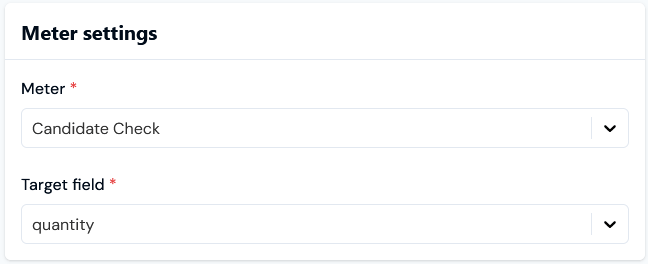 In this example:
* Our Meter set up earlier is called **Candidate Check**.
* We've selected **quantity** as the Target Field.
6. Enter the **Aggregation settings**:
In this example:
* Our Meter set up earlier is called **Candidate Check**.
* We've selected **quantity** as the Target Field.
6. Enter the **Aggregation settings**:
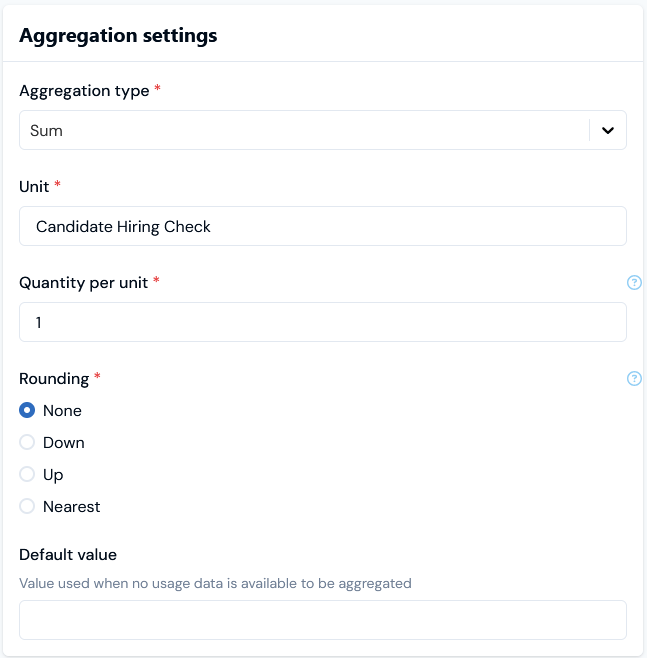 In this example:
* We've selected to **Sum** the number of **Candidate Hiring Checks**.
7. Open the **Segments** panel:
In this example:
* We've selected to **Sum** the number of **Candidate Hiring Checks**.
7. Open the **Segments** panel:
 * Because the **Candidate Check** Meter has two Data Fields of the category that can be segmented - a **Location>Where** and a **Type>What** field - the **Segments** panel is loaded with these:
**Tip: Creating Segmented Aggregations using Derived Fields?** If you have added a Derived Field on the target Meter which is a string type, then this Derived Field will show as available to set up segment values for when creating an Aggregation. For example, if you've set up a Derived Field which concatenates two string Data Fields, this Derived Field will show as available under **Segments** to set up segment values for the Aggregation.
8. In the **Segments** panel, select the Meter fields you want to use to create segments. The panel adjust to add a first blank row for the selected Meter fields:
* Because the **Candidate Check** Meter has two Data Fields of the category that can be segmented - a **Location>Where** and a **Type>What** field - the **Segments** panel is loaded with these:
**Tip: Creating Segmented Aggregations using Derived Fields?** If you have added a Derived Field on the target Meter which is a string type, then this Derived Field will show as available to set up segment values for when creating an Aggregation. For example, if you've set up a Derived Field which concatenates two string Data Fields, this Derived Field will show as available under **Segments** to set up segment values for the Aggregation.
8. In the **Segments** panel, select the Meter fields you want to use to create segments. The panel adjust to add a first blank row for the selected Meter fields:
 9. Enter segment values for the first row and then use the **Add default segment** button to successively add the required segments you want to price by. For the current example, we've added six segment values using the **Location/Type** Meter fields:
 10. Select **Create aggregation**. The **Aggregation details** page opens:
 When you come to price up your Product Plans in the Pricing Editor, the new Segmented Aggregation will be available for selection.
**Notes and Tips:**
* **Pricing a Plan using this example Segmented Aggregation?** See [Pricing Plans Using Segmented Aggregations](/guides/plans-and-pricing/pricing-plans/pricing-plans-using-segmented-aggregations).
* **Aggregation metadata?** If you scroll down the **Aggregation details** page, you can review Aggregation metadata. See [Reviewing Aggregation Details](/guides/usage-data-aggregations/reviewing-aggregation-details).
11. If you want to edit an Aggregation's details, select the **Edit** button, make your changes, and click **Update**.
12. If you want to remove an Aggregation, return to the **Aggregations** page and select the **Delete** button for the Aggregation:
When you come to price up your Product Plans in the Pricing Editor, the new Segmented Aggregation will be available for selection.
**Notes and Tips:**
* **Pricing a Plan using this example Segmented Aggregation?** See [Pricing Plans Using Segmented Aggregations](/guides/plans-and-pricing/pricing-plans/pricing-plans-using-segmented-aggregations).
* **Aggregation metadata?** If you scroll down the **Aggregation details** page, you can review Aggregation metadata. See [Reviewing Aggregation Details](/guides/usage-data-aggregations/reviewing-aggregation-details).
11. If you want to edit an Aggregation's details, select the **Edit** button, make your changes, and click **Update**.
12. If you want to remove an Aggregation, return to the **Aggregations** page and select the **Delete** button for the Aggregation:
 A confirmation popup opens.
13. Select **Yes** to confirm the delete action.
**Tip: Create Segmented Aggregation using API call?** You can also use the *Create Aggregation* API call - see the [Aggregation section](/api/aggregation/introduction) of our API Reference documentation.
## Pricing Plans with Segmented Aggregations
When pricing Plans you can define a pricing for each segmented value set up for an Aggregation. For more details on how to do this, see [Pricing Plans Using Segmented Aggregations](https://docs.m3ter.com/guides/plans-and-pricing/pricing-plans/pricing-plans-using-segmented-aggregations).
**Pricing Plans in conjunction with tiered pricing!** Caution is required when using Segmented Aggregations in conjunction with a tiered pricing structure:
* Suppose in the current example use case you want to offer 50 free background checks to your customers per billing period and then charge \$50 per 100 checks made after the first 50 free per billing period. If you had priced using a non-segmented Aggregation and a customer consumes 150 checks in total during a billing period, then the bill would amount to \$50. If however you use a Segmented Aggregation and your customer again consumes a total of 150 checks but across 3 segmented values and at 50 checks for each value, then the 50 free tier is applied separately to each segment and the bill amount will be \$0.
## Reviewing Bills for Segmented Aggregation Pricing
If you use Segmented Aggregations to price your Product Plans, then at billing one line item will be created per Aggregation segment value you've used for pricing and any default pricing you've used:
* Each Bill line item shows a charge for a priced segment.
* If you do not use a segment value for pricing, then no line item for this appears on the Bill.
To illustrate how Bills are generated when a segmented Aggregation is used for pricing, we'll use the **Hire Check** segmented Aggregation for the **Premium Data Checks** Product created in the [earlier section](https://docs.m3ter.com/#creating-segmented-aggregations), submit some test usage data to an Account, and then generate a Bill.
**To generate and review Bills for Segmented Aggregation pricing:**
1. Select **Products>Premium Data Checks**. The **Product details** page opens.
We'll first create a Plan for the Product.
2. Create a Plan Template for the Product configured for monthly billing in US Dollars and then create the **Premium Data Check Plan** based on the template. See [Creating Product Entities](https://docs.m3ter.com/guides/creating-and-managing-products#creating-product-entities) for more details.
Next, we'll open the **Hire Check** Aggregation then use it to price the **Premium Data Check Plan**.
3. Open the **Plan details** page for the **Premium Data Check Plan** and then use the **Hire Check** Segmented Aggregation to configure pricing for each segment.
A confirmation popup opens.
13. Select **Yes** to confirm the delete action.
**Tip: Create Segmented Aggregation using API call?** You can also use the *Create Aggregation* API call - see the [Aggregation section](/api/aggregation/introduction) of our API Reference documentation.
## Pricing Plans with Segmented Aggregations
When pricing Plans you can define a pricing for each segmented value set up for an Aggregation. For more details on how to do this, see [Pricing Plans Using Segmented Aggregations](https://docs.m3ter.com/guides/plans-and-pricing/pricing-plans/pricing-plans-using-segmented-aggregations).
**Pricing Plans in conjunction with tiered pricing!** Caution is required when using Segmented Aggregations in conjunction with a tiered pricing structure:
* Suppose in the current example use case you want to offer 50 free background checks to your customers per billing period and then charge \$50 per 100 checks made after the first 50 free per billing period. If you had priced using a non-segmented Aggregation and a customer consumes 150 checks in total during a billing period, then the bill would amount to \$50. If however you use a Segmented Aggregation and your customer again consumes a total of 150 checks but across 3 segmented values and at 50 checks for each value, then the 50 free tier is applied separately to each segment and the bill amount will be \$0.
## Reviewing Bills for Segmented Aggregation Pricing
If you use Segmented Aggregations to price your Product Plans, then at billing one line item will be created per Aggregation segment value you've used for pricing and any default pricing you've used:
* Each Bill line item shows a charge for a priced segment.
* If you do not use a segment value for pricing, then no line item for this appears on the Bill.
To illustrate how Bills are generated when a segmented Aggregation is used for pricing, we'll use the **Hire Check** segmented Aggregation for the **Premium Data Checks** Product created in the [earlier section](https://docs.m3ter.com/#creating-segmented-aggregations), submit some test usage data to an Account, and then generate a Bill.
**To generate and review Bills for Segmented Aggregation pricing:**
1. Select **Products>Premium Data Checks**. The **Product details** page opens.
We'll first create a Plan for the Product.
2. Create a Plan Template for the Product configured for monthly billing in US Dollars and then create the **Premium Data Check Plan** based on the template. See [Creating Product Entities](https://docs.m3ter.com/guides/creating-and-managing-products#creating-product-entities) for more details.
Next, we'll open the **Hire Check** Aggregation then use it to price the **Premium Data Check Plan**.
3. Open the **Plan details** page for the **Premium Data Check Plan** and then use the **Hire Check** Segmented Aggregation to configure pricing for each segment.
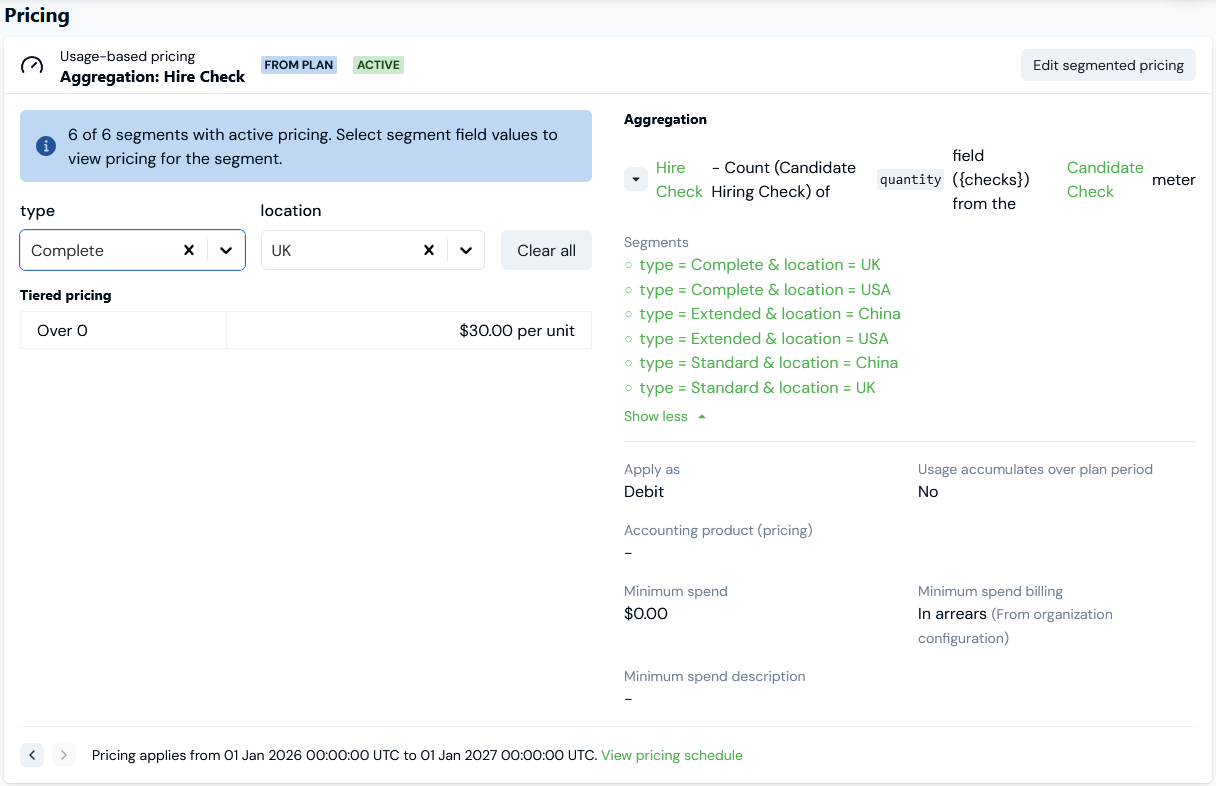 * See [Pricing Plans Using Segmented Aggregations](https://docs.m3ter.com/guides/plans-and-pricing/pricing-plans/pricing-plans-using-segmented-aggregations).
* For the current example, we've configured a flat-rate single tier pricing in US Dollars for each of the six segments defined for the **Hire Check** Aggregation as follows:
| Type | Location | Unit Price |
| -------- | -------- | ---------- |
| Complete | UK | 30 |
| Complete | USA | 20 |
| Extended | China | 15 |
| Extended | USA | 12 |
| Standard | China | 10 |
| Standard | UK | 20 |
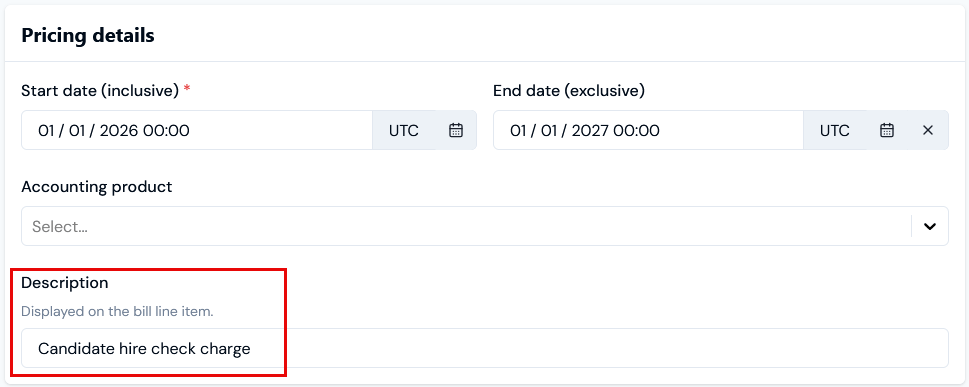
* For each segment Pricing, we've entered a *generic description* to appear on Bill line items:
* See [Pricing Plans Using Segmented Aggregations](https://docs.m3ter.com/guides/plans-and-pricing/pricing-plans/pricing-plans-using-segmented-aggregations).
* For the current example, we've configured a flat-rate single tier pricing in US Dollars for each of the six segments defined for the **Hire Check** Aggregation as follows:
| Type | Location | Unit Price |
| -------- | -------- | ---------- |
| Complete | UK | 30 |
| Complete | USA | 20 |
| Extended | China | 15 |
| Extended | USA | 12 |
| Standard | China | 10 |
| Standard | UK | 20 |
* For each segment Pricing, we've entered a *generic description* to appear on Bill line items:
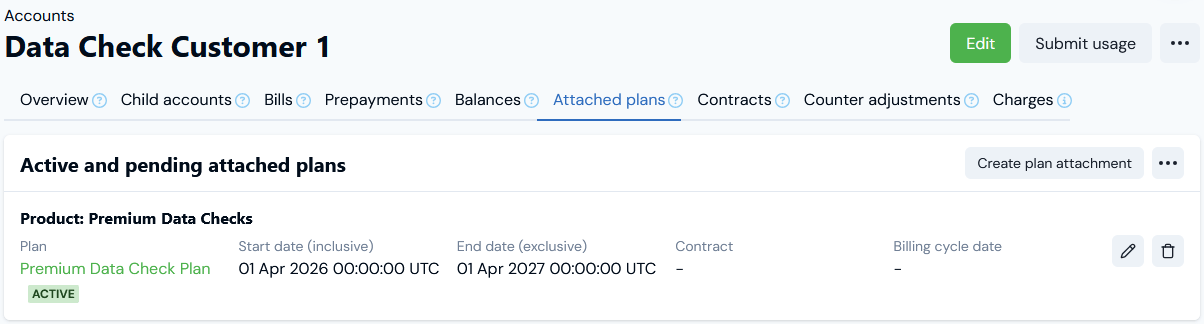
 4. Create a test Account and attach the **Premium Data Check Plan** to it. We've created the **Data Check Customer 1** Account and attached the Plan to it:
 Next, we can submit some test usage data to the Account
5. Select **Submit usage**
* On the **Submit usage data** modal, select **Candidate Check** for **Step 1: Select a meter**.
* For **Step 2: Define measurements and send**, submit a single test usage data measurement for each of the six segments we priced for the **Premium Data Check Plan**, and all within the same month. The correct Meter and Account fields will be preselected. For example:
| Type | Location | Quantity |
| -------- | -------- | -------- |
| Complete | UK | 27 |
| Complete | USA | 42 |
| Extended | China | 15 |
| Extended | USA | 61 |
| Standard | China | 18 |
| Standard | UK | 56 |
We now have a test usage data submission made against the **Data Check Customer 1** Account for each of the segment values we priced the attached Product Plan for and we can generate a Bill for the month in which the submissions were made.
6. Select the **Data Check Customer 1** Account **Bills** tab and **Run billing** for the month in which you made test usage data submissions. See [Running Bills Manually](https://docs.m3ter.com/guides/billing-and-usage-data/running-viewing-and-managing-bills/running-bills-and-viewing-bill-details#running-bills-manually).
* When the Bill job has completed the newly generated Bill will appear on the **Bills** tab. Select Bill **Reference** text hotlink to open the Bill:
Next, we can submit some test usage data to the Account
5. Select **Submit usage**
* On the **Submit usage data** modal, select **Candidate Check** for **Step 1: Select a meter**.
* For **Step 2: Define measurements and send**, submit a single test usage data measurement for each of the six segments we priced for the **Premium Data Check Plan**, and all within the same month. The correct Meter and Account fields will be preselected. For example:
| Type | Location | Quantity |
| -------- | -------- | -------- |
| Complete | UK | 27 |
| Complete | USA | 42 |
| Extended | China | 15 |
| Extended | USA | 61 |
| Standard | China | 18 |
| Standard | UK | 56 |
We now have a test usage data submission made against the **Data Check Customer 1** Account for each of the segment values we priced the attached Product Plan for and we can generate a Bill for the month in which the submissions were made.
6. Select the **Data Check Customer 1** Account **Bills** tab and **Run billing** for the month in which you made test usage data submissions. See [Running Bills Manually](https://docs.m3ter.com/guides/billing-and-usage-data/running-viewing-and-managing-bills/running-bills-and-viewing-bill-details#running-bills-manually).
* When the Bill job has completed the newly generated Bill will appear on the **Bills** tab. Select Bill **Reference** text hotlink to open the Bill:
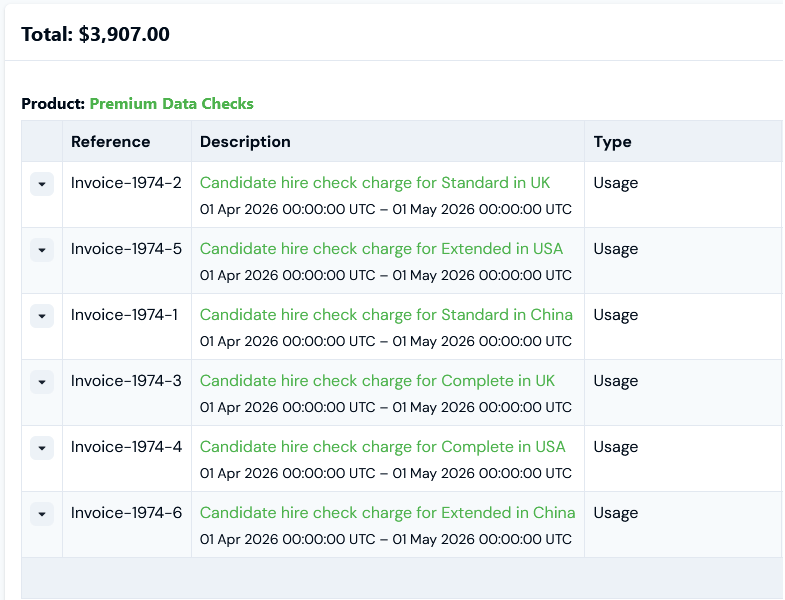
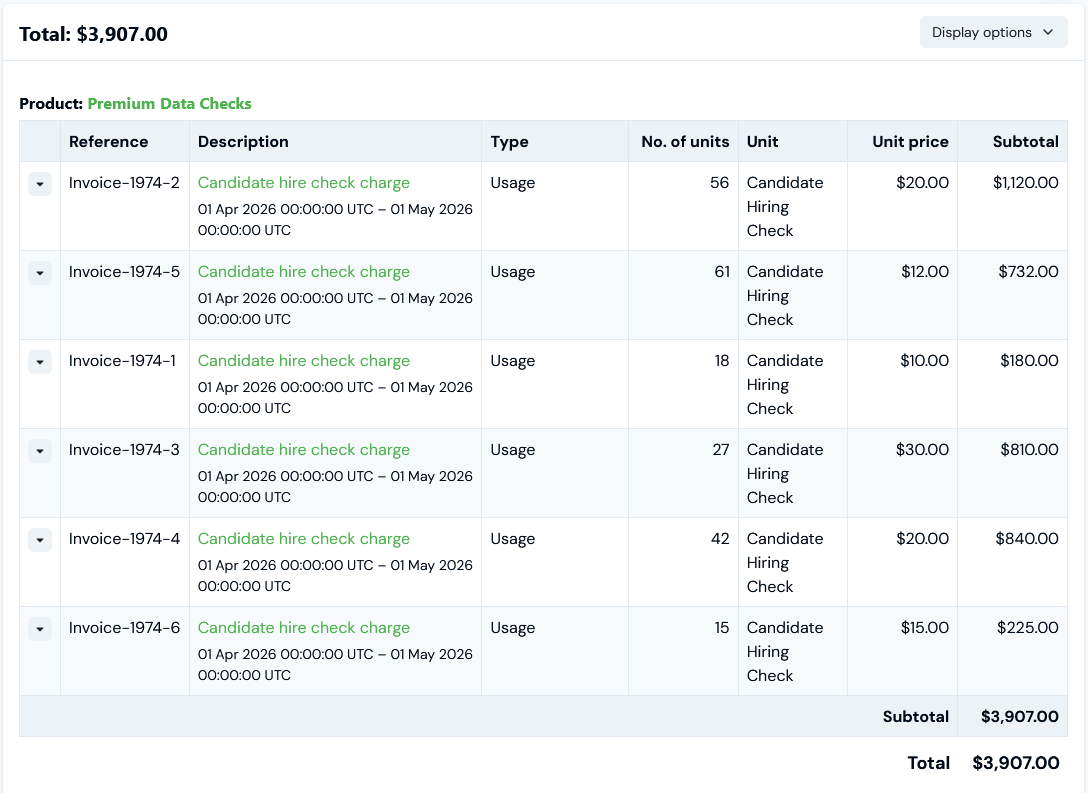 * As expected the Bill contains six line items - one for each of the priced segment values defined for the **Hire Check** Segmented Aggregation which we used to price the **Premium Data Check Plan** attached to the Account.
* However, the generic description we defined for each segment pricing fails to show us which particular segment value each line item applies to. You can reference the segment values in [custom descriptions](#defining-custom-descriptions) for segment pricing to ensure that when Bills are generated, the segment value the line item applies to can be distinguished.
## Custom Descriptions for Segmented Aggregations
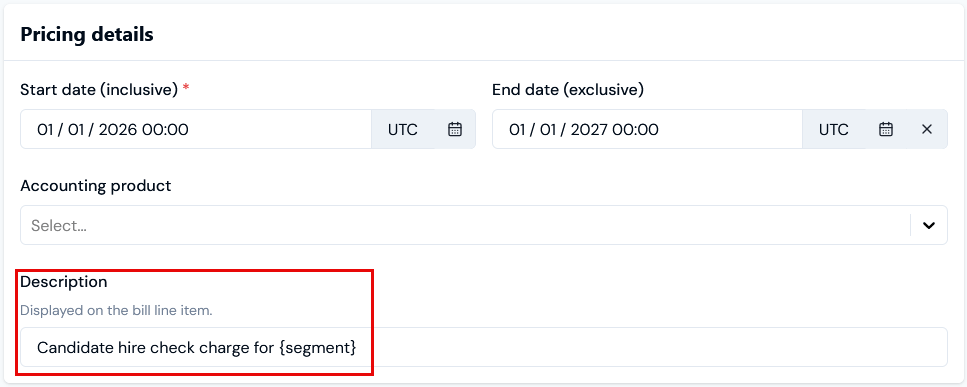
If you want to use custom descriptions for the line items on Bills generated when a segmented Aggregations has been used for pricing, you can use handlebar notation to reference segment values within the pricing description definition.
For the example Bill we generated in the [previous section](#reviewing-bills-for-segmented-aggregation-pricing), we can update each segment pricing description as follows:
* As expected the Bill contains six line items - one for each of the priced segment values defined for the **Hire Check** Segmented Aggregation which we used to price the **Premium Data Check Plan** attached to the Account.
* However, the generic description we defined for each segment pricing fails to show us which particular segment value each line item applies to. You can reference the segment values in [custom descriptions](#defining-custom-descriptions) for segment pricing to ensure that when Bills are generated, the segment value the line item applies to can be distinguished.
## Custom Descriptions for Segmented Aggregations
If you want to use custom descriptions for the line items on Bills generated when a segmented Aggregations has been used for pricing, you can use handlebar notation to reference segment values within the pricing description definition.
For the example Bill we generated in the [previous section](#reviewing-bills-for-segmented-aggregation-pricing), we can update each segment pricing description as follows:
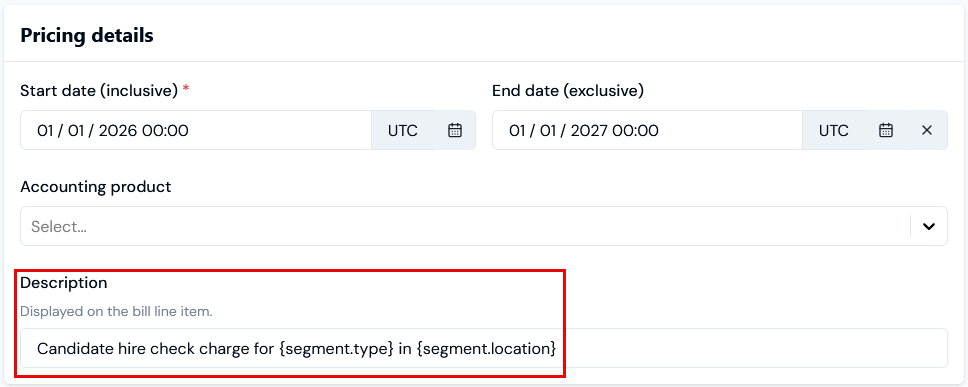 If we recalculate the Bill this will resolve for line item **Descriptions** as:
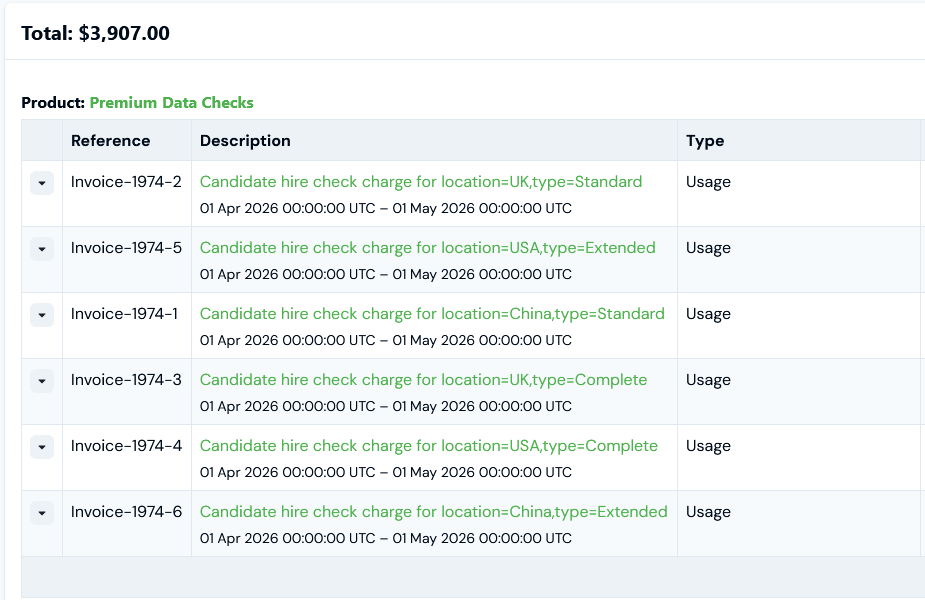
 Alternatively, if we use the following for each segment pricing description:
 This will resolve on Bills as:
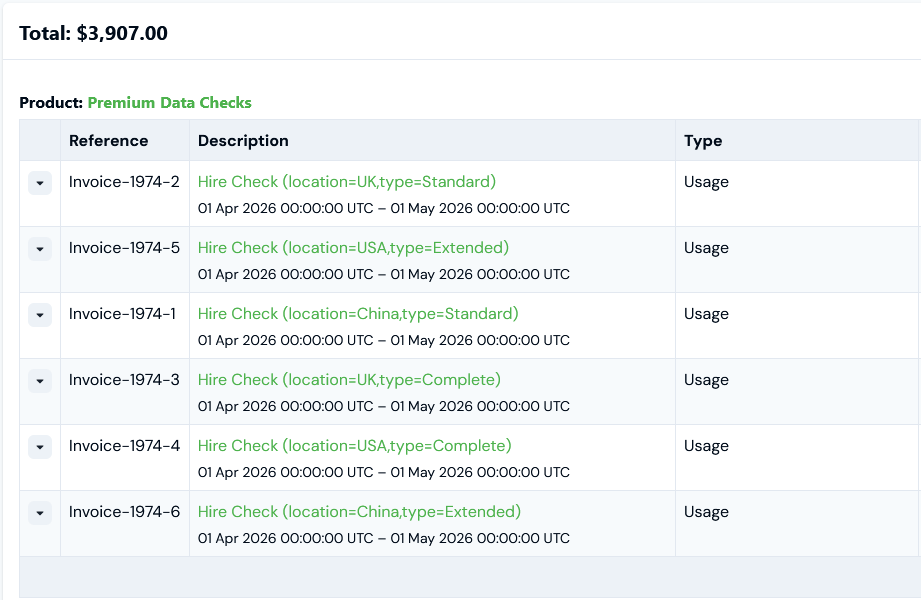
 If you *do not* define a description on the pricing you configure for a Plan using a Segmented Aggregation, then a default description is used that includes any segment values:
*\ (\,\,* \*...)*
For the current example, the default description format resolves to:
If you *do not* define a description on the pricing you configure for a Plan using a Segmented Aggregation, then a default description is used that includes any segment values:
*\ (\,\,* \*...)*
For the current example, the default description format resolves to:
 ## Using Copy or Cut and Paste to Create and Manage Segment Values
If you have a longer list of segment values to set up and manage for an Aggregation, you can copy/cut and paste values from and into the **Segments** values grid. Suppose in the above example, you want to set up additional segment values. Instead of adding these row-by-row, you can highlight and copy the existing six rows:
## Using Copy or Cut and Paste to Create and Manage Segment Values
If you have a longer list of segment values to set up and manage for an Aggregation, you can copy/cut and paste values from and into the **Segments** values grid. Suppose in the above example, you want to set up additional segment values. Instead of adding these row-by-row, you can highlight and copy the existing six rows:
 Then paste these copied values below:
 And edit as required:
 ## Using Wildcards or Defaults in Segmented Aggregations
You can use wildcards or defaults when setting up a Segmented Aggregation:
* [Using Wildcards - An example](/guides/usage-data-aggregations/segmented-aggregations#using-wildcards-an-example)
* [Using Wildcards - API Calls](/guides/usage-data-aggregations/segmented-aggregations#using-wildcards-api-calls)
* [Using Wildcards - Order of Evaluation](/guides/usage-data-aggregations/segmented-aggregations#using-wildcards-order-of-evaluation)
**Tip: Create Pricings for Wildcard Segments?** For example of how to create pricings for segments that use wildcards using the [Create Pricing](/api/pricing/create-pricing) API call, see the [Creating Wildcard Pricings for Segments](/guides/plans-and-pricing/pricing-plans/pricing-plans-using-segmented-aggregations#api-call---creating-wildcard-pricings-for-segments) section of the [Pricing Plans Using Segmented Aggregations](/guides/plans-and-pricing/pricing-plans/pricing-plans-using-segmented-aggregations) topic.
### Using Wildcards - An example
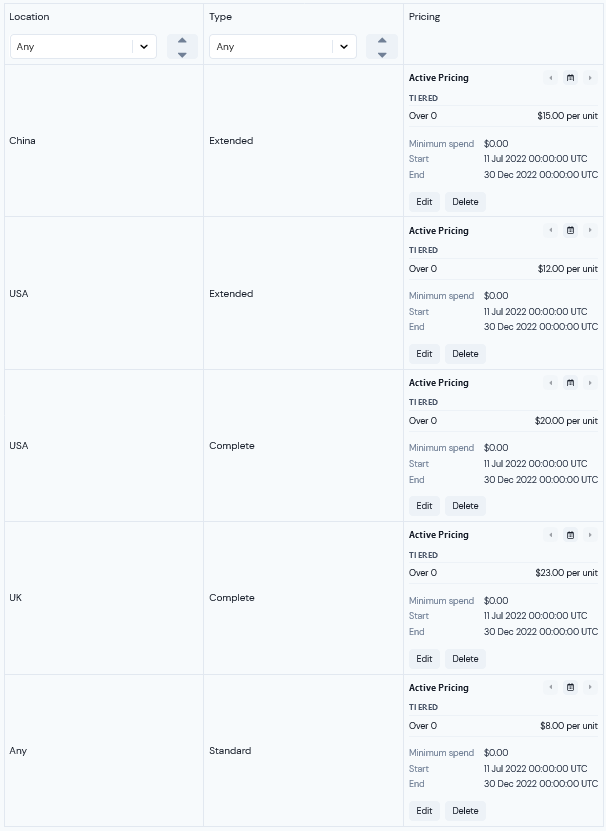
To illustrate, we can adapt the current example use case. Suppose, instead of wanting to charge a different rate for a Standard checks by Country, you want to charge the *same amount* as a default for a Standard level of candidate background check regardless of country of location. The schema for the segment values will now look like this:
| Segments | location | type |
| --------------- | -------- | -------- |
| Segment value 1 | China | Extended |
| Segment value 2 | USA | Extended |
| Segment value 3 | USA | Complete |
| Segment value 4 | UK | Complete |
| Segment value 5 | Any | Standard |
Using this schema, we can set up a second Aggregation - called **Hire Check 2** (and [see above](/guides/usage-data-aggregations/segmented-aggregations#creating-segmented-aggregations)) - that is segmented using the **location** and **type** fields in the following way for the required **Extended** or **Complete** level:
## Using Wildcards or Defaults in Segmented Aggregations
You can use wildcards or defaults when setting up a Segmented Aggregation:
* [Using Wildcards - An example](/guides/usage-data-aggregations/segmented-aggregations#using-wildcards-an-example)
* [Using Wildcards - API Calls](/guides/usage-data-aggregations/segmented-aggregations#using-wildcards-api-calls)
* [Using Wildcards - Order of Evaluation](/guides/usage-data-aggregations/segmented-aggregations#using-wildcards-order-of-evaluation)
**Tip: Create Pricings for Wildcard Segments?** For example of how to create pricings for segments that use wildcards using the [Create Pricing](/api/pricing/create-pricing) API call, see the [Creating Wildcard Pricings for Segments](/guides/plans-and-pricing/pricing-plans/pricing-plans-using-segmented-aggregations#api-call---creating-wildcard-pricings-for-segments) section of the [Pricing Plans Using Segmented Aggregations](/guides/plans-and-pricing/pricing-plans/pricing-plans-using-segmented-aggregations) topic.
### Using Wildcards - An example
To illustrate, we can adapt the current example use case. Suppose, instead of wanting to charge a different rate for a Standard checks by Country, you want to charge the *same amount* as a default for a Standard level of candidate background check regardless of country of location. The schema for the segment values will now look like this:
| Segments | location | type |
| --------------- | -------- | -------- |
| Segment value 1 | China | Extended |
| Segment value 2 | USA | Extended |
| Segment value 3 | USA | Complete |
| Segment value 4 | UK | Complete |
| Segment value 5 | Any | Standard |
Using this schema, we can set up a second Aggregation - called **Hire Check 2** (and [see above](/guides/usage-data-aggregations/segmented-aggregations#creating-segmented-aggregations)) - that is segmented using the **location** and **type** fields in the following way for the required **Extended** or **Complete** level:
 To set up the default for any **Standard** check level, first select **Add default segment**. A new row is added with **(Any)** shown for both the **Location** and **Type**. You can now edit the **Type** for **Standard** and leave **Location** as **(Any)**:
 We can now use **Hiring Check 2** in the Pricing Editor to price up Plans and define a charge - see [Pricing Plans Using Segmented Aggregations](/guides/plans-and-pricing/pricing-plans/pricing-plans-using-segmented-aggregations) - for **Standard** checks for candidates in any location:
 ### Using Wildcards - API Calls
If you use a [Create Aggregation](/api/aggregation/create-aggregation) API call to set up a Segmented Aggregation, you can use wildcards when defining segments using the `"segments"` request schema parameter. For instance, if we take the [example from the previous section](/guides/usage-data-aggregations/segmented-aggregations#using-wildcards---an-example), we can use this line in the request body of the call to define the five segment values:
> `"segments": [{"location" : "China", "type" : "Extended"}, {"location" : "USA", "type" : "Extended"},{"location" : "USA", "type" : "Complete"},{"location" : "UK", "type" : "Complete"}, {"type" : "Standard"}]`
Note that for the last segment defined, where we want a wildcard for `"location"` value, we simply omit this field and only define a value for the `"type"`.
Similarly, if we had wanted to define a *double-wildcard* segment for the **Location/Type** segmented fields, we can omit a specific value for both:
> `"segments": [{"location" : "China", "type" : "Extended"}, {"location" : "USA", "type" : "Extended"},{"location" : "USA", "type" : "Complete"},{"location" : "UK", "type" : "Complete"}, {}]`
As another example, suppose you want to create a segmented aggregation that has only a single segmented field and you want to create a single wildcard segment. In this case, you can use the same syntax. Here's an example request payload to illustrate:
```json theme={null}
{
"meterId": "b91e4ac1-bf9f-4e33-a676-63554108dxyz",
"name": "Test Segmented Agg",
"aggregation": "SUM",
"rounding": "NONE",
"quantityPerUnit": 1,
"unit": "GB",
"targetField": "quantity",
"segmentedFields": ["service_id"],
"segments": [
{}
]
}
```
### Using Wildcards - Order of Evaluation
If you are using wildcards in your Segmented Aggregations, you should be clear about the order of evaluation. To understand this, we can develop the example use case for a third - **Hiring Check 3** - that uses the same **Candidate Check** Meter for source usage data and we use the following schema for segmented values on this Aggregation using the **location** and **type** Data Fields with wildcards:
| Segments | location | type |
| --------- | -------- | -------- |
| Segment 1 | Any | Standard |
| Segment 2 | UK | Any |
| Segment 3 | Any | Any |
Again, we can configure the segment values when we create **Hiring Check 3** to follow this schema using wildcards:
### Using Wildcards - API Calls
If you use a [Create Aggregation](/api/aggregation/create-aggregation) API call to set up a Segmented Aggregation, you can use wildcards when defining segments using the `"segments"` request schema parameter. For instance, if we take the [example from the previous section](/guides/usage-data-aggregations/segmented-aggregations#using-wildcards---an-example), we can use this line in the request body of the call to define the five segment values:
> `"segments": [{"location" : "China", "type" : "Extended"}, {"location" : "USA", "type" : "Extended"},{"location" : "USA", "type" : "Complete"},{"location" : "UK", "type" : "Complete"}, {"type" : "Standard"}]`
Note that for the last segment defined, where we want a wildcard for `"location"` value, we simply omit this field and only define a value for the `"type"`.
Similarly, if we had wanted to define a *double-wildcard* segment for the **Location/Type** segmented fields, we can omit a specific value for both:
> `"segments": [{"location" : "China", "type" : "Extended"}, {"location" : "USA", "type" : "Extended"},{"location" : "USA", "type" : "Complete"},{"location" : "UK", "type" : "Complete"}, {}]`
As another example, suppose you want to create a segmented aggregation that has only a single segmented field and you want to create a single wildcard segment. In this case, you can use the same syntax. Here's an example request payload to illustrate:
```json theme={null}
{
"meterId": "b91e4ac1-bf9f-4e33-a676-63554108dxyz",
"name": "Test Segmented Agg",
"aggregation": "SUM",
"rounding": "NONE",
"quantityPerUnit": 1,
"unit": "GB",
"targetField": "quantity",
"segmentedFields": ["service_id"],
"segments": [
{}
]
}
```
### Using Wildcards - Order of Evaluation
If you are using wildcards in your Segmented Aggregations, you should be clear about the order of evaluation. To understand this, we can develop the example use case for a third - **Hiring Check 3** - that uses the same **Candidate Check** Meter for source usage data and we use the following schema for segmented values on this Aggregation using the **location** and **type** Data Fields with wildcards:
| Segments | location | type |
| --------- | -------- | -------- |
| Segment 1 | Any | Standard |
| Segment 2 | UK | Any |
| Segment 3 | Any | Any |
Again, we can configure the segment values when we create **Hiring Check 3** to follow this schema using wildcards:
 Now, suppose we have an item of usage data collected by the **Candidate Check** Meter as follows:
* **location** = **UK**
* **type** = **Standard**
If we've used **Hiring Check 3** to price a Plan for a Product, how will the end customer Account with that Plan attached be charged for this usage data; under which segment value pricing will the Account be charged? This depends on the *order* in which you've defined the segmented fields:
* In this example, where the order of defined segmented fields is **location** then **type**, the data would be matched preferentially to the **location** value, and would be charged according to the pricing configured for the **UK/(Any)** segment value.
* If, however, we'd defined the segmented fields for the Aggregation in the order of **type** then **location**, the data would be matched preferentially to the **type** value, and would be charged according to the pricing configured for the **Standard/(Any)** segment value.
You can change the order of segmented fields in the configuration table for an Aggregation by deselecting the **Segmented fields** checkboxes and then reselecting them in order for the evaluation order you want. The columns in the table will be ordered accordingly:
Now, suppose we have an item of usage data collected by the **Candidate Check** Meter as follows:
* **location** = **UK**
* **type** = **Standard**
If we've used **Hiring Check 3** to price a Plan for a Product, how will the end customer Account with that Plan attached be charged for this usage data; under which segment value pricing will the Account be charged? This depends on the *order* in which you've defined the segmented fields:
* In this example, where the order of defined segmented fields is **location** then **type**, the data would be matched preferentially to the **location** value, and would be charged according to the pricing configured for the **UK/(Any)** segment value.
* If, however, we'd defined the segmented fields for the Aggregation in the order of **type** then **location**, the data would be matched preferentially to the **type** value, and would be charged according to the pricing configured for the **Standard/(Any)** segment value.
You can change the order of segmented fields in the configuration table for an Aggregation by deselecting the **Segmented fields** checkboxes and then reselecting them in order for the evaluation order you want. The columns in the table will be ordered accordingly:
 Lastly, there might be usage data items collected that do not have a match for either **location** or **type** fields with segment values configured, such as in this case:
* **location** = **USA**
* **type** = **Complete**
These would be evaluated for charging against the Account on the basis of our third, "double wildcard", segment value: **(Any)/(Any)**.
Lastly, there might be usage data items collected that do not have a match for either **location** or **type** fields with segment values configured, such as in this case:
* **location** = **USA**
* **type** = **Complete**
These would be evaluated for charging against the Account on the basis of our third, "double wildcard", segment value: **(Any)/(Any)**.