> ## Documentation Index
> Fetch the complete documentation index at: https://docs.m3ter.com/llms.txt
> Use this file to discover all available pages before exploring further.
# Creating Product Meters
This topic explains how to create a Meter for collecting the data which you will use to set up usage-based pricing for specific Products your end customers will consume:
* Any Aggregations that target a Product Meter also become specific to the same Product and can only be used to price Plans for that Product.
* Product Meters can also be used to collect Product-specific user data you require to serve other business purposes.
**Tip: Meters that are not Product-specific?** You can also create *Global Meters*, which allow you to collect usage data which you can use to set up pricing across multiple Products. Any Aggregations that target a Global Meter also become Global and can then be used to price Plans belonging to any Product. See [Creating Global Meters](/guides/usage-data-meters/creating-global-meters).
**Understanding Meter Options!** We *strongly recommend* that you review the options available for configuring Meters before you attempt to create them. See [Reviewing Meter Options](/guides/usage-data-meters/reviewing-meter-options).
**To create a Product Meter:**
1. Select **Metering**. The **Meters** page opens and lists Meters by **Product** for **All products** together with any **Global** Meters.
2. Use the drop-down at top-right to select the **Product** you want to create the new Meter for. The **Meters** page adjusts and shows:
* Any existing Meters created for the selected **Product** at the top of the page.
* Any **Global** Meters.
**Tip: Global Meter?** You can create a *Global Meter*, which is not tied to a specific Product. For more details, see [Creating Global Meters](/guides/usage-data-meters/creating-global-meters).
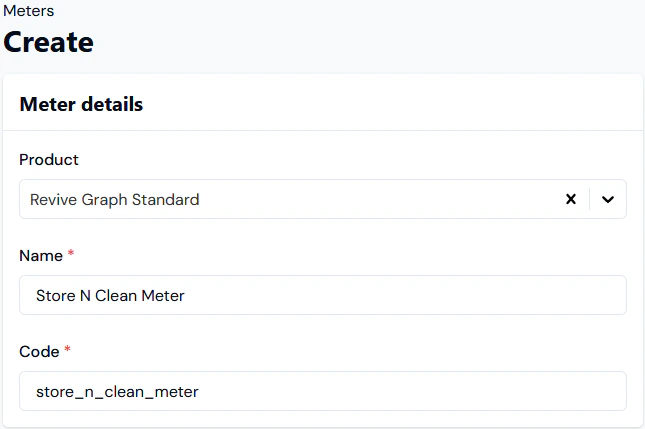
3. Select **Create meter** for the **Product**. The **Create** page opens:
* The **Product** is pre-selected.
* Alternatively, you can skip **Step 2** above to filter for the Product and select **Create meter** immediately at top-right. If you do this you will then have to select the Product on the **Create** page when it opens.
4. Enter the **Meter details**:
* **Name.** Descriptive name for the Meter.
* **Code.** Unique identifier for the **Meter** in the m3ter system. You will need this **Code** as a unique id when submitting API calls, such as a call to update a Meter.
* **Notes**:
* When you've entered a **Name** and clicked in the **Code** field, a Code is automatically entered based on the Name. You can then edit the auto-generated Code as required.
* The **Code** string has a maximum length of 80 characters and must not contain non-printable or whitespace characters (except space), and cannot start/end with whitespace.
 5. **Add** the **Data fields** you need to collect usage data. For example, a field to collect data on the volume of files stored on your service:
* **Name.** Descriptive name for the field.
* **Code.** Unique Identifier for field. You will need this **Code** as a unique id when submitting API calls, such as a call to submit measurements for this field.
* **Notes**:
* When you've entered a Name and clicked in the **Code** field, a Code is automatically entered based on the Name. You can then edit the auto-generated Code as required.
* The **Code** string has a maximum length of 80 characters and can only contain letters, numbers, underscore, and the dollar character, and must not start with a number. The same applies to the Code used for any Derived Fields you add to a Meter - see Step 6 below.
* **Category.** Defines what type of usage data you want to collect using this field.
* **Unit.** Defines the unit of measure.
5. **Add** the **Data fields** you need to collect usage data. For example, a field to collect data on the volume of files stored on your service:
* **Name.** Descriptive name for the field.
* **Code.** Unique Identifier for field. You will need this **Code** as a unique id when submitting API calls, such as a call to submit measurements for this field.
* **Notes**:
* When you've entered a Name and clicked in the **Code** field, a Code is automatically entered based on the Name. You can then edit the auto-generated Code as required.
* The **Code** string has a maximum length of 80 characters and can only contain letters, numbers, underscore, and the dollar character, and must not start with a number. The same applies to the Code used for any Derived Fields you add to a Meter - see Step 6 below.
* **Category.** Defines what type of usage data you want to collect using this field.
* **Unit.** Defines the unit of measure.
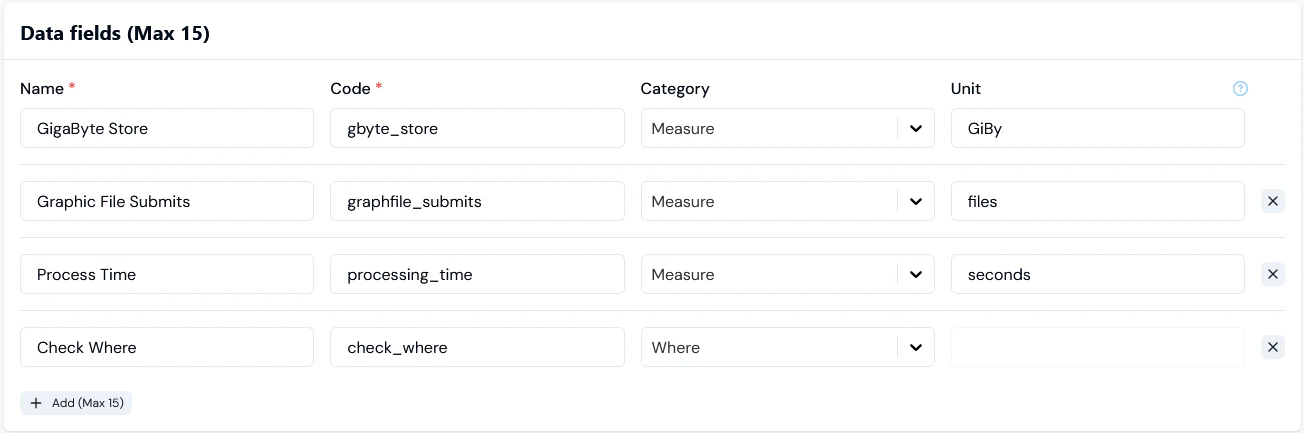 **Important: Units of Measure?** We recommend that the units you use for your Data Fields conform to *The Unified Code for Units of Measure (UCUM)*, which is designed to facilitate the communication between electronic systems of quantities with their units. In the above example, we therefore use **GiBy** as the unit for the **Gigabyte Store** Data Field. For more details, see [Units for Meter Fields - Examples](/guides/usage-data-meters/reviewing-meter-options#units-for-meter-fields-examples).
6. **Add** any required **Derived fields** to the Meter:
**Important: Units of Measure?** We recommend that the units you use for your Data Fields conform to *The Unified Code for Units of Measure (UCUM)*, which is designed to facilitate the communication between electronic systems of quantities with their units. In the above example, we therefore use **GiBy** as the unit for the **Gigabyte Store** Data Field. For more details, see [Units for Meter Fields - Examples](/guides/usage-data-meters/reviewing-meter-options#units-for-meter-fields-examples).
6. **Add** any required **Derived fields** to the Meter:
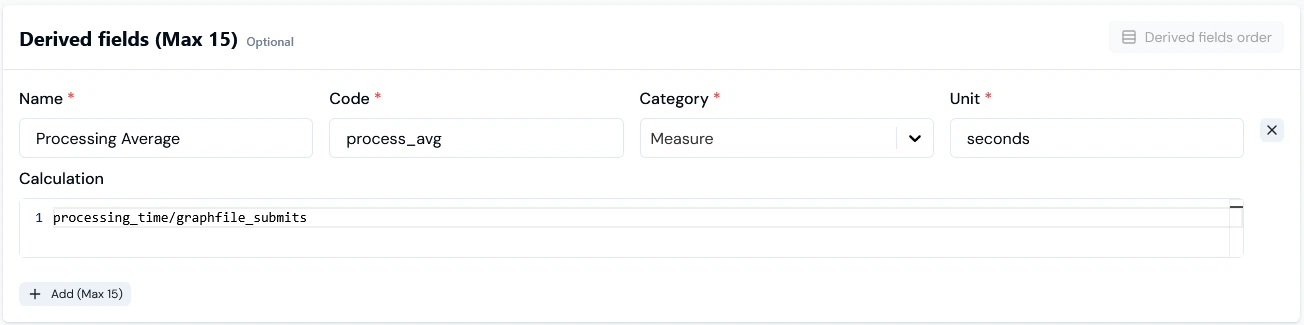 * For more on Derived Fields, see the [following topic](/guides/usage-data-meters/derived-fields-for-meters-examples-and-supported-syntax) in this section.
7. **Add** any required **Custom fields** to the Meter:
* For more on Custom Fields, see [Adding and Editing Custom Fields](/guides/organization-and-access-management/viewing-and-editing-organization#adding-and-editing-custom-fields). We strongly recommend reviewing [Working with Custom Fields](/guides/creating-and-managing-products/working-with-custom-fields) before you create and use Custom Fields.
8. Select **Create meter**. The **Meter details** page opens:
* For more on Derived Fields, see the [following topic](/guides/usage-data-meters/derived-fields-for-meters-examples-and-supported-syntax) in this section.
7. **Add** any required **Custom fields** to the Meter:
* For more on Custom Fields, see [Adding and Editing Custom Fields](/guides/organization-and-access-management/viewing-and-editing-organization#adding-and-editing-custom-fields). We strongly recommend reviewing [Working with Custom Fields](/guides/creating-and-managing-products/working-with-custom-fields) before you create and use Custom Fields.
8. Select **Create meter**. The **Meter details** page opens:
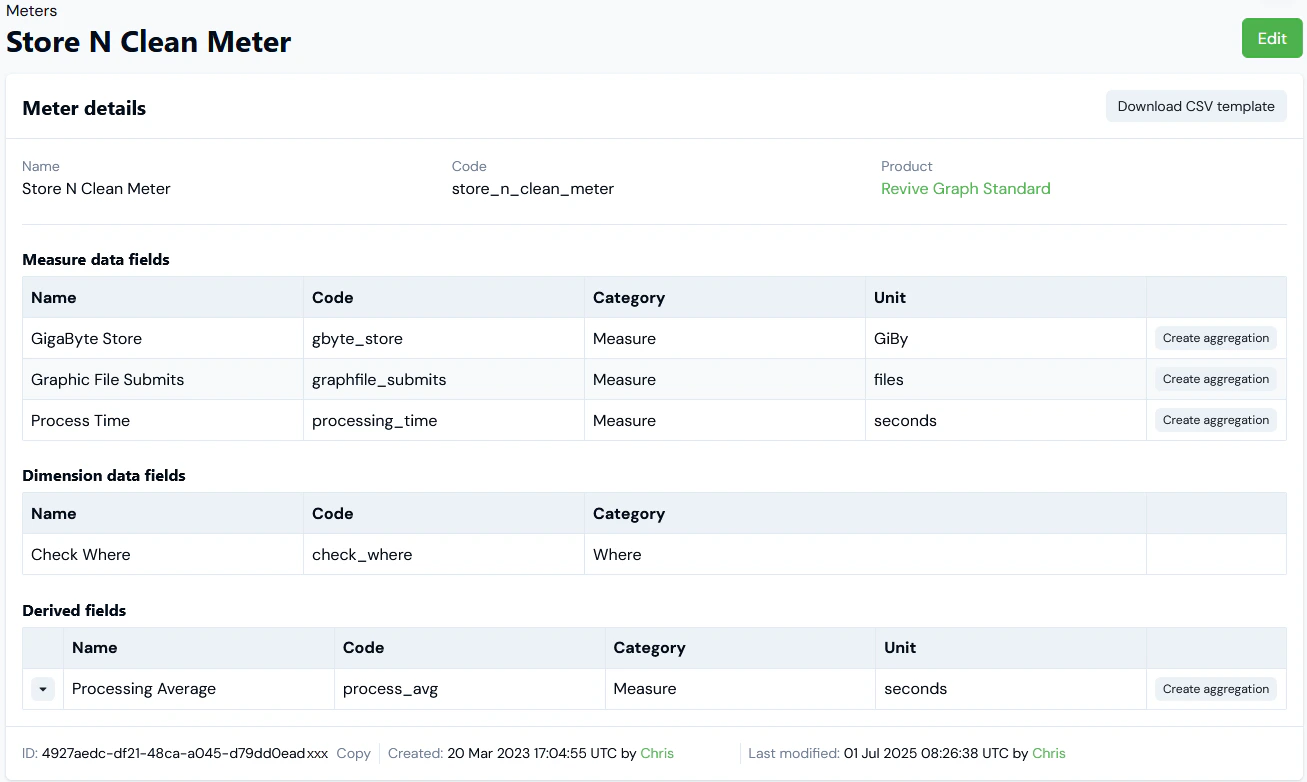 9. If you want to create an Aggregation that targets one of the Meter's Data Fields or Derived Fields, then select **Create aggregation** for that field:
* You are taken directly to the **Aggregations>Create** page where the **Product** is pre-selected and the **Meter** and **Target field** under **Meter settings** are also pre-selected.
* When you complete the **Aggregations>Create** workflow, you are returned to the **Meter details** page.
* For more details, see [Creating Product Aggregations](/guides/usage-data-aggregations/creating-aggregations).
10. If you want to edit a Meter's details, select the **Edit** button, make your changes, and click **Update meter**.
11. If you want to remove a Meter, return to the **Meters** page and select the **Delete** button for the Meter:
9. If you want to create an Aggregation that targets one of the Meter's Data Fields or Derived Fields, then select **Create aggregation** for that field:
* You are taken directly to the **Aggregations>Create** page where the **Product** is pre-selected and the **Meter** and **Target field** under **Meter settings** are also pre-selected.
* When you complete the **Aggregations>Create** workflow, you are returned to the **Meter details** page.
* For more details, see [Creating Product Aggregations](/guides/usage-data-aggregations/creating-aggregations).
10. If you want to edit a Meter's details, select the **Edit** button, make your changes, and click **Update meter**.
11. If you want to remove a Meter, return to the **Meters** page and select the **Delete** button for the Meter:
 A confirmation popup opens.
12. Select **Yes** to confirm the delete action.
**Tip: Working in Meter Details?** The **Meter details** page is designed to help you perform common Meter management and operational tasks, including submitting usage data measurements for your Meters. See [Working in Meter Details](/guides/usage-data-meters/working-in-meter-details).
A confirmation popup opens.
12. Select **Yes** to confirm the delete action.
**Tip: Working in Meter Details?** The **Meter details** page is designed to help you perform common Meter management and operational tasks, including submitting usage data measurements for your Meters. See [Working in Meter Details](/guides/usage-data-meters/working-in-meter-details).