> ## Documentation Index
> Fetch the complete documentation index at: https://docs.m3ter.com/llms.txt
> Use this file to discover all available pages before exploring further.
# Working in Meter Details
When you've created a Meter, you can open the Meter details page which is designed to help you perform common Meter management and operational tasks:
* [Reviewing Meter Details](/guides/usage-data-meters/working-in-meter-details#reviewing-meter-details)
* [Submitting and Checking Usage Data Measurements](/guides/usage-data-meters/working-in-meter-details#submitting-and-checking-usage-data-measurements)
* [Reviewing Meter Metadata](/guides/usage-data-meters/working-in-meter-details#reviewing-meter-metadata)
## Reviewing Meter Details
You can use the Meter details page to review and manage the Meter set up.
**To review Meter details:**
1. Select **Metering**. The **Meters** page opens and lists Meters by Product for **All products** together with any **Global** Meters.
2. If you want to review the details of a Product Meter, search or filter the page by **Product**.
3. Select the hotlink text of the Meter:
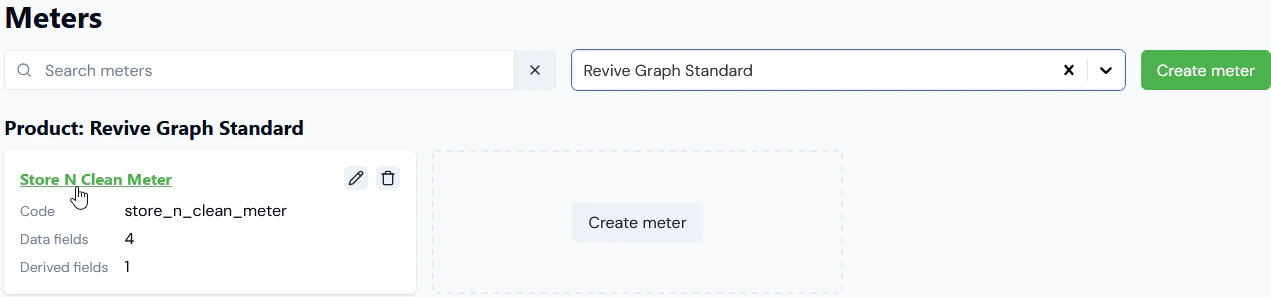 The **Meter details** page opens:
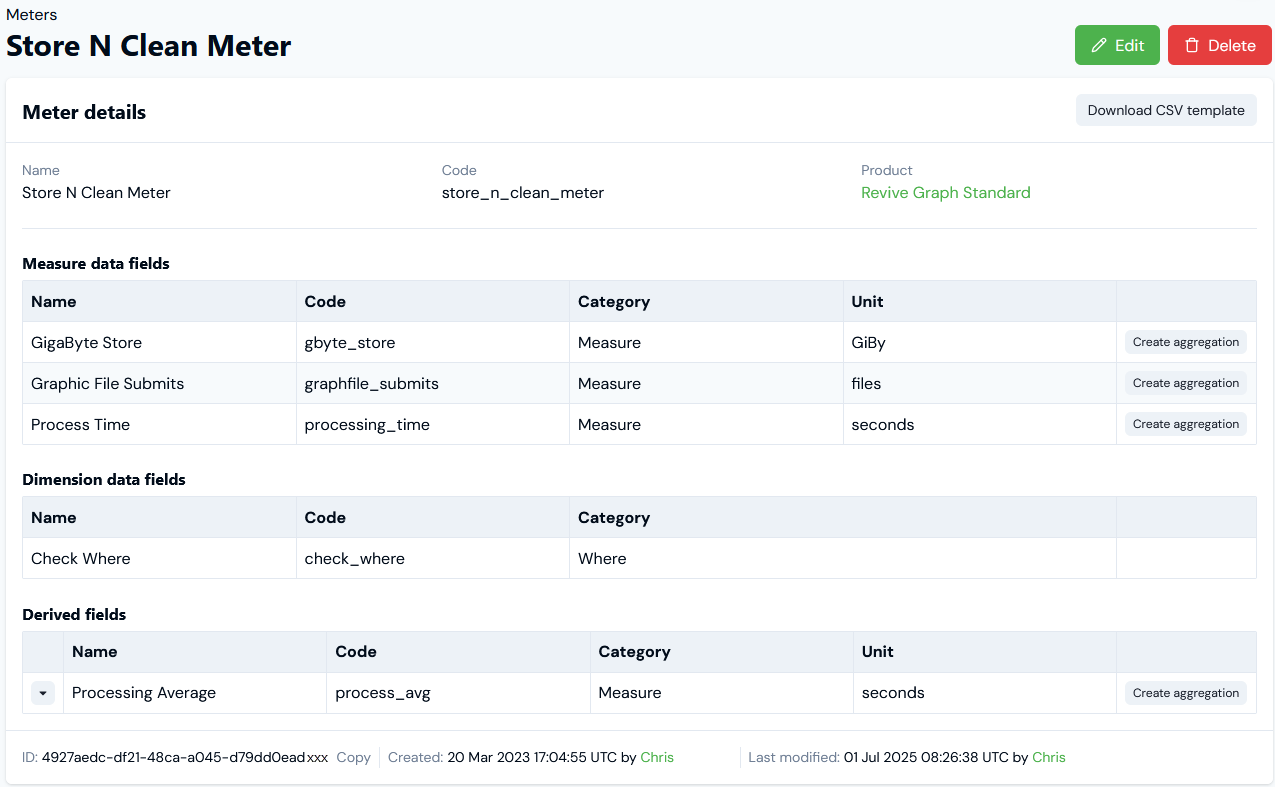 On this panel, you can:
* Read-off the Meter's **Name** and **Code**.
* Use the hotlink text to open directly the details of the **Product** the Meter belongs to. Note that if you've opened the details of a Global Meter, this will be shown under **Product**.
* Read-off the Meter's **ID** and **Copy** this to your clipboard.
* Check the audit data to see who **Created** and who **Last modified** the Meter.
* Review the **Data fields** that have been added to the Meter. These are listed as two types:
* **Measure data fields**.
* **Dimension data fields**.
* Review any **Derived fields** added to the Meter. Note that you can expand a **Derived field** to review it's calculation:
On this panel, you can:
* Read-off the Meter's **Name** and **Code**.
* Use the hotlink text to open directly the details of the **Product** the Meter belongs to. Note that if you've opened the details of a Global Meter, this will be shown under **Product**.
* Read-off the Meter's **ID** and **Copy** this to your clipboard.
* Check the audit data to see who **Created** and who **Last modified** the Meter.
* Review the **Data fields** that have been added to the Meter. These are listed as two types:
* **Measure data fields**.
* **Dimension data fields**.
* Review any **Derived fields** added to the Meter. Note that you can expand a **Derived field** to review it's calculation:
 * If you intend to upload a a `CSV` formatted file for usage data measurements ingest for the Meter, use the **Download CSV template** button to obtain a file you can use for this purpose. See the [following section](/guides/usage-data-meters/working-in-meter-details#upload-csv) for further details.
## Submitting and Checking Usage Data Measurements
A **Submit measurements** panel is made available on **Meter details** pages. This facilitates the various ways you can submit usage data measurements into the m3ter platform for the specific Meter:
* [Ingest API](/guides/usage-data-meters/working-in-meter-details#ingest-api)
* [File Upload API](/guides/usage-data-meters/working-in-meter-details#file-upload-api)
* [Upload CSV](/guides/usage-data-meters/working-in-meter-details#upload-csv)
* [Submit usage data](/guides/usage-data-meters/working-in-meter-details#submit-usage-data)
* [Checking Usage Data Submissions](/guides/usage-data-meters/working-in-meter-details#checking-usage-data-submissions)
### Ingest API
The default selection under **Submit measurements** is **Ingest API**:
* If you intend to upload a a `CSV` formatted file for usage data measurements ingest for the Meter, use the **Download CSV template** button to obtain a file you can use for this purpose. See the [following section](/guides/usage-data-meters/working-in-meter-details#upload-csv) for further details.
## Submitting and Checking Usage Data Measurements
A **Submit measurements** panel is made available on **Meter details** pages. This facilitates the various ways you can submit usage data measurements into the m3ter platform for the specific Meter:
* [Ingest API](/guides/usage-data-meters/working-in-meter-details#ingest-api)
* [File Upload API](/guides/usage-data-meters/working-in-meter-details#file-upload-api)
* [Upload CSV](/guides/usage-data-meters/working-in-meter-details#upload-csv)
* [Submit usage data](/guides/usage-data-meters/working-in-meter-details#submit-usage-data)
* [Checking Usage Data Submissions](/guides/usage-data-meters/working-in-meter-details#checking-usage-data-submissions)
### Ingest API
The default selection under **Submit measurements** is **Ingest API**:
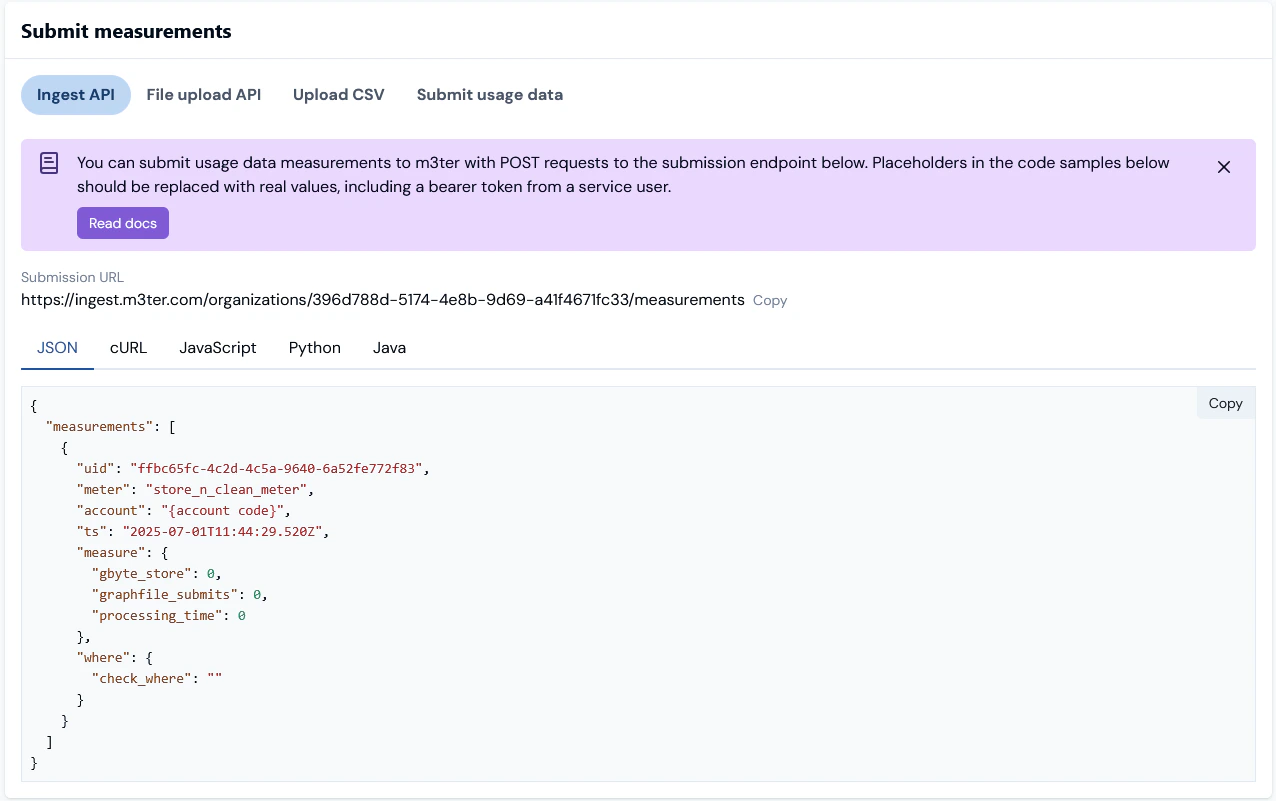 This option is designed to help you use the [Submit measurements](/api/measurements/submit-measurements) call for the m3ter Ingest API:
* The **Submission URL** is shown for the call with your Organization ID used, and you can **Copy** this to your clipboard.
* Five tabs are available for Meter-specific code samples to use for the call, and you can **Copy** the version you prefer to use:
* **JSON**
* **cURL**
* **JavaScript**
* **Python**
* **Java**
* If you are using this method to submit usage data measurements, please see [Getting Started with API Calls](/guides/billing-and-usage-data/submitting-usage-data/file-upload-service-api) for additional guidance.
### File Upload API
Under **Submit measurements**, select **File upload API**:
This option is designed to help you use the [Submit measurements](/api/measurements/submit-measurements) call for the m3ter Ingest API:
* The **Submission URL** is shown for the call with your Organization ID used, and you can **Copy** this to your clipboard.
* Five tabs are available for Meter-specific code samples to use for the call, and you can **Copy** the version you prefer to use:
* **JSON**
* **cURL**
* **JavaScript**
* **Python**
* **Java**
* If you are using this method to submit usage data measurements, please see [Getting Started with API Calls](/guides/billing-and-usage-data/submitting-usage-data/file-upload-service-api) for additional guidance.
### File Upload API
Under **Submit measurements**, select **File upload API**:
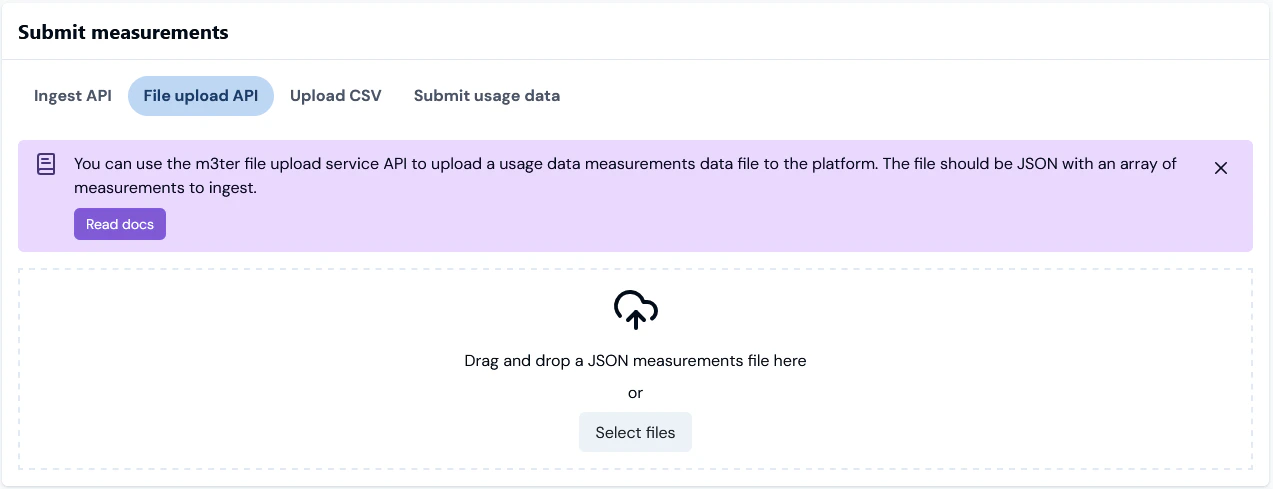 This option is designed to help you use the m3ter *File Upload Service API* to upload a usage data measurements data file to the platform:
* You can drag and drop a JSON file here containing an array of usage data measurements for ingest.
* Please review the [File Upload Service API topic](/guides/billing-and-usage-data/submitting-usage-data/file-upload-service-api) if you want to use this method.
### Upload CSV
Under **Submit measurements**, select **Upload CSV**:
This option is designed to help you use the m3ter *File Upload Service API* to upload a usage data measurements data file to the platform:
* You can drag and drop a JSON file here containing an array of usage data measurements for ingest.
* Please review the [File Upload Service API topic](/guides/billing-and-usage-data/submitting-usage-data/file-upload-service-api) if you want to use this method.
### Upload CSV
Under **Submit measurements**, select **Upload CSV**:
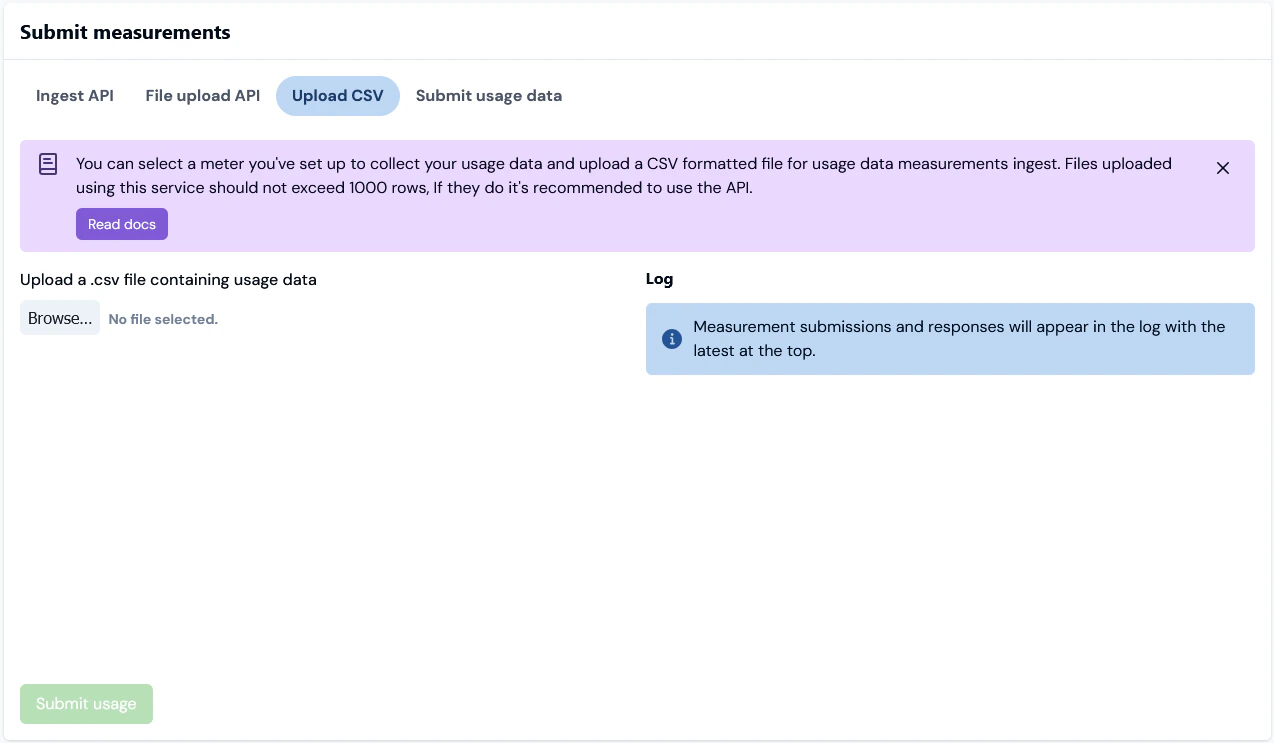 This option is designed to help you use upload a `CSV` formatted file for Meter usage data measurements ingest:
* Please see the [File Uploads for Usage Data by Meter](/guides/billing-and-usage-data/submitting-usage-data/file-uploads-for-usage-data-by-meter) topic if you want to use this method
### Submit usage data
Under **Submit measurements**, select **Submit usage data**:
This option is designed to help you use upload a `CSV` formatted file for Meter usage data measurements ingest:
* Please see the [File Uploads for Usage Data by Meter](/guides/billing-and-usage-data/submitting-usage-data/file-uploads-for-usage-data-by-meter) topic if you want to use this method
### Submit usage data
Under **Submit measurements**, select **Submit usage data**:
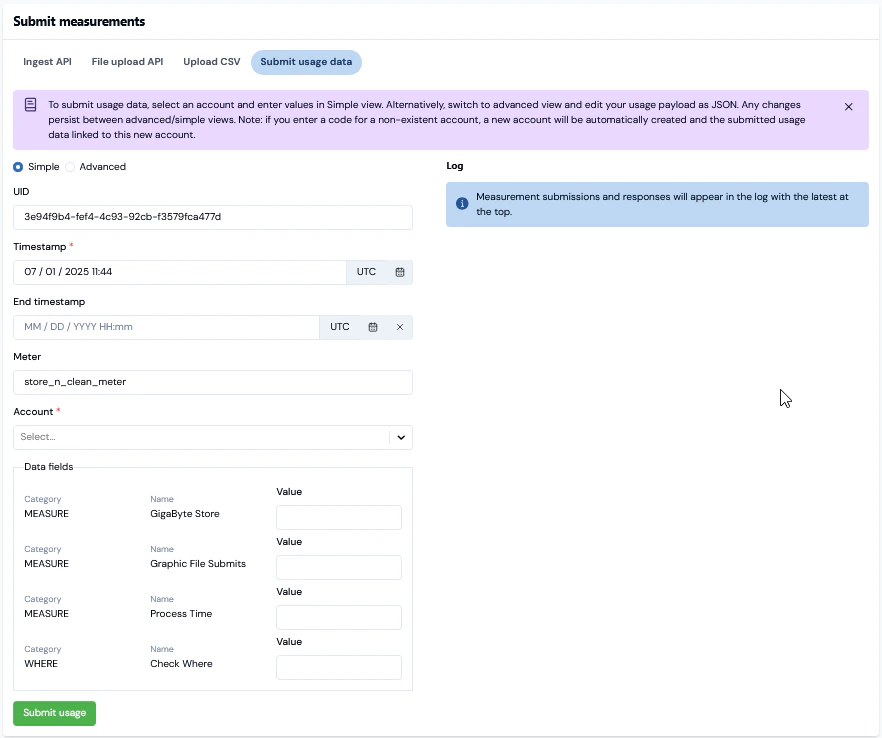 This option is designed to help you submit individual usage data measurements for the Meter and a selected **Account**, **Timestamp**, and optional **End Timestamp**:
* You can use a default **Simple** view and enter values for Meter Data fields or switch to an **Advanced** format and edit the JSON payload of usage measurements.
* Please review [Submitting Test Usage Data](/guides/billing-and-usage-data/submitting-usage-data/submitting-test-usage-data#submitting-test-usage-data) if you want to use this method.
### Checking Usage Data Submissions
If you scroll further down the **Meter details** page, you can use the **Activity** panel to check usage data measurement submissions made for the Meter:
* A *Recent measurements* list for the Meter for submissions made in the last hour and which were successfully ingested into the platform:
* Up to a maximum of the ten most recent submissions made in the last hour are listed.
* A *Measurement counts* chart showing a running count of submissions made for the Meter over the previous 24 hours:
* You can hover your cursor over the chart's hourly data points to read off actual measurement counts.
This option is designed to help you submit individual usage data measurements for the Meter and a selected **Account**, **Timestamp**, and optional **End Timestamp**:
* You can use a default **Simple** view and enter values for Meter Data fields or switch to an **Advanced** format and edit the JSON payload of usage measurements.
* Please review [Submitting Test Usage Data](/guides/billing-and-usage-data/submitting-usage-data/submitting-test-usage-data#submitting-test-usage-data) if you want to use this method.
### Checking Usage Data Submissions
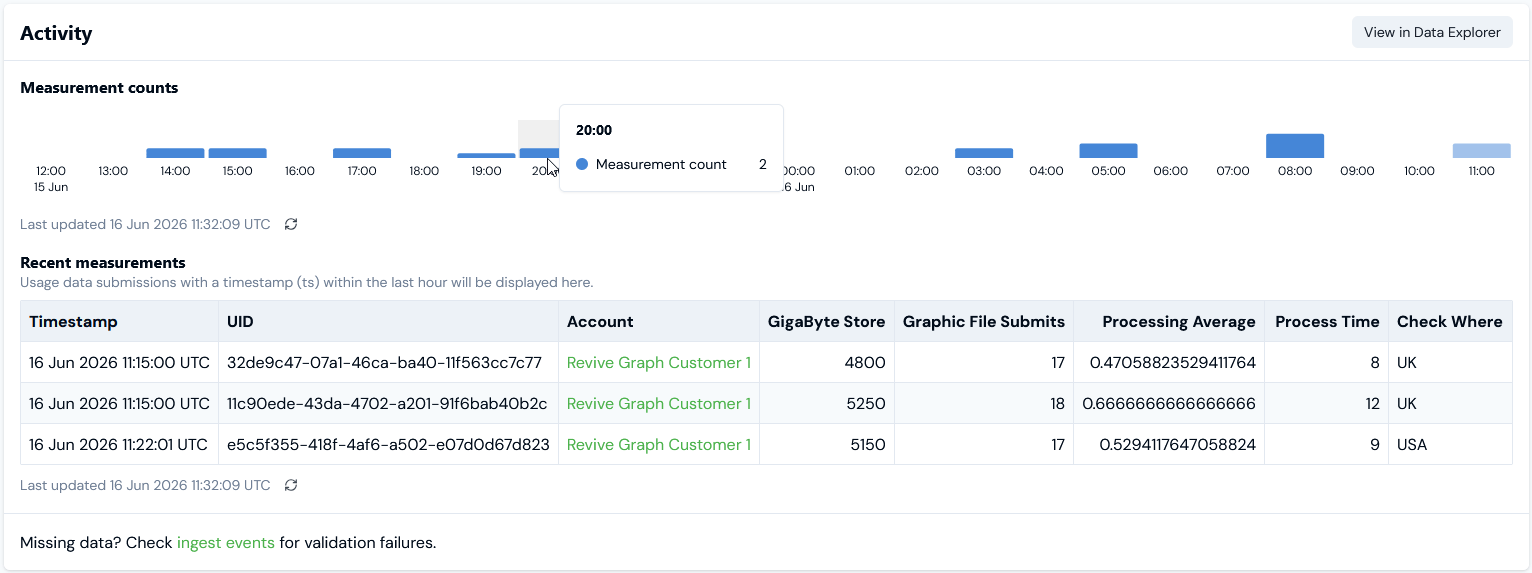
If you scroll further down the **Meter details** page, you can use the **Activity** panel to check usage data measurement submissions made for the Meter:
* A *Recent measurements* list for the Meter for submissions made in the last hour and which were successfully ingested into the platform:
* Up to a maximum of the ten most recent submissions made in the last hour are listed.
* A *Measurement counts* chart showing a running count of submissions made for the Meter over the previous 24 hours:
* You can hover your cursor over the chart's hourly data points to read off actual measurement counts.
 * Please see [Checking Usage Data Submissions](/guides/billing-and-usage-data/submitting-usage-data/submitting-test-usage-data#checking-test-usage-data-submissions) for more details.
## Reviewing Meter Metadata
On the metadata panel on **Meter details** pages under **Meter metadata** you can review:
**Custom fields**. Any Custom fields created for the Meter are listed, and you can **Copy** the *String* or *Number* value of a Custom Field to your clipboard:
* If the fields have been created only at Organizational-level, then these values will be shown:
* Please see [Checking Usage Data Submissions](/guides/billing-and-usage-data/submitting-usage-data/submitting-test-usage-data#checking-test-usage-data-submissions) for more details.
## Reviewing Meter Metadata
On the metadata panel on **Meter details** pages under **Meter metadata** you can review:
**Custom fields**. Any Custom fields created for the Meter are listed, and you can **Copy** the *String* or *Number* value of a Custom Field to your clipboard:
* If the fields have been created only at Organizational-level, then these values will be shown:
 * If the fields have also been created for an individual Meter, then the values configured for those created at Organizational-level are struck out indicating clearly that the individual Meter values will be used:
 **External mappings**. Any External mappings set up for the Meter are listed:
 * The **External system** and **External table** mapped to are shown - such as **NetSuite - Item** in the above example. The **External entity ID** mapped to is also shown.
* If a listed External mapping is linked to an Integration, under **Linked integration** a hotlink text will be shown which you can use to open the Integration.
* Under **Actions**, you can edit or delete the External mapping.
* If the Meter has multiple External mappings created for it, you can use *Search external mappings* to search by **External table** and **External entity ID** and filter the list.
* You can commence a workflow to **Create external mapping** for the Meter directly - see [Creating and Managing External Mappings for Accounts](/guides/end-customer-accounts/creating-and-managing-external-mappings-for-accounts) for an example.
**Integration runs**. If you've set up an integration that synchronizes the Meter with an external system, the date/time and status of the **Latest** integration run are shown. You can use a text hotlink to open details of this latest run or **View all runs**. See [Reviewing Integration Run Details](/guides/integrations/setting-up-integrations/reviewing-integration-run-details).
* The **External system** and **External table** mapped to are shown - such as **NetSuite - Item** in the above example. The **External entity ID** mapped to is also shown.
* If a listed External mapping is linked to an Integration, under **Linked integration** a hotlink text will be shown which you can use to open the Integration.
* Under **Actions**, you can edit or delete the External mapping.
* If the Meter has multiple External mappings created for it, you can use *Search external mappings* to search by **External table** and **External entity ID** and filter the list.
* You can commence a workflow to **Create external mapping** for the Meter directly - see [Creating and Managing External Mappings for Accounts](/guides/end-customer-accounts/creating-and-managing-external-mappings-for-accounts) for an example.
**Integration runs**. If you've set up an integration that synchronizes the Meter with an external system, the date/time and status of the **Latest** integration run are shown. You can use a text hotlink to open details of this latest run or **View all runs**. See [Reviewing Integration Run Details](/guides/integrations/setting-up-integrations/reviewing-integration-run-details).