- Time Period:
- Select from predefined time period options or specify a custom time period.
- The maximum time period for a query is 31 days.
- The query returns audit logs for the selected period.
- The default time period when the Audit logs page opens is the current month.
- Query Filters:
- Entity type. The type of entity you want to return audit logs for.
- Entity ID. The specific entity you want to return audit logs for.
- Modified by. Who or what you want to return audit logs for: User, Service User, or System.
- Event type. The type of audit event you want to return audit logs for: created, updated, or deleted. If left blank, logs for all audit event types are returned.
- Expand logs and review their details.
- View the entity JSON for logs and compare the current with the previous version.
- Building and Performing Audit Logs Queries
- Reviewing Audit Logs Details
- Viewing Audit Logs JSON
- Opening Audit Logs from Entity Details
Building and Performing Audit Logs Queries
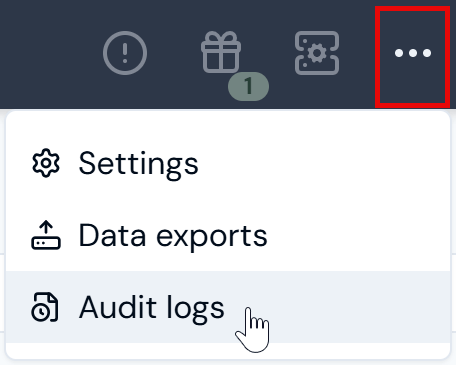
You can quickly set up and perform queries to return audit logs for your Organization’s entities. To build and perform an audit logs query:- In the Console main top navigation bar, select Audit logs:
- Select the calendar icon for Modified at (inclusive):
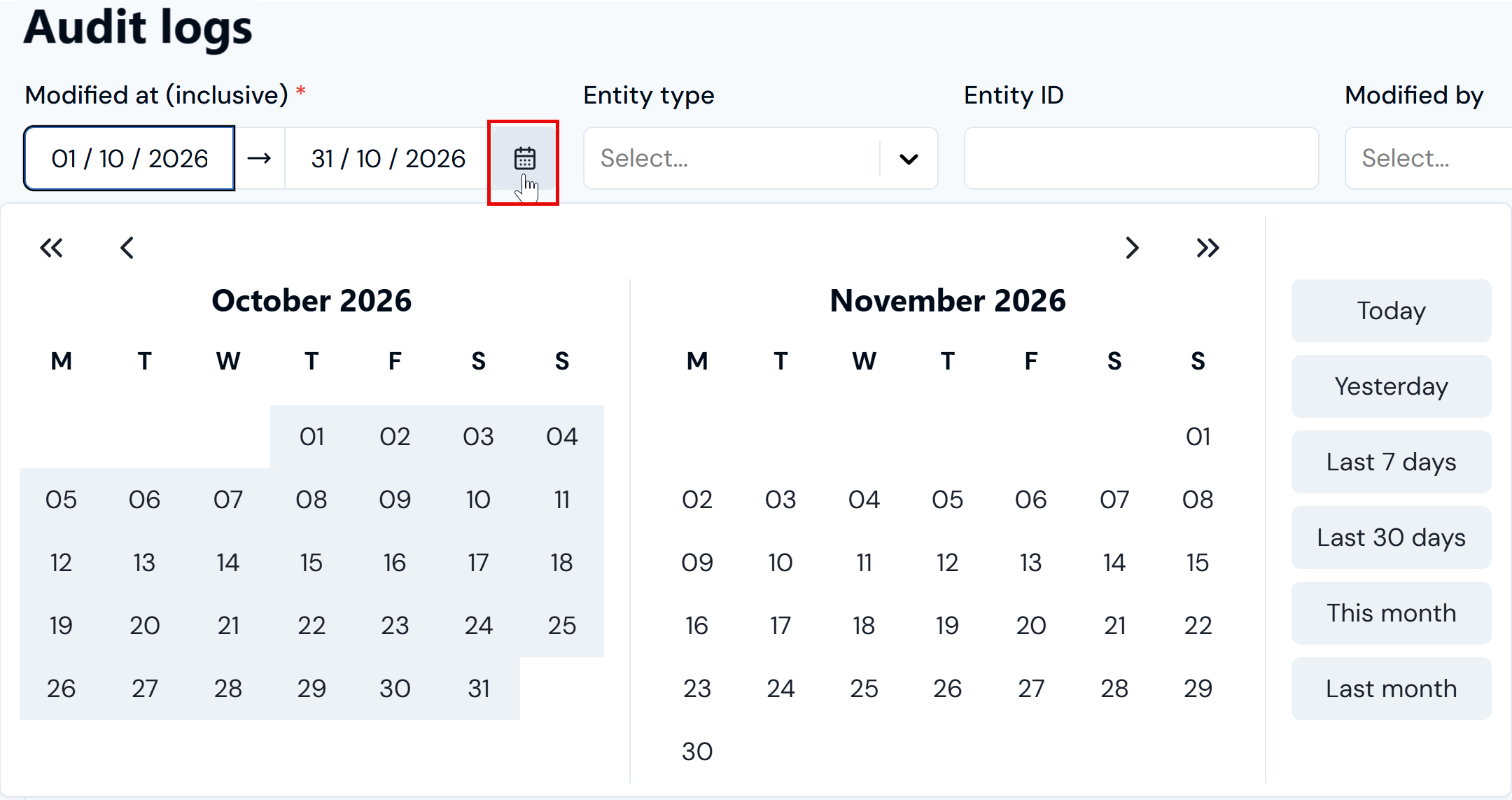
- Define the time period for your query:
- Six pre-defined time period options are available and the default period is This month.
- If you want to use a custom period, use the calendars to select inclusive start and end dates.
- Use the query filters to return the audit logs you want to review and then select Perform query:
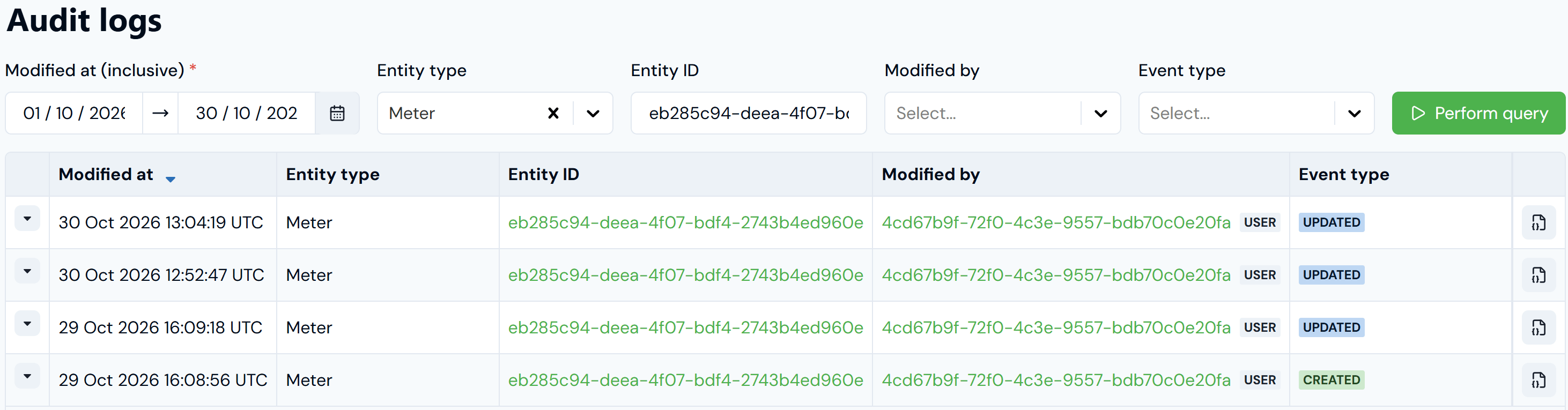
- For example, you can return all logs for a specific Entity type:
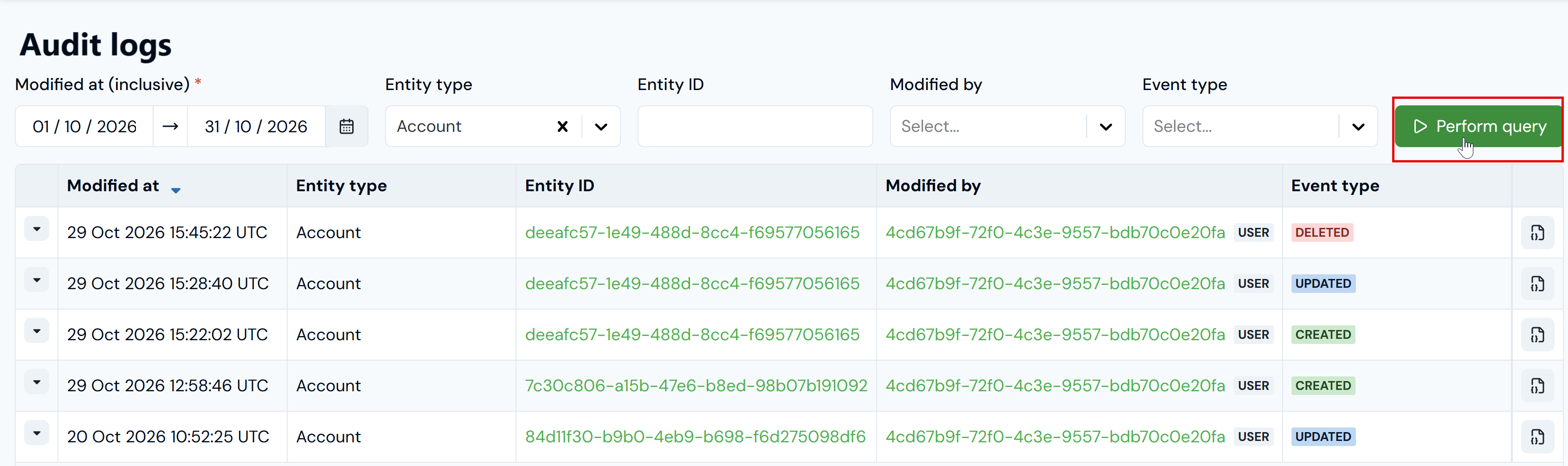
Note that text hotlinks are provided for each audit log under Entity ID and Modified by, which allow you to open either the Entity details or User details page directly.
- Alternatively, you can use the Modified by to return logs for all audit Event types linked to a specific Organization user:
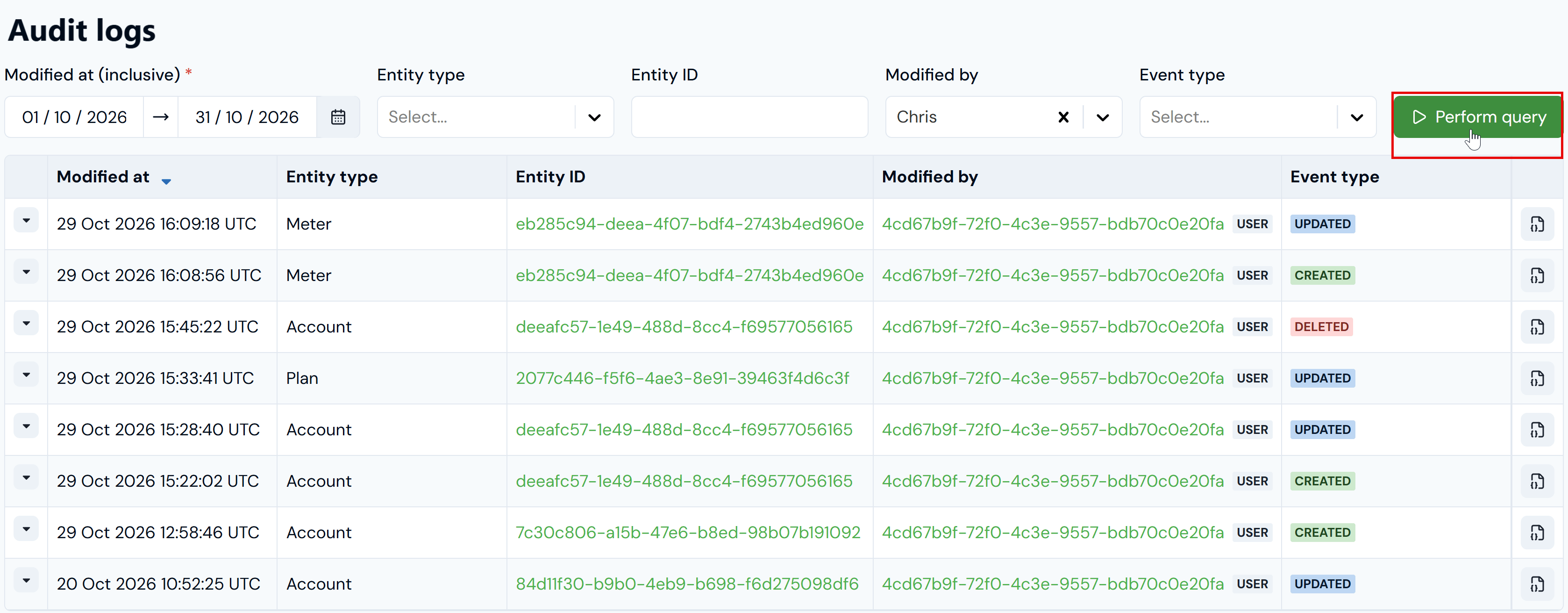
- You can use the Event type filter to show only logs of a specific type:
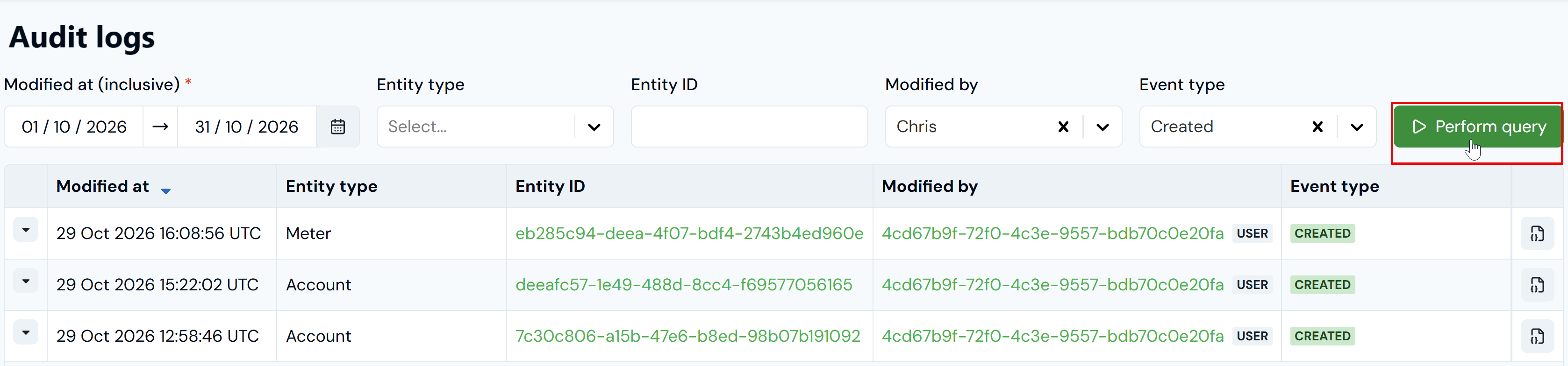
- If you want to filter your query by Entity ID, you must also select the relevant Entity type:

Reviewing Audit Logs Details
When you have built and performed a query that returns the audit logs, you can expand logs to review details. To review audit logs details:- In the Console main top navigation bar, select Audit logs. The Audit logs page opens.
- Build and perform a query that returns the audit logs you want to review.
- Use the arrow on the left side of an audit log record to expand it:
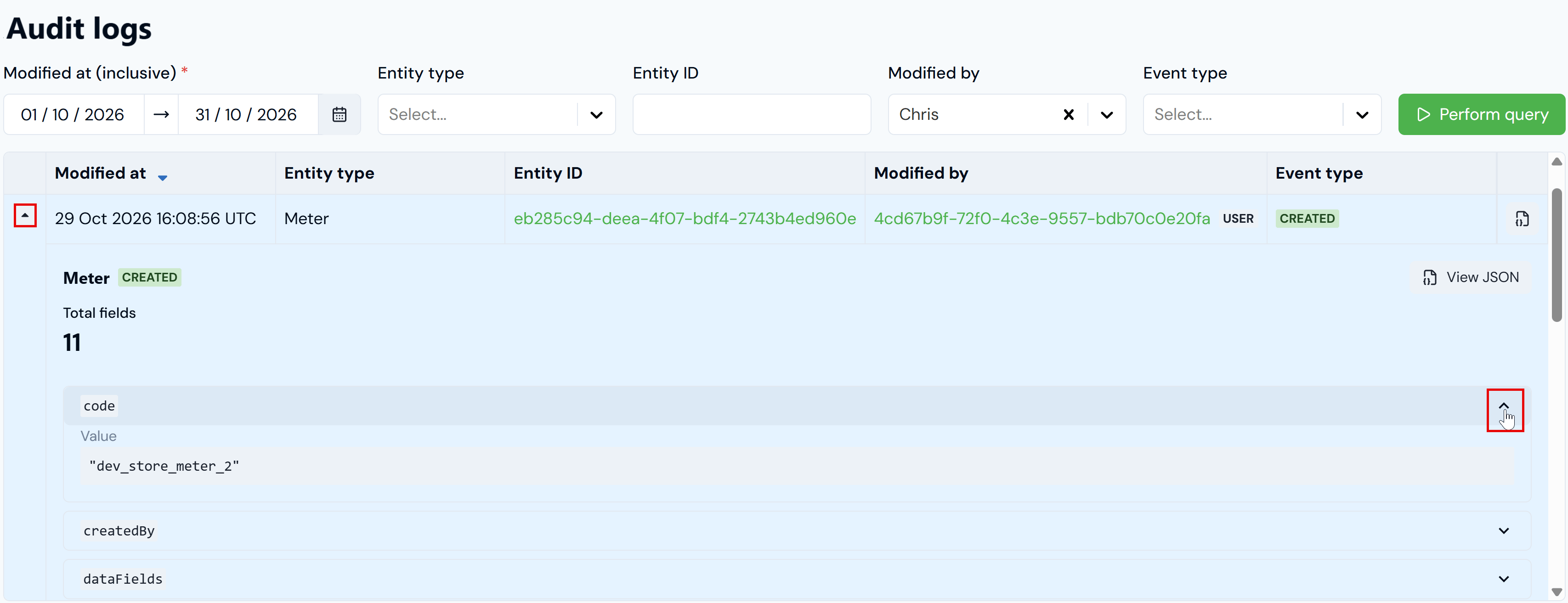
- The entity type is shown together with Total fields created on the entity.
- You can then expand individual fields to reveal their values.
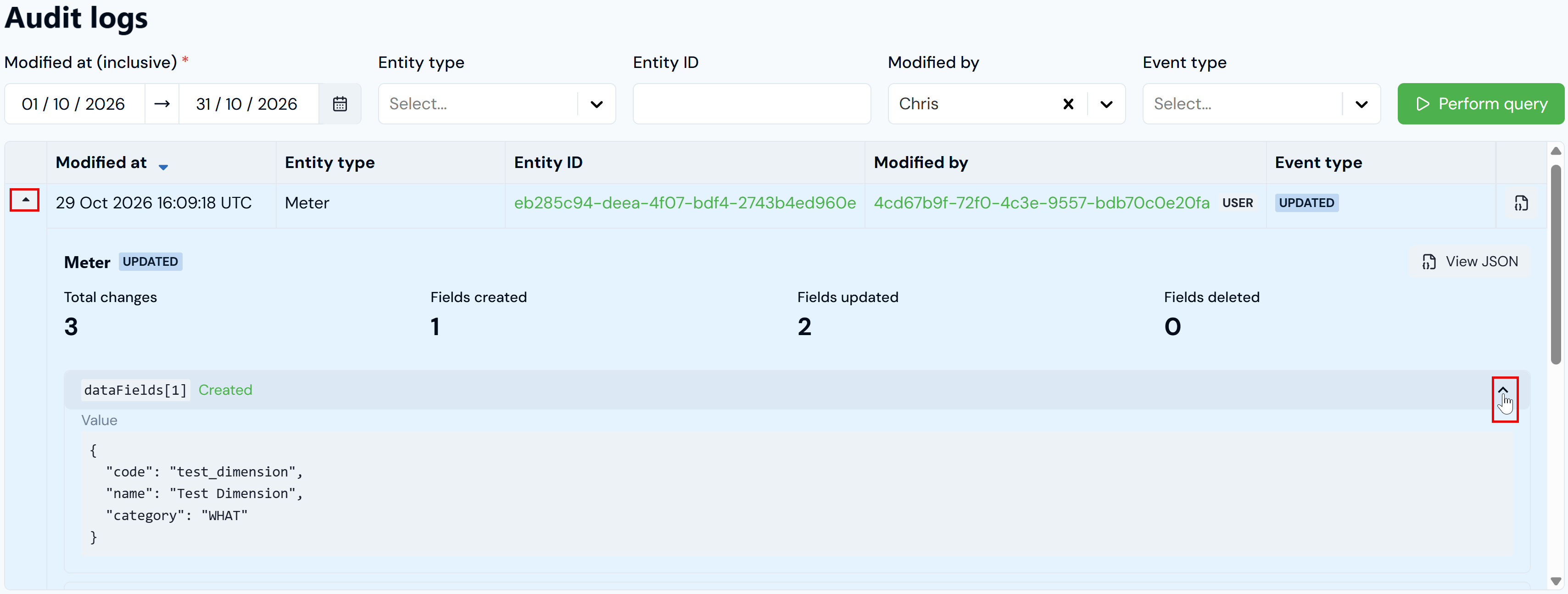
- If you expand an UPDATED audit log, a breakdown of the updates is given:
- Total changes
- Fields created
- Fields updated
- Fields deleted
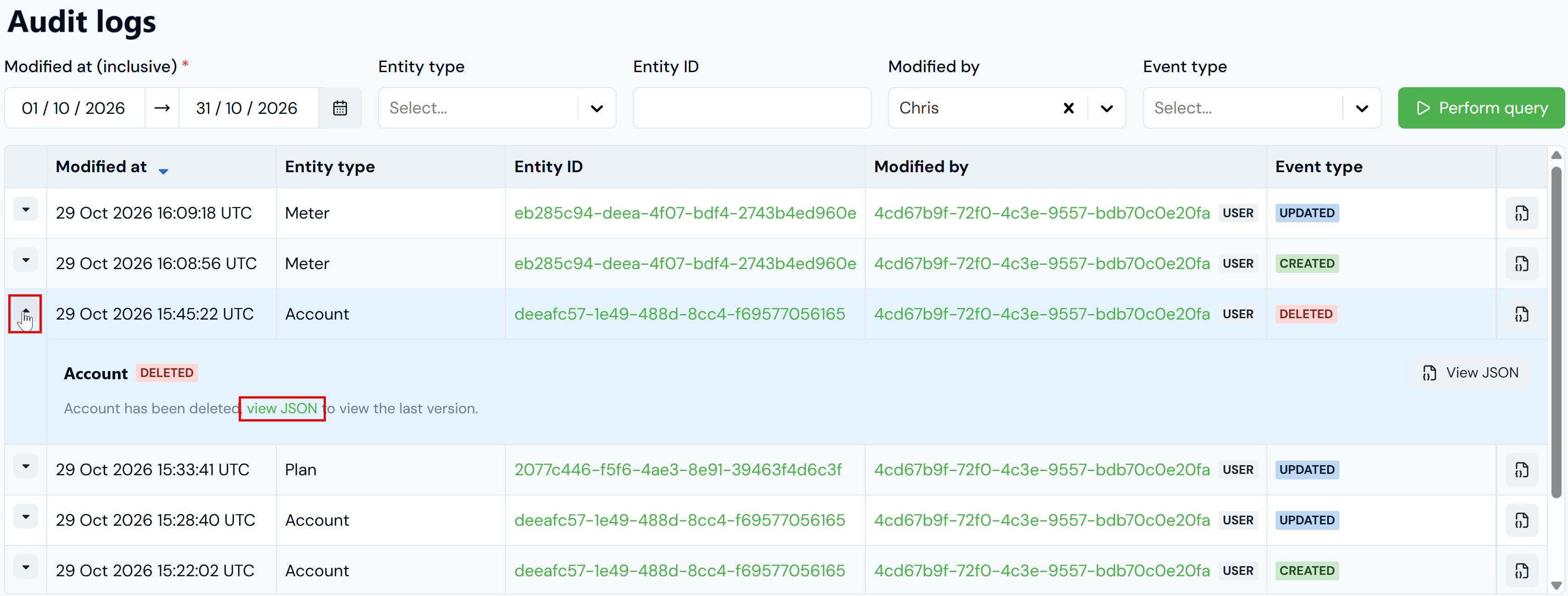
- If you expand a DELETED audit log, you can use a view JSON link to show the last version of the entity prior to its deletion:
Viewing Audit Logs JSON
In addition to reviewing log details in the Audit logs page, you can also quickly open a modal screen to view a log’s JSON. To view audit logs JSON:- In the Console main top navigation bar, select Audit logs. The Audit logs page opens.
- Build and perform a query that returns the audit logs whose JSON you want to view.
- Select the view JSON icon at the right side of an audit log:

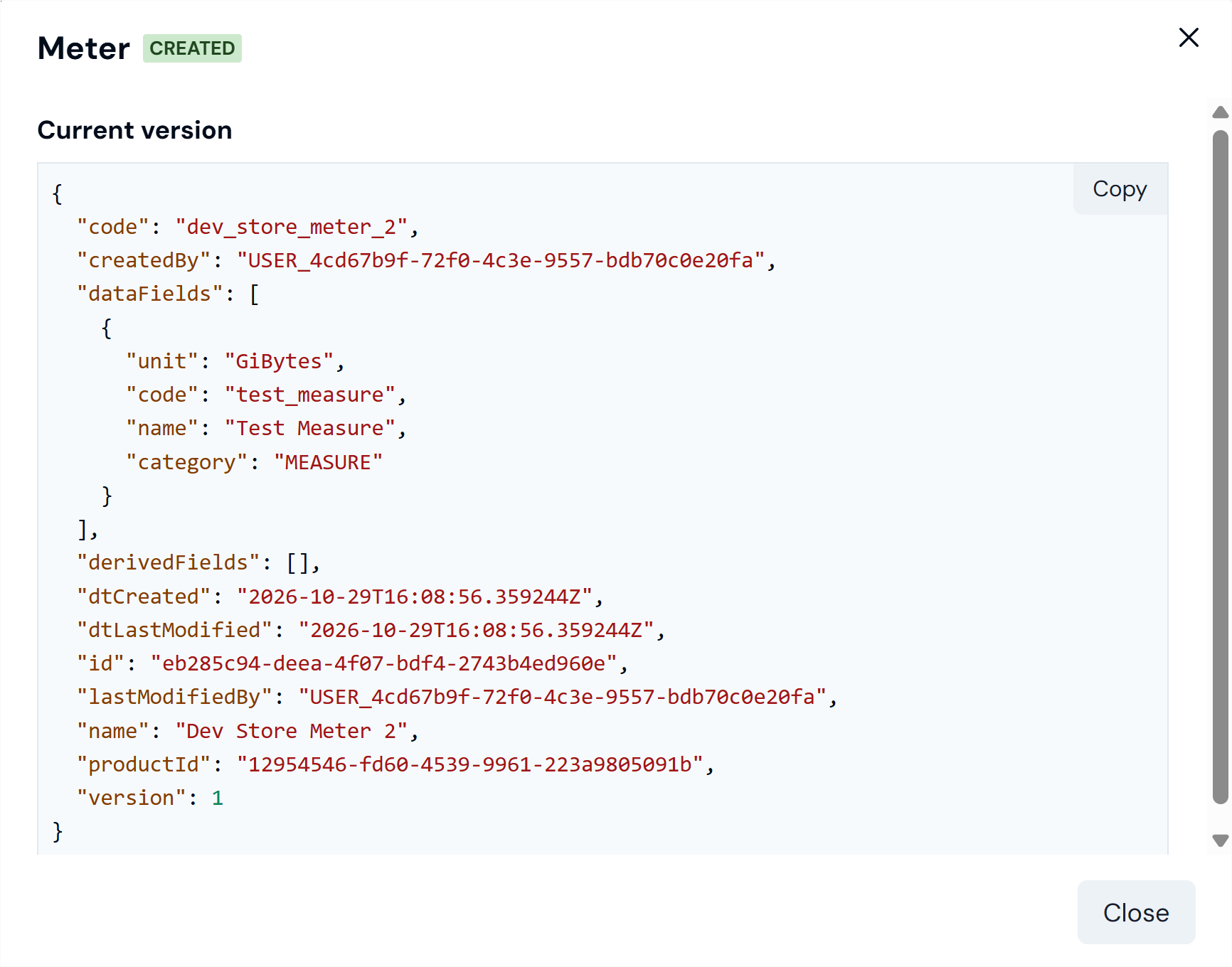
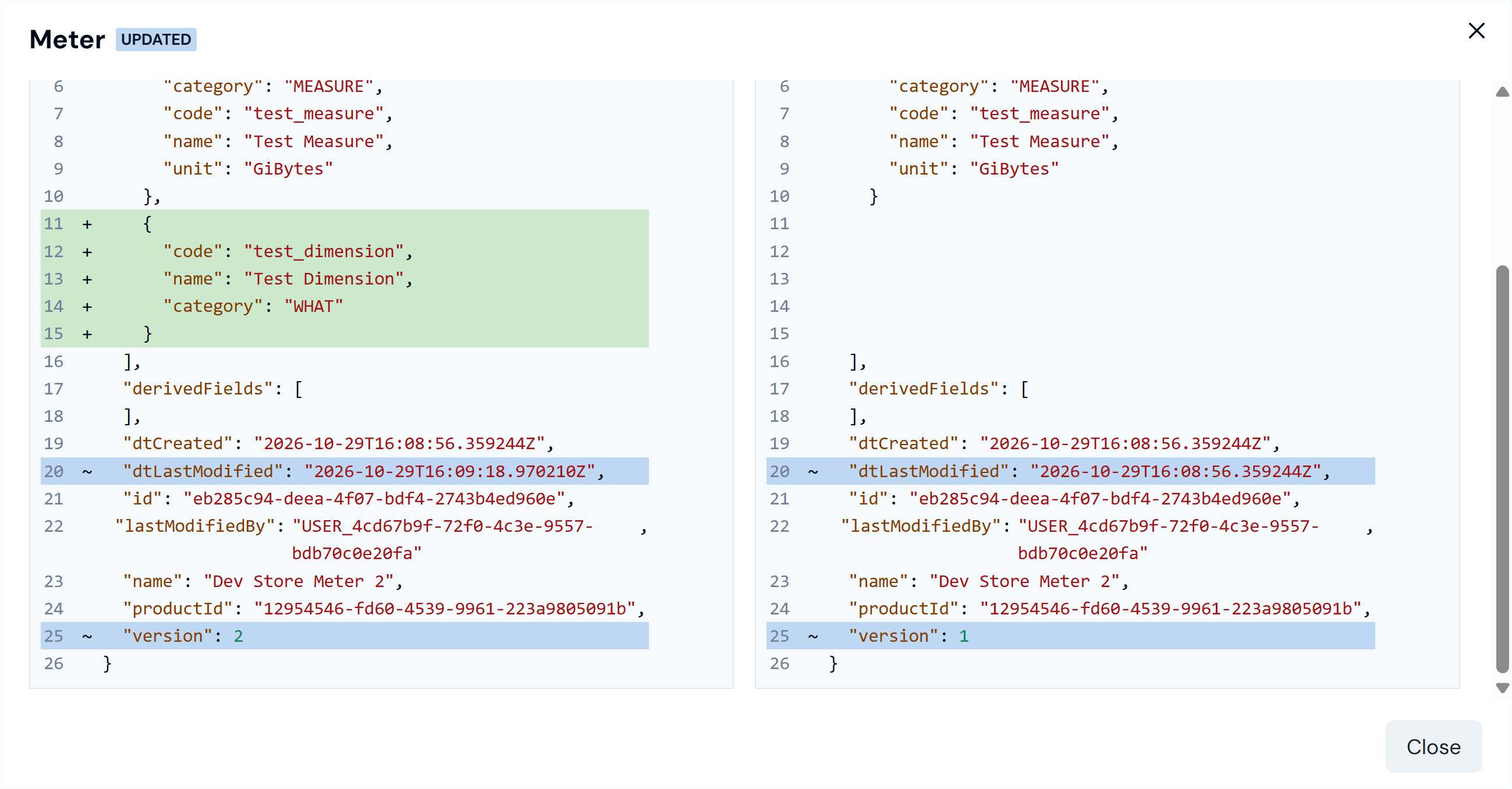
- If you view JSON for an UPDATED audit log, the Current version and Previous version are shown for comparison and changes highlighted:
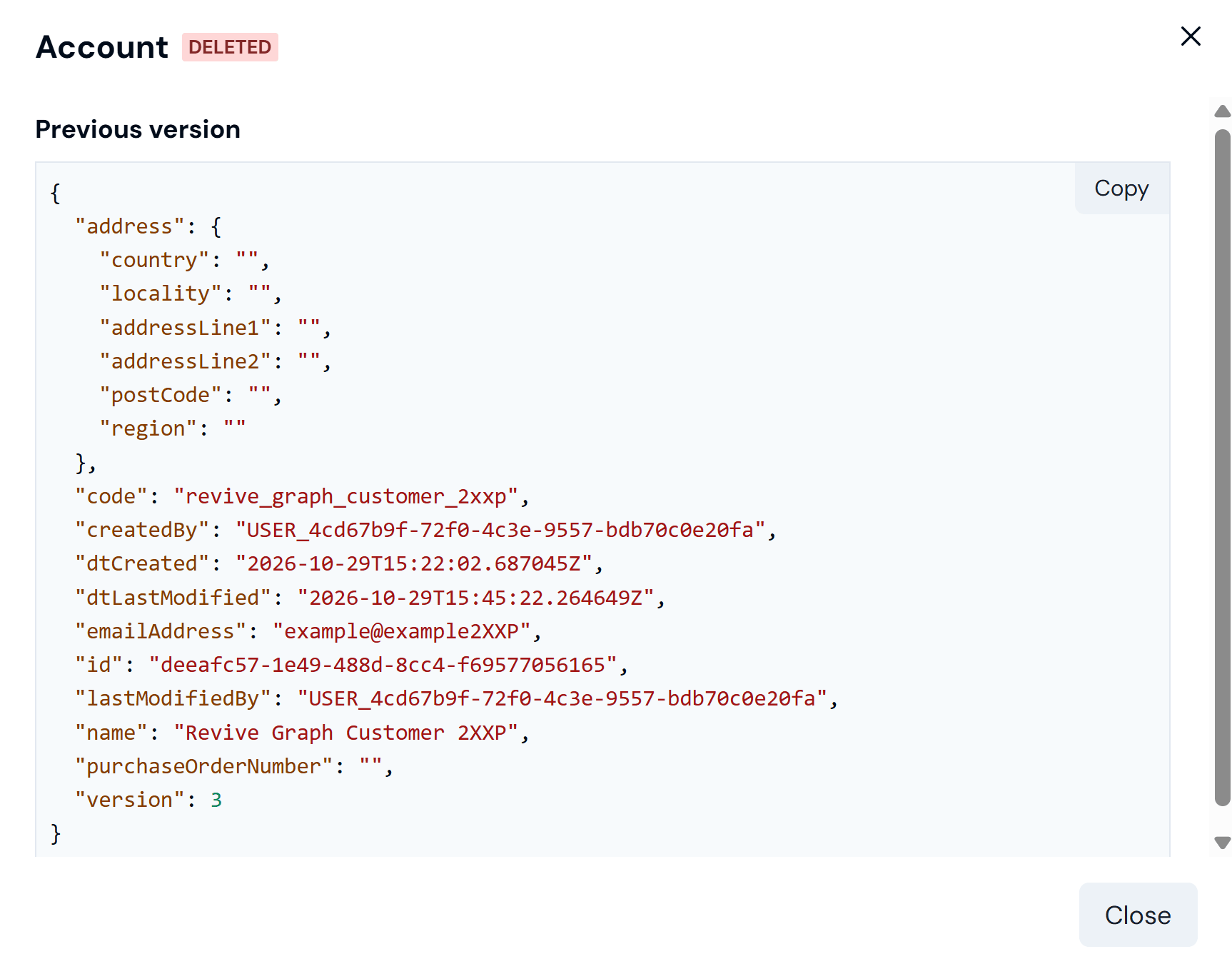
- If you view JSON for a DELETED audit log, the Previous version of the entity is shown:
Opening Audit Logs from Entity Details
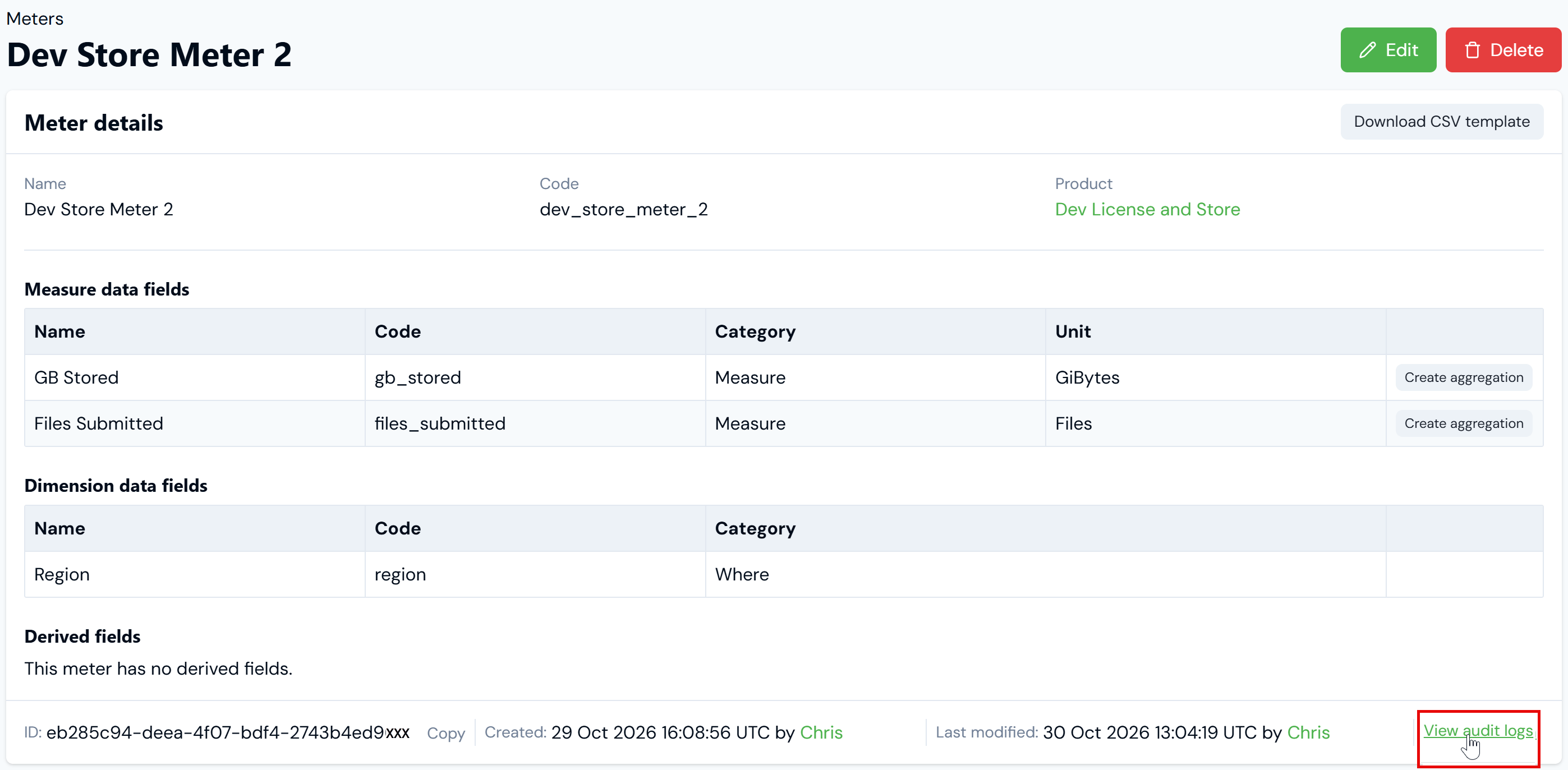
You can access audit logs for specific entities using a text link provided on entity details pages. This opens the Audit logs page directly and automatically performs a query to return the entity’s most recent audit log. To open audit logs from entity details pages:- In the Console, open the details page of the entity you want to open audit logs for.
- Select View audit logs: