Five system Events are generated for errors that might occur with your integrations:
- integration.validation.error
- integration.missingaccountmapping.error
- integration.authentication.error
- integration.perform.error
- integration.disabled.error
In the Integrations section of the Console on the Integration events page, you can review and follow up on these integrations error Events to troubleshoot and resolve them. When you have followed-up on an error Event and resolved it, you can select mark as actioned and remove it from the Events list:
Reviewing and Resolving Events
To review and resolve integration error Events:
- Select Integrations:
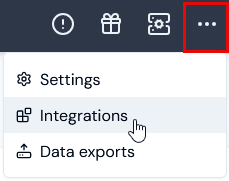 The Integrations page opens.
- Select Integration events:
 The Integration events page opens and lists any existing error Events that have occurred for your integrations:
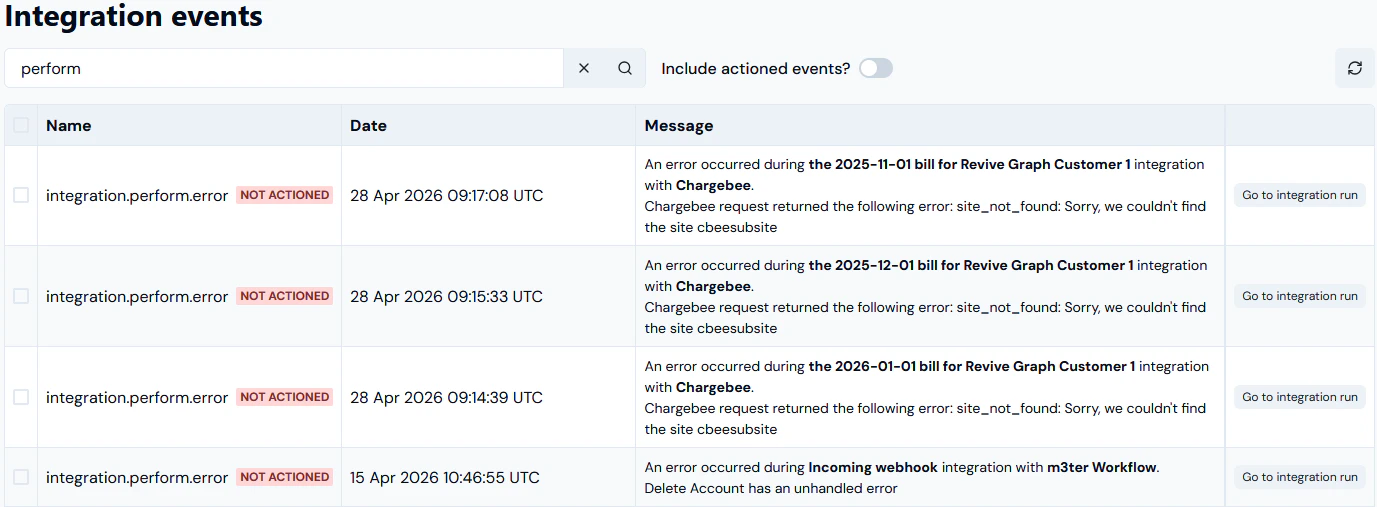 In this example:
- Three
integration.perform.error Event is listed for a Chargebee integration.
- An
integration.perform.error Event is listed for an incoming webhook integration with a m3sh Workflow.
You can read off the details of the Event:
- NAME. The Event type.
- DATE. A timestamp of when the Event occurred.
- MESSAGE. Details of the cause of the Event and suggested remedial action you can take.
- ACTIONED/NOT ACTIONED. All of the Events are shown as NOT ACTIONED.
Depending on the type of error Event, an appropriate button is also provided and which allows you to follow-up and resolve the error.
- If you want to follow-up and resolve the error, click the follow-up and resolve button:
- integration.validation.error. Select Go to integration run:
- integration.missingaccountmapping.error. Select Create external mapping:
- The External mappings>Create page opens. The m3ter entity and m3ter entity type fields are automatically populated and you can proceed to create the required mapping. For more details, see Creating and Managing External Mappings.
- integration.authentication.error. Select Go to integration:
- The relevant Integration configuration details page opens and you can proceed to configure the correct authentication for the integration’s connection to the 3rd-party system. For more details, see the relevant Integrations topic in this section.
- integration.perform.error. Select Go to integration run:
- integration.disabled.error. Select Go to integration:
- The relevant Integration configuration details page opens where you can select to re-enable the Integration or fix any Credential issues.
- Note. An integration is automatically disabled if there have been 20 successive previous error Event responses to earlier attempts to run the integration. Please check the earlier error Events to resolve any issues preventing the integration from running before you re-enable the integration.
- For example, if we select Go to integration run for the
integration.perform.error Event listed for a Chargebee integration, the Integration run details page opens:
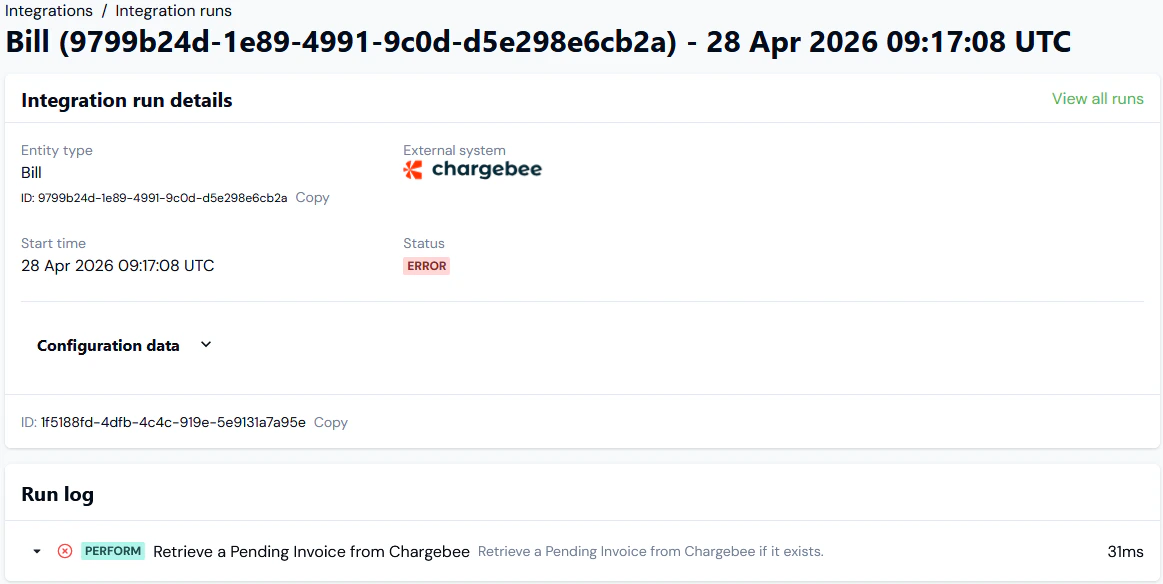
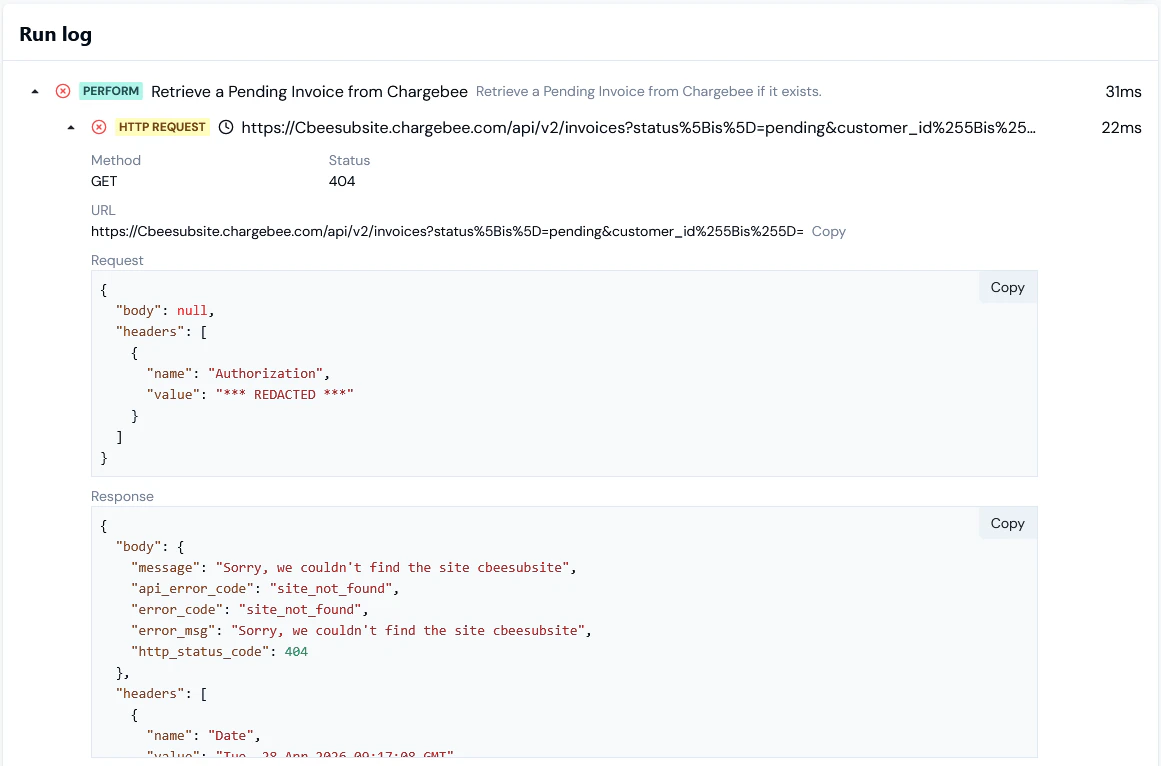
- On the Run log panel, drill into the PERFORM error and read-off the reason:

- You can expand the HTTP REQUEST and inspect the details of the request and response:
Marking Events as Actioned
When you have followed-up and resolved an error Event, you can mark it as actioned to remove it from the Integration events list
To mark an Event as actioned and remove it from the Events list:
- Select the checkbox of the Event you want to mark as actioned.
- Select the Mark as actioned button. A confirmation popup appears:
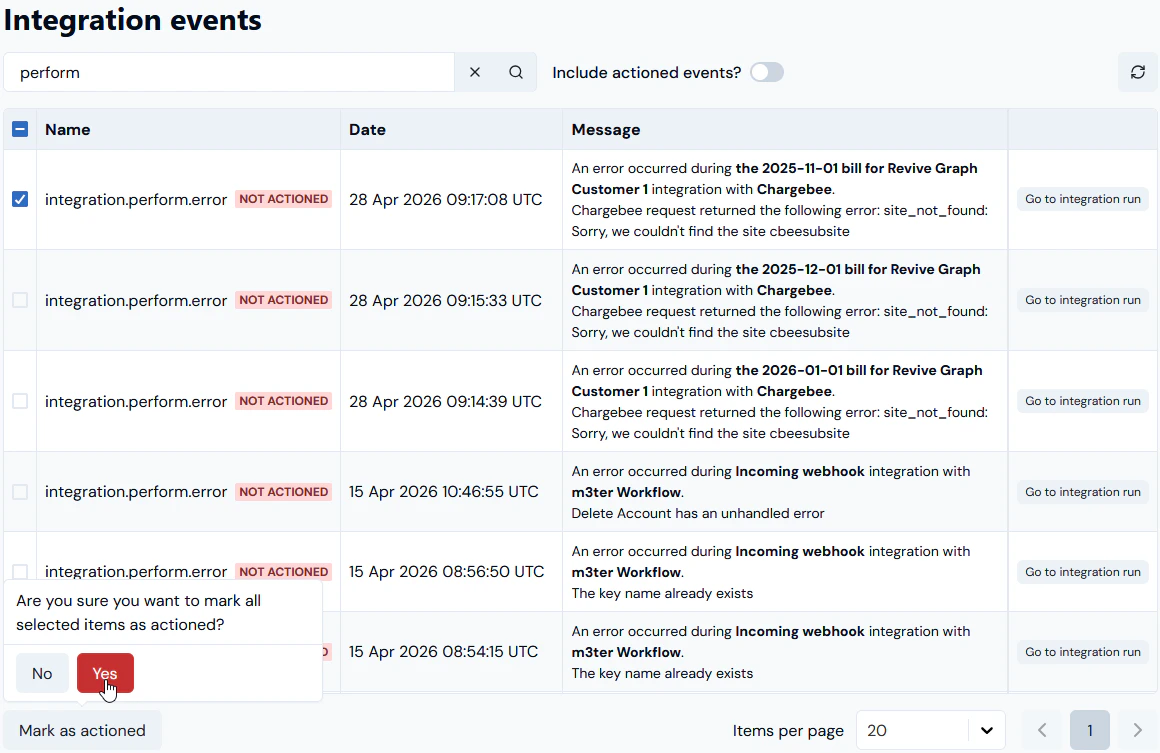
- Select Yes to confirm. The page refreshes and the checked Event is removed from the Integration events list.
Tip: Mark multiple Events as actioned? You can check-off multiple Events to mark them all as actioned at the same time.
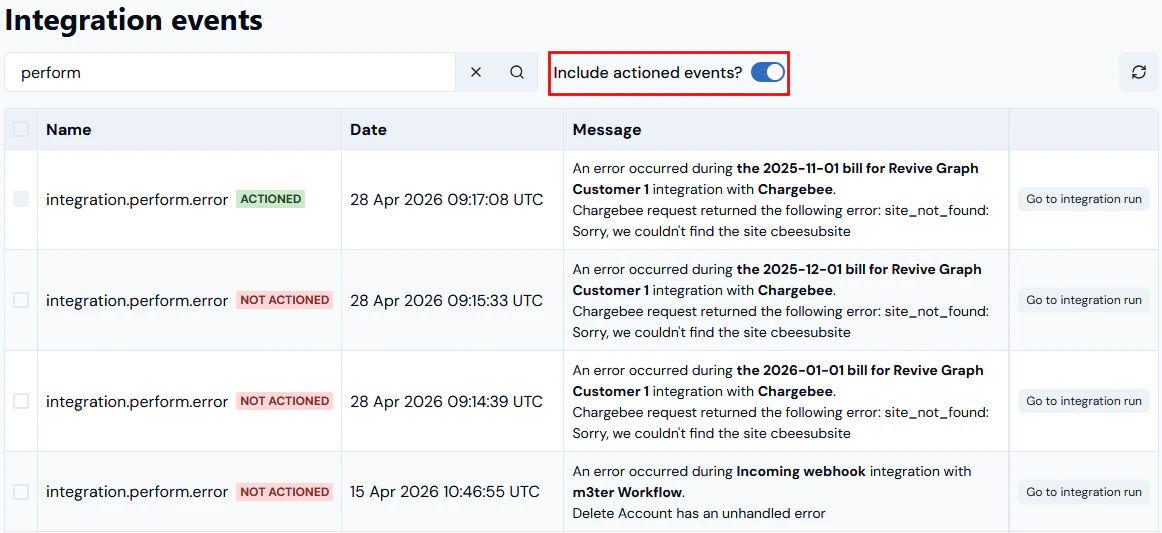
- If you want to check again on Events that you’ve already actioned, enable the Include actioned events? switch. The page refreshes and any actioned Events are added back into the Integration events list, and are clearly marked as ACTIONED: