Managing and Editing Priced Plans and Plan Templates
You can open the Pricing Editor at any time and add Plans or Plan Templates you’ve previously priced. When reviewing your priced Plans and Plan Templates in this way, you can:
Edit a priced Plan or Plan Template.
View the details of Pricing on a priced Plan or Plan Template.
Edit a Pricing for a priced Plan or Plan Template.
View a Pricing Schedule for the Plan, which shows any historic, currently active, or future pricing configured for the Plan.
Delete the pricing you’ve previously configured for a Plan.
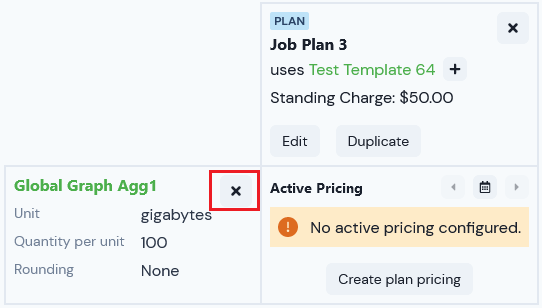
If you’ve previously added an Aggregation for pricing a plan, you can remove the Aggregation provided there is no historic, currently active, or future pricing configured for the Plan using the Aggregation.
This topic explains how to work in the Pricing Editor to edit and manage your priced Plans and Plan Templates:
Important! Unit-based pricing using Counters. This topic explains how to work in the Pricing Editor to manage and edit your Plan Templates and Plans to which you’ve applied usage-based pricing using Aggregations as the pricing metrics. The same functions and features are available for managing and editing your Plan Templates and Plans to which you’ve applied unit-based pricing using Counters as the pricing metrics. See the Recurring Charges: Counters section for more details.
Tip: Reviewing Pricing? You can quickly check and review the Pricing associated with a Plan or Plan Template at any time and without having to open the Pricing Editor by opening the Plan or Plan Template Details page. See Working with Plan Templates and Plan Details.
Viewing the Details of a Pricing on a Priced Plan or Plan Template
From the Pricing Editor, you can open the Details page for a Pricing you’ve configured for a priced Plan or Plan Template.To view the details of a Pricing for a priced Plan or Plan Template:
Select Pricing>Pricing Editor. The Pricing Editor opens.
In the Product drop-down, select the Product for the Plan you want to edit.
Select Add plans. A Select Plans popup appears.
Select the Plan for which you want to view the details of a Pricing and select Confirm. You are returned to the Pricing page where the selected Plan is shown.
In the Pricing Grid, select Details for the Pricing on the Plan you want to view the details for:
The Pricing details page opens:Note that you can:
Use hotlinks to open the Meter, Aggregation, Plan/Plan Template, or Accounting product associated with the Pricing.
Copy the ID of the Pricing and the IDs of any Pricing bands directly to your clipboard.
If you’ve configured any overage pricing bands to be applied when Prepayments or Balances on Accounts have been consumed, then these will be shown under Overage pricing bands:
On the Pricing details page, you can also review Pricing metadata:
External mappings. Any External mappings set up for the Pricing are listed:
The External system and External table mapped to are shown - such as NetSuite - Item in the above example. The External entity ID mapped to is also shown.
If a listed External mapping is linked to an Integration, under Linked integration a hotlink text will be shown which you can use to open the Integration.
Under Actions, you can edit or delete the External mapping.
If the Pricing has multiple External mappings created for it, you can use Search external mappings to search by External table and External entity ID and filter the list.
Integration runs. If you’ve set up an integration that synchronizes the Pricing with an external system, the date/time and status of the Latest integration run are shown. You can use a text hotlink to open details of this latest run or View all runs. See Reviewing Integration Run Details.
If you want to edit the Pricing, select the Edit button, The Pricing>Edit page opens where you can make changes and then select Update pricing - see the following section.
If you want to return to the Pricing editor, use the back button on your browser.
Editing a Pricing for a Priced Plan or Plan Template
To edit the Pricing for a priced Plan or Plan Template:
Select Pricing>Pricing editor. The Pricing editor opens.
In the Product drop-down, select the Product for the Plan you want to edit.
Select Add plans. A Select plans dialog appears.
Select the Plan for which you want to edit a Pricing and select Confirm. You are returned to the Pricing page where the selected Plan is shown.
Select Edit in the Pricing Grid under the Plan.
The Pricing>Edit page opens.
Make your editing changes to the Pricing. For example, you might have originally configured a Tiered pricing structure that uses two tiers and you now need to update this to use three tiers.
Select Update pricing. You are returned to the Pricing Editor and your changes are saved.
Warning: Changing Pricing Type? If you change the pricing type, a confirmation popup appears to warn you that the prices for pricing bands you set up earlier might be reset. This depends on the change you are making when editing the pricing structure. For example, changing from a Tiered pricing type to a Volume pricing type will preserve prices for pricing bands. However, if you change from Tiered to Stairstep, prices for bands will be reset to zero.
Tip: When do changes take effect? Make sure to select Apply your editing changes to existing pricing if you want the pricing changes to be effective immediately for the priced Plan. If not, enter a date to Apply these changes from. If you choose to apply your editing changes for the pricing to take effect at a future date, you’ll be able to view this in the Pricing schedule - see the following section for details.
Tip: Edit a Pricing for priced Plan Template? The steps required to edit a Pricing for a priced Plan Template are similar to those for editing a Pricing for a priced Plan.
If you’ve set up more than one Pricing for a Plan or Plan Template, you can:
View a Pricing schedule for the priced Plan/Plan Template.
Check the currently active pricing.
Review any historic or future pricing.
Notes:
The following procedure explains how to view the Pricing schedule for a Priced Plan - the steps to follow are similar if you want to view the Pricing schedule for a priced Plan Template.
If you’ve priced a Plan or Plan Template using a Counter, you can access and view a Counter pricing schedule in the same way.
To view the pricing schedule for a priced Plan:
Select Pricing>Pricing editor. The Pricing editor opens.
In the Product drop-down, select the Product for the priced Plan whose Pricing Schedule you want to view.
Select Add plans. A Select plans dialog appears.
Select the Plan you want to view the Pricing schedule for and select Confirm. You are returned to the Pricing page where the Pricing grid for the selected Plans is shown:
An Active pricing will show in the grid only if a Pricing has been configured that is currently active.
You can use the arrows on the Pricing schedule calendar icon to bring a past or future Pricing into the Pricing grid:
If there is an Historic pricing for the Plan, the left-hand arrow on the calendar icon will be active and you can select it to bring that Pricing into the Grid:
If there is a Future pricing for the Plan, the right-hand arrow on the calendar icon will be active and you can select it to bring that Pricing into the Grid:
To view the Pricing schedule for a priced Plan, select the calendar icon:
The Pricing schedule opens:On the Pricing schedule, you can:
Review Plan details and Aggregation details. These will include audit data showing which User first created and which User last modified the Plan and Aggregation.
Read-off the start and end dates of any historic or future pricing.
Check which pricing is currently ACTIVE.
REMINDER! End dates for Pricing are Exclusive. Suppose you want to set up a Pricing schedule for one of your products that increases the charge for the highest pricing band in a tiered pricing structure on a month-by-month basis. When setting up this kind of pricing schedule for a Plan, please remember that the end date on a Pricing is exclusive. In the above example, it might look as though the second Pricing overlaps with the third Pricing, since the second is set to end on 02 Oct 2022 and the third is set to start on 02 Oct 2022. But this means the second Pricing ceases to be active for the Plan at midnight on 01 Oct 2022 and the third Pricing starts to be active at that point in time. If we had set the end date of the second Pricing to be 01 Oct 2022, this would have left a gap of one day where no Pricing was active for the Plan!
If you have a Plan that originally inherited its pricing from the Plan Template but the inherited pricing was overridden at Plan level, this will also be shown. Here’s an example on a Counter pricing schedule:
Tip: Access Pricing Schedule from Plan details page. Alternatively, you can access the Pricing Schedule for a priced Plan from the Plan details page under Pricing - simply select the View pricing schedule text link.
You can delete a pricing you’ve configured for a Plan in the Pricing Editor.
Delete pricing for Plan Template? This section explains how to delete the pricing for a Plan. You can delete the pricing for a Plan Template in a similar way.
To delete the pricing for a Plan:
Select Pricing>Pricing editor. The Pricing editor opens.
In the Product drop-down, select the Product for the Plan whose pricing you want to delete.
Select Add plans. A Select plans dialog appears.
Select the Plan whose pricing you want to delete and select Confirm. You are returned to the Pricing page where the selected Plan is shown with the pricing you configured earlier.
Select Delete under the Plan for an Aggregation used to create a pricing. A confirmation popup appears.
Select Yes to continue. The popup closes and the Plan now shows No active pricing configured using the Aggregation used previously.
If you want to reconfigure the pricing for the Plan using the Aggregation you used previously, you can select Create pricing.
Warning: Deleting Pricing for Plans Attached to Accounts! If you delete the pricing for a Plan that you’ve attached to one of your end-customer Accounts for charging against that Account, any future Bills will not be able to be calculated. You must re-price the Plan for any future Billing.
You might want to remove an Aggregation you’ve previously added to the Pricing Editor for pricing up a Plan.
Warning: You can only remove an Aggregation if there’s no historic, currently active, or future pricing configured for the Plan using the Aggregation.
To remove Aggregations for a Plan in the Pricing Editor:
Select Pricing>Pricing editor. The Pricing editor opens.
In the Product drop-down, select the Product for the Plan with an Aggregation you want to remove.
Select Add plans. A Select plans dialog appears.
Select the Plan with the Aggregation added earlier for pricing the Plan and select Confirm. You are returned to the Pricing page where the selected Plan is shown with the added Aggregation.
If in your earlier session in the Pricing Editor you added an Aggregation but did not create a pricing for the Plan using the Aggregation, a No active pricing configured message will show and a Remove button is available for the Aggregation, which you can then use to remove the Aggregation immediately.
If in your earlier session in the Pricing Editor you did create a pricing for the Plan using the Aggregation, you cannot remove the Aggregation:
Select Delete pricing - see the previous section in this topic for details.
After you delete the pricing and return to the Pricing Editor, a Delete button is now available for the Aggregation, which you can use to remove it:
Assistant
Responses are generated using AI and may contain mistakes.