You can quickly set up and run a one-off, ad-hoc data export containing operational data of selected entities in your Organization - such as Bills, Prepayments/Commitments, Accounts, and Balances. The data export will contain the operational data for the selected entities at the time the export runs.
Important!
Reviewing Operational Data Export Options. Before attempting to run and ad-hoc operational data export, please review the options available for controlling the data the export will contain - see Working with Operational Data Export Schedules.
Creating and Running an Ad-Hoc Operational Data Export
To create and run an ad-hoc Operational Data export:
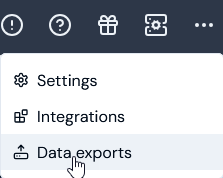
Select Data exports:
The Data exports page opens.
On the Export schedules panel, select Run ad-hoc export. The Run ad-hoc export page opens.
Enter the Ad-hoc export details:
Destinations. Use the drop-down to select the Export destinations to be used for the ad-hoc data export:
Select a destination.
If No options shows in the drop-down, you must first create at least one destination before you can set up an ad-hoc data export - see Creating and Managing Export Destinations.
Alternatively, if you simply want to download the data export file locally, do not select a Destination. See Downloading Data Export Files Locally for more details.
Export file format. Select the format you require for the data export files:
CSV. (Default).
JSONL.
Under Ad-hoc export data:
Source type. Select the Operational data option. The page adjusts to allow you to select a Time period for the export and the Operational data entities you want the export to contain.
Time period. Define a time period using an inclusive start date/time to define the period you want the ad-hoc data export to cover and control the range of operational data that the export will contain. Only data created or modified from the specified start date/time until now - where this means the date/time the Export runs - will be included. As well as allowing you to set a custom start, several preset options are available:
Custom. Use the calendar selector to specify a start date/time.
Today. Data for the current day up until now.
Week, Month, or Year to date. Data for the period covering the current week, month, or year up until now.
Last 12 hours. Data collected for the twelve hour period prior to when you make the selection up to now.
Last 7, 30, 35, 90, or 120 days. Data for the selected number of days prior to when you make the selection up until now.
Last year. Data for the full year prior to when you make the selection up until now.
All Time. Unrestricted and the export contains all the operational data available for selected entities up until now. (Default setting)
When you select the Time period, the inclusive start date is shown in brackets. For example, if Today is selected on June 9th 2025:
Under Operational data entities, select the plus icon and use the pop-up to select the entities whose data you want to include in the ad-hoc export:
Accounts
Account Plans
Aggregations
Balances
Balance Transactions
Bills
Bill line items
Charges
Prepayments/Commitments
Compound Aggregations
Contracts
Meters
Plans
Plan Groups
Plan Group Links
Plan Templates
Pricing
Pricing Bands
Products
Transaction Types
Tip: Exporting data for all entities? If you want to export the operational data for all entities, use Select all.
Select Add. The selected entities are added to the Ad-hoc export details.
When you have entered all details for the ad-hoc data export, select Run ad-hoc export:
In this example for an ad-hoc export to run on May 15th 2025, we’ve selected to include the operational data for any Accounts and Bills created or modified in the previous week to be included.
An Export job is scheduled for the ad-hoc operational data export and you can check if the job succeeded on the Export jobs page - see Reviewing Export Jobs.
Assistant
Responses are generated using AI and may contain mistakes.