

- Add Transactions for the Balance for credit or debit amounts.
- Link Balances to Contracts on the Account.
- Review Balance metadata.
- Creating a Balance on an Account
- Adding Balances to or Removing from Contracts
- Linking Balances to Contracts - Availability for Draw-Down
- Reviewing Balance Metadata
- Balances Draw-Down Order Against Prepayments
Creating a Balance on an Account
To create a Balance for an Account:- Select Accounts. The Accounts page opens.
- Select the Name text of the Account for which you want to create a Balance. The Account details page opens with the Overview tab selected.
- On the Account actions menu, select Balances>Create balance:

- Select the Balances tab and then select Create balance.
- Enter the required Balance details:
- Name. (Required)
- Code. (Required)
- Grant. Enable this switch if you want to treat the Balance as a Grant, allowing you to credit the Account with an amount of pre-rated usage and reduce the amount of usage that is rated and would result in charges against the Account. See Grants for more details.
- Currency. Use the drop-down list to select the currency you want to use for the Balance. (Required)
- Start date (inclusive) and End date (exclusive). Use the calendar pop-ups to set start and end dates/times to define the time period the Balance will be active for the Account. (Required)
- Consumptions accounting product. For accounting purposes, select to link any Balance consumed draw-down Bill line items against the Balance to a particular Product for accounting purposes. (Optional)
- If you omit a Consumptions accounting product, then then Balance consumed Bill line items will not be linked to a Product and will be listed under Other line items.
- Fees accounting product. For accounting purposes, select to link any Balance fee Bill line items to a specific Product for Charges against the Balance. (Optional)
- If an Accounting product has been selected for a Charge against the Balance, this takes precedence and will be used.
- If an Accounting product has not been defined for a Charge and you omit Fees accounting product for the Balance, then Balance fee Bill line items will not be linked to a Product and will be listed under Other line items.
- Contract. (Optional) If you want to add the Balance to a Contract you’ve created for the Account, use the drop-down to select it. For more details on Contracts, see Creating Contracts for Accounts.
- Description. Enter a description for the Balance. (Optional)
- Enter Balance draw-down settings, which are optional:
- Draw-down products. Select the Products whose consumption charges can be drawn-down against the Balance amount.
- Draw-down charge types. Select the charge types that can be drawn-down against the Balance amount. Six options:
- Ad-hoc
- Counter adjustment debit
- Counter running total charge
- Minimum spend
- Standing charge
- Usage
- Draw-down description. Enter a custom description that will appear against Bill line items for draw-down charges against the Balance.
- Note that if you leave this blank, a default description will be used: <Balance name>: Balance Consumed.
- Enter Balance overage and rollover settings, which are optional:
- Rollover amount. If the charges drawn-down against the Balance during the period the Balance is active for the Account don’t exhaust the Balance, you can have whatever remains of the Balance rollover. This means charges continue to be drawn-down against the unused amount beyond the active end date set for the Balance.
- If you want to enter a cap on any rollover amount used for a rollover or grace period, enter the amount here.
- You’ll need to enter a Rollover end date also to enable the rollover/grace period - if you only enter an amount for rollover without entering an end date, you’ll receive an error when you try to save the Balance.
- Rollover end date. If you want to allow a rollover or grace period where any unused Balance amount continues to be drawn-down against charges due after the defined active end date, then use the pop-up calendar to define an end date for the rollover or grace period.
- Overage surcharge (%). Optionally, enter a value for the additional surcharge (in percent) added to bills for overages on the Balance amount:
- Note that you can enter a negative percentage if you want to give a discount rate for usage to end customers who exceed their Balance amount.
- Overage description. Optionally, enter a custom description to be used for Bill line items for Balance amount overage surcharge.
- If required, add any Custom fields to the Balance:
- Currently, you cannot create Custom Fields for Balances at the Organization-level, and therefore you cannot reference the Custom Fields values you create for an individual Balance in your calculations.
- For more on Custom Fields, see Adding and Editing Custom Fields. We strongly recommend reviewing Working with Custom Fields before you create and use Custom Fields.
- Select Create balance. You are returned to the Balances tab, where the new Balance is listed:
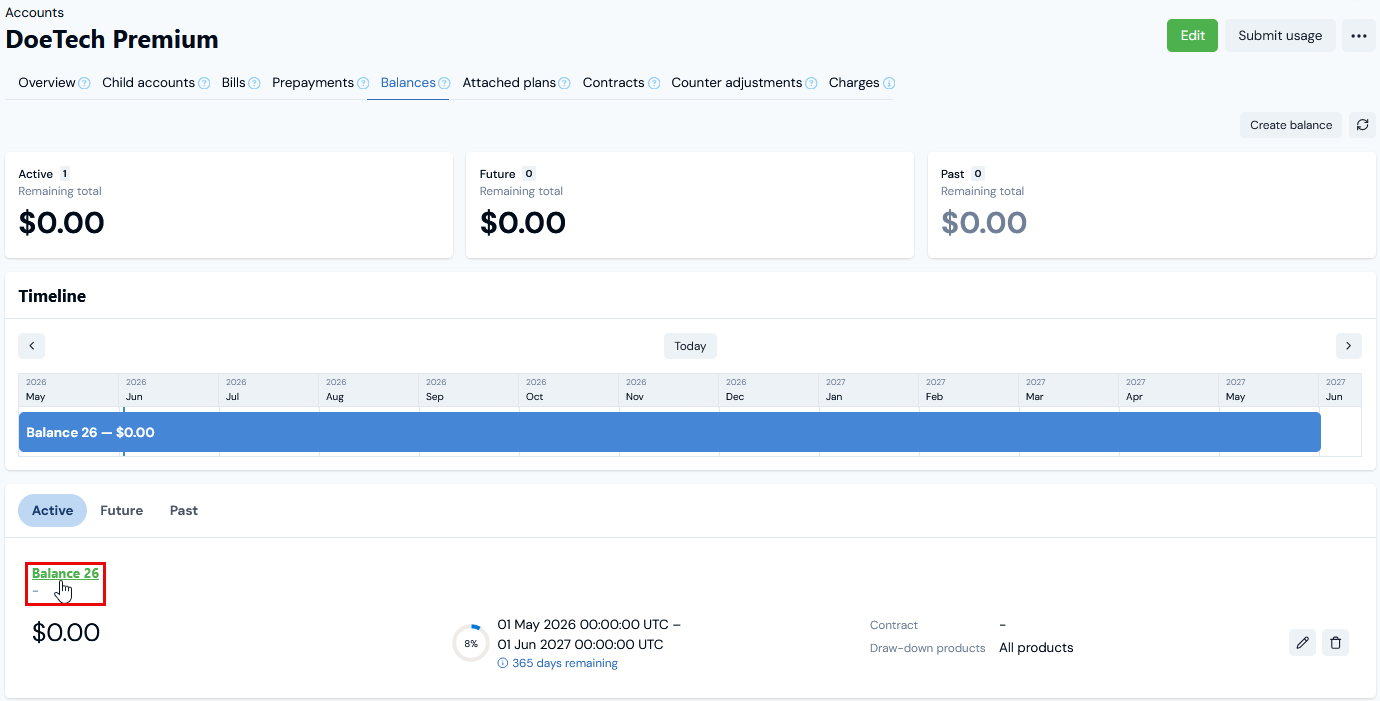
- In this example the new Balance is current and listed under Active.
- The Balance Amount shows as zero and you’ll now have to create Transactions for the Balance to add credit or debit amounts to the Balance. See Creating and Managing Transactions for Balances.
Reviewing Account Balances! When you’ve set up Balances for an Account, the Balances tab offers a very useful summary view with a timeline chart of the active, future, and past Balances Balances on an Account. See Reviewing Account Balances Summary for more details.
- If you want to review the details of the Balance, select the Name hotlink text. The Balance details page opens:
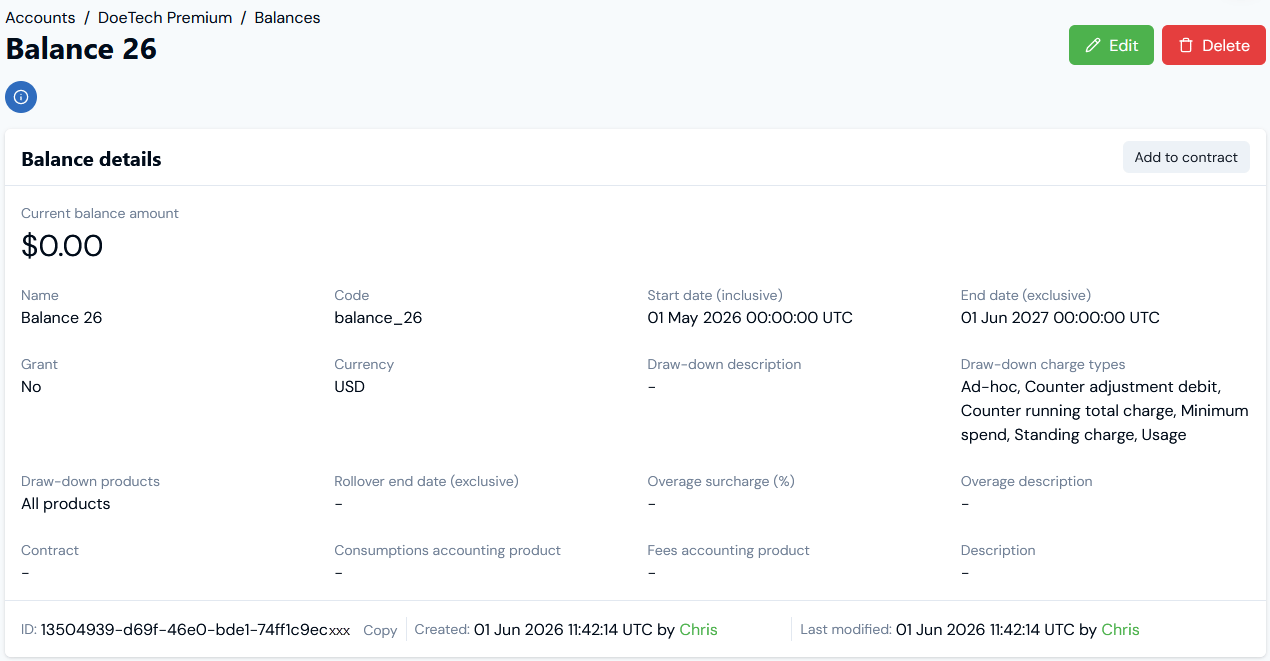
- The Current balance amount.
- The billing charge types that can draw-down against the Balance.
- The Balance ID and Copy it directly to your clipboard.
- Scroll down the page to the Balance transactions summary card:

- Initial credit amount. The initial credit amount created for the Balance.
- Total credit amount. The sum of all credits created for the Balance.
- Total debit amount. The sum of all debits created for the Balance.
- Balance consumed. The sum of debits made against the Balance. Note that this amount is dynamic over time until either the Balance end date is reached or the available Balance amount reaches zero, after which it will be unchanged.
- Expired balance amount. The amount of the Balance remaining at the time the Balance expires and which is not included in any configured Rollover amount. For example, suppose a Balance reaches its end date and $1000 credit remains unused. If the Balance is configured to rollover $800, then the Expired balance amount is calculated as $1000 - $800 = $200.
- Rollover amount and Rollover remaining amount.
- Rollover consumed. The sum of debits made against the configured rollover amount. Note that this amount is dynamic over time until either the rollover end date is reached or the cap configured for the rollover amount is reached, after which it will be unchanged. If no rollover is configured for a Balance, then this is ignored.
- If you want to edit the Balance’s details, select the Edit button, make your changes, and click Update Balance.
- Return to the Balances tab.
- If you want to remove a Balance, select the Delete button for the Balance:

- Select Yes to confirm the delete action.
- Note that you can also use the Delete button at the top of the Balance details page.
Adding Balances to or Removing from Contracts
From a Balance details page, you can quickly add the Balance to or remove it from a Contract on the Account. This saves you having to open and edit the Balance. To add a Balance to or remove it from a Contract:- Select Accounts. The Accounts page opens.
- Select the Name text of the Account for which you want to add a Balance to or remove from a Contract. The Account details page opens with the Overview tab selected.
- Select the Balances tab.
- Select the Name hotlink text of the Balance. The Balance details page opens:
- If the Balance has not been added to a Contract, an Add to contract button is available.
- If the Balance has been added to a Contract, a Remove from contract button is available.
- To add the Balance to a Contract, select Add to contract. A Select contract modal opens and lists the Contracts created for the Account.
- Select the Contract you want to add the Balance to and select Confirm. The modal closes and the Contract is shown under Balance details:
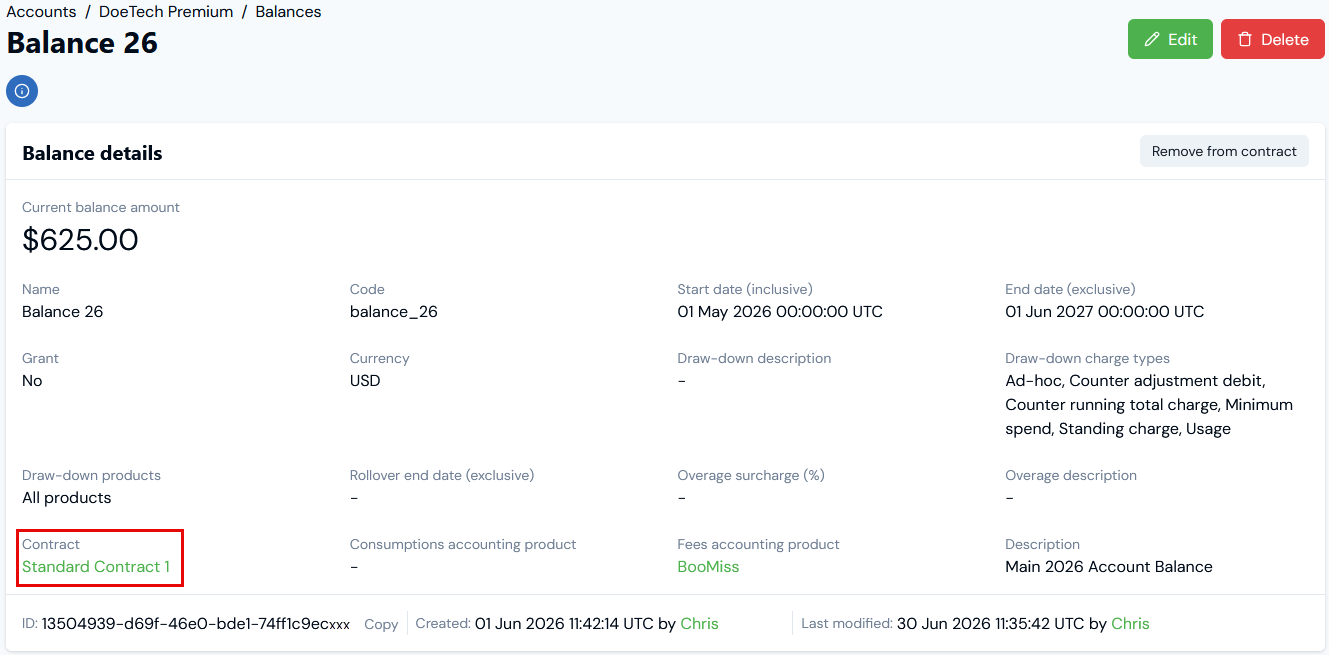
- To remove a Balance from a Contract, select Remove from contract. A confirmation popup appears:
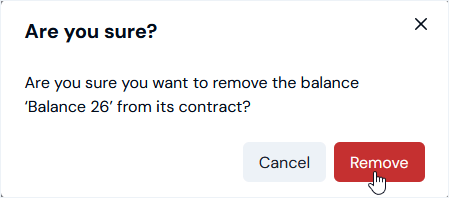
- Select Remove to confirm. The popup closes and the Contract no longer shows under Balance details.
Linking Balances to Contracts - Availability for Draw-Down
Linking a Balance to a Contract on an Account is optional. However, if you have linked an Account Plan to a Contract or set up an ad-hoc Charge for the Account and linked the Charge to a Contract and you want to ensure the Balance is available for draw-down against billed charges on the Account - either usage or ad-hoc charges - you must either link the Balance to the same Contract or ensure the Balance is not linked to a Contract. The following table list the consequences for draw-down availability when linking Account Plans or ad-hoc Account Charges and Balances to Contracts:Reviewing Balance Metadata
On the Balance details page, you can review a Balance’s metadata:- Custom Fields or External Mappings created for the Balance.
- Integration runs linked to the Balance.
- Select Accounts. The Accounts page opens.
- Select the Name text of the Account for which you want to review Balance metadata. The Account page opens.
- Select the Balances tab.
- On the Balance panel, select the Name text of the Balance you want to review metadata for. The Balance details page opens.
- Scroll down the page to review Balance metadata:

- You can Copy the String or Number value of a Custom Field to your clipboard. See Working with Custom Fields for more details.

- The External system and External table mapped to are shown - such as NetSuite - Item in the above example. The External entity ID mapped to is also shown.
- If a listed External mapping is linked to an Integration, under Linked integration a hotlink text will be shown which you can use to open the Integration.
- Under Actions, you can edit or delete the External mapping.
- If the Balance has multiple External mappings created for it, you can use Search external mappings to search by External table and External entity ID and filter the list.
- You can commence a workflow to Create external mapping for the Balance directly - see Creating and Managing External Mappings for Accounts for an example.
Balances Draw-Down Order Against Prepayments
If you’ve added Balances and Prepayments as credits on an Account, you can define the order in which these credit amounts are drawn-down for billing the Account. Four options are available for this credit application order for Balances against Prepayments:- Prepayment then balance. Draw-down against Prepayment credit before Balance credit. Default.
- Balance then prepayment. Draw-down against Balance credit before Prepayment credit.
- Prepayment only. Only draw-down against Prepayment credit.
- Balance only. Only draw-down against Balance credit.
- At Organization level as part of your Organization configuration. See Viewing and Editing Organization Configuration.
- At individual Account level when creating or editing the Account to which the Prepayments and Balances have been added under Bill settings. See Creating an Account.
- If you configure this at Account level, the Account level setting takes precedence over any setting at Organizational level.