You can create currencies for your Organization, which will then be available for selection when you create and configure pricing and billing entities, such as Plan Templates or Accounts.When your Organization is first set up, a US Dollar currency is created and set as the default currency - USD. You can create other standard or custom currencies and set one of these as the default currency.The currency you select for your Organization determines the billing currency. This billing currency can be different from the pricing currency used when pricing Product Plans. If you intend to use different billing and pricing currencies, you must define currency conversion rates.This topic explains how to create and manage the currencies you’ll need in your m3ter Organization to meet your pricing and billing requirements:
When an Organization is first created in m3ter, US Dollar (USD) is added as the default currency and set at Organization level as the billing currency. This is to ensure from the outset that a billing currency is defined and Bills can be immediately generated for your Organization. You cannot delete the currency which is set as the default currency. If you want to make another currency the default for your Organization, you must first create the currency and then set it as the default.To set the default currency for your Organization:
Select Settings. The Organization page opens.
Select Currency settings:
The Currency settings page opens:
In this example, USD is set as the DEFAULT.
If the currency you want to use as your Organization’s default is not listed, under Configured currencies select Create currency. See below Creating Standard Currencies or Creating Custom Currencies for details on how to create currencies.
Select the currency you want to use as the default, and then select Set as default currency. A confirmation dialog appears.
Select Set as default currency to confirm the selection. The Configured currencies list adjusts and the selected currency is now shown as the DEFAULT:
In this example, British Pound (GBP) has been set as the DEFAULT currency.
Note that you cannot delete a currency that is set as the Organization default.
To create a Standard Currency for your Organization:
Select Settings>Organization. The Organization page opens.
Select Currency settings. The Currency settings page opens.
Select Create currency. The Create page opens.
If you want to create a Standard currency, this is selected by default under Currency details. Use the drop-down list to select which standard world currency you want to create.
If you want to control the number of decimal places used when Bills are calculated using the standard currency, enter the Maximum decimal places.
(Optional) Note that if you leave this blank, then the default number of decimal places will be used for the selected standard currency.
The maximum number of decimal places is 5. If you enter a number greater than 5, you’ll receive an error when you try to create the currency.
If you want currency amounts to be rounded, select the Rounding mode you want to apply:
Half-up (Round half away from zero)
Midpoint values (exactly 0.5) are rounded toward positive infinity: 2.5 is rounded to 3, −2.5 is rounded to −2.
Half-even (Banker’s Rounding / IEEE 754 Default)
If the fractional part ≠ 0.5, round to the nearest integer. If the fractional part = 0.5, round to the nearest even integer: 2.5 is rounded to 2, 3.5 is rounded to 4, 4.5 is rounded to 4.
Down (Round Toward Zero / Truncation)
Discard the fractional part: 2.9 is rounded to 2, −2.9 is rounded to −2.
Up (Round Away From Zero)
Always rounds away from zero: 2.1 is rounded to 3, −2.1 is rounded to −3.
Half-down (Round Half Toward Zero)
Midpoint values (exactly 0.5) are rounded toward negative infinity: 2.5 is rounded to 2, 3.5 is rounded to 3.
Ceiling (Round Toward Positive Infinity)
Always round towards positive infinity: 2.1 is rounded to 3, −2.9 is rounded to −2.
Floor (Round Toward Negative Infinity)
Always round towards negative infinity: 2.9 is rounded to 2, −2.1 is rounded to −3.
If you want to archive a currency at any time, you can use the Archived switch to do so.
Warning! If you archive a currency, it will no longer be available in Currency drop-down lists across your Organization.
Select Create currency. You are returned to the Currencies setting page where the new standard currency is listed on the Configured currencies panel.
You’re not restricted to creating standard world currencies - such as US dollars (USD) or British pounds (GBP). You can also create non-standard or custom currencies for your Organization to:
Allow your customers to be able to purchase custom currency amounts as credits to use for consuming your products and services.
Use custom currency amounts to offer bonus or sign-up credits to your customers to spend when consuming your products and services.
To create a Custom Currency for your Organization:
Select Settings>Organization. The Organization page opens.
Select Currency settings. The Currency settings page opens.
Select Create currency. The Create page opens.
Select Custom currency. The Currency details panel adjusts.
Enter a Name for the currency. (Required)
Enter a Code for the currency:
(Required) Note that the Code must be three characters.
Enter the Maximum decimal places used when Bills are calculated using the custom currency:
(Required) Note that if you leave this blank, then you won’t be able to save the custom currency and a warning will be shown.
If you want currency amounts to be rounded, select the Rounding mode you want to apply:
You can select a billing currency at either Organization or individual Account level:
If you use a different pricing currency for an Account Plan attached to an Account, when a Bill is generated line items are calculated in the pricing currency and then converted to the billing currency.
If you intend to use mixed currencies, you can add any required currency conversion rates.
Important! If you haven’t set up a conversion rate to convert pricing currency amounts to billing currency amounts, Bills will fail for the Account and you’ll receive an error alert.
To add Currency Conversion Rates for your Organization:
Select Settings>Organization. The Organization page opens.
Select Currency settings. The Currency settings page opens.
On the Currency conversions panel, select Edit. The Edit page opens.
On the Currency conversions card, select Add. The card adjusts to show a new conversion rate row for you to complete.
Use the From and To fields for the conversion rate direction - for example, from British Pound to US Dollar.
Enter the Conversion rate.
Select Update currency conversions. You are returned to the Currency settings page and the new conversion rate is listed under Currency conversions.
Note that a warning text for Missing currency conversions is shown to remind of conversion rates you might also want to add.
Tip: Deleting currency conversion rates? To do this, open the Currency conversions> Edit page, delete the conversion rate that is no longer required and select Update currency conversions.
Warning! If you delete or archive a currency, it will no longer be available in Currency drop-down lists across your Organization.
To delete or archive currencies:
Select Settings>Organization. The Organization page opens.
Select Currency settings. The Currency settings page opens.
If you want to delete a currency, in the Configured currencies list select the delete icon:
A confirmation dialog appears.
Select Delete to confirm the delete action.
Note that you cannot delete the DEFAULT currency. You must first set another currency as the DEFAULT.
If you want to archive a currency, select to edit the currency:
The Edit page opens.
On the Currency details card, enable the Archived switch.
Note that you cannot archive the DEFAULT currency.
Select Update currency. You are returned to the Currency settings page where the archived currency is flagged as ARCHIVED in the Configured currencies list:
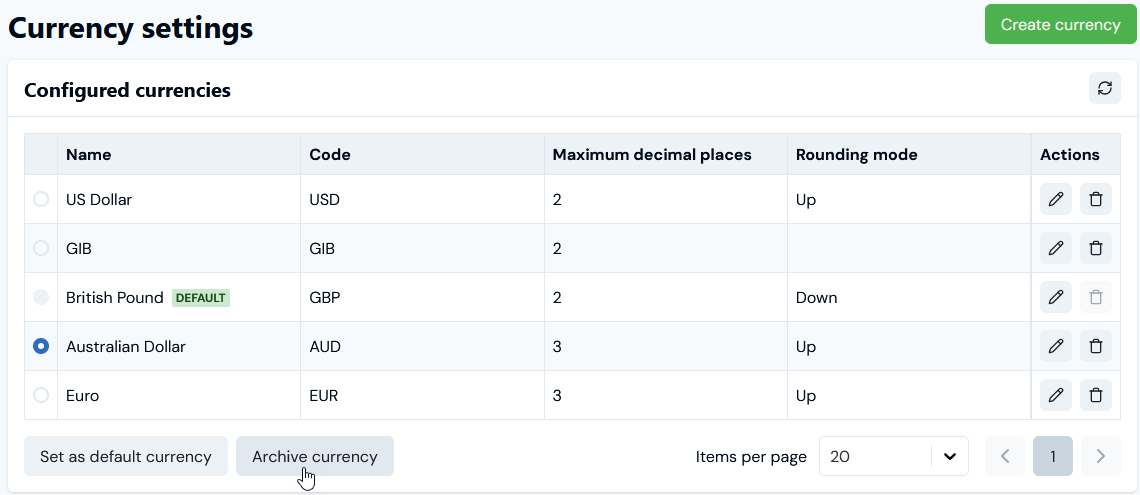
Alternatively, you can select a currency in the Configured currencies list and select Archive currency:
Assistant
Responses are generated using AI and may contain mistakes.