You can use API calls to create, configure, and manage Scheduled Event Configurations. Scheduled Event Configurations define custom Event types that reference Date/Time fields belonging to configuration and billing entities. They therefore provide you with an extra degree of flexibility over and above system-generated Events for setting up Notifications based on Events:
When you’ve created a Scheduled Event Configuration, it becomes available as an Event type to set up Notifications for in the same way as you can for system-generated Event types.
You use an offset parameter when you create a Scheduled Event Configuration, which allows you to specify in days after a Date/Time field when Events of that type will occur.
For example, you might want to set up a Scheduled Event Configuration that references the endDate field for Bill entities and then specify an offset of ten days. This means an Event of that type will occur ten days after a Bill end date. Using this custom Scheduled Event as a basis, you can then set up a Notification that triggers on the Event occurring, and which can then alert your Billing Operations team to check that the Bill has been settled.
This topic provides a worked example showing how to use an API call to create and configure a Scheduled Event Configuration and explains how to go on to set up a Notification based on the new custom Scheduled Event:
Tip: API Reference for Scheduled Events API calls? Details of all API calls used in this topic can be found in the Scheduled Event Configurations section of our API Reference documentation.
We’ll reference the endDate field for Bill entities to create the Event Configuration.
We’ll use the offset request body parameter to set an offset of 5 days.
Our custom Scheduled Event will therefore occur 5 days after the end date of Bills in our Organization.
Note: For this example, we use Postman to submit API Calls and the request body JSON is given for you to copy out directly to your clipboard.
To create a Scheduled Event Configuration:
First, use a POST call to obtain a Bearer Token for the Service User you want to use to create a Scheduled Event Configuration. See Service Authentication.
Note that for the name request parameter, you must use the following format:
scheduled.<name of entity>.<custom event name>
If the custom Scheduled Event has been created successfully, you’ll receive a 200 response similar to this:You’ve now created a Scheduled Event Configuration for the current Organization, which you can use as the basis for setting up a Notification.
Tip: Check for Scheduled Event Configurations? If you want to check for the Scheduled Event Configurations that have been created for your Organization, you can use the List ScheduledEventConfigurations API call.
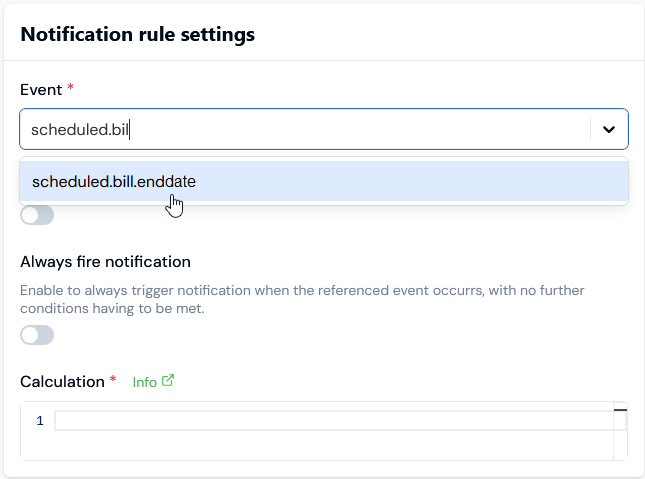
If you’ve created a Scheduled Event Configuration for your Organization, you can now create a Notification based on it in the same way that you can create Notifications based on a system-generated Event. For full details on how to create a Notification Rule based on an Event, please see the Creating, Managing, and Reviewing Notifications topic.If you go to Notifications>Create notification rule in the Console, on the Create page under Notification rule settings your new custom Scheduled Event will show for selection in the Event drop-down for the same name as you used to create it. For the example shown in the previous section of this topic, this Event name is scheduled.bill.enddate, and you can start to enter this name to filter the drop-down Event list:
Assistant
Responses are generated using AI and may contain mistakes.